- Click on the Open Console button, and you will get redirected to AWS Console in a new browser tab.
- On the AWS sign-in page,
- Leave the Account ID as default. Never edit/remove the 12 digit Account ID present in the AWS Console. otherwise, you cannot proceed with the lab.
- Now copy your User Name and Password in the Lab Console to the IAM Username and Password in AWS Console and click on the Sign in button
- Once Signed In to the AWS Management Console, Make the default AWS Region as US East (N. Virginia) us-east-1.
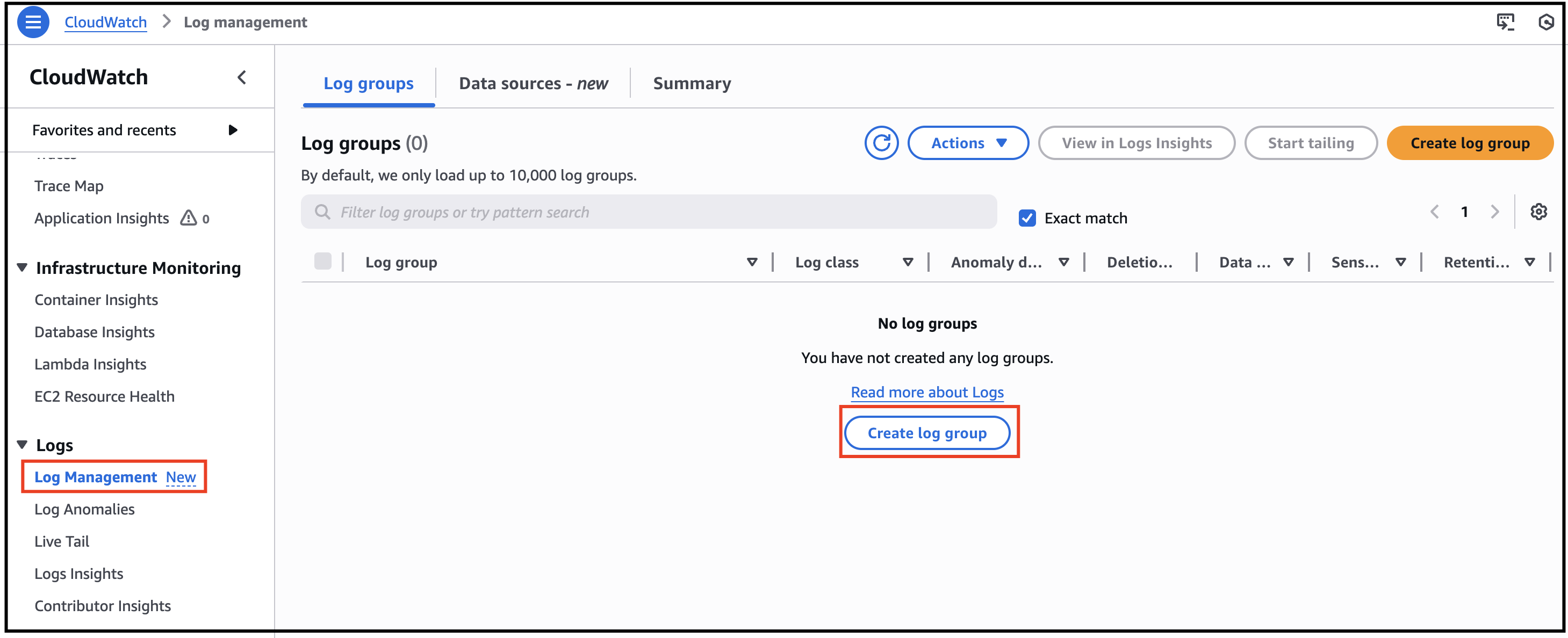
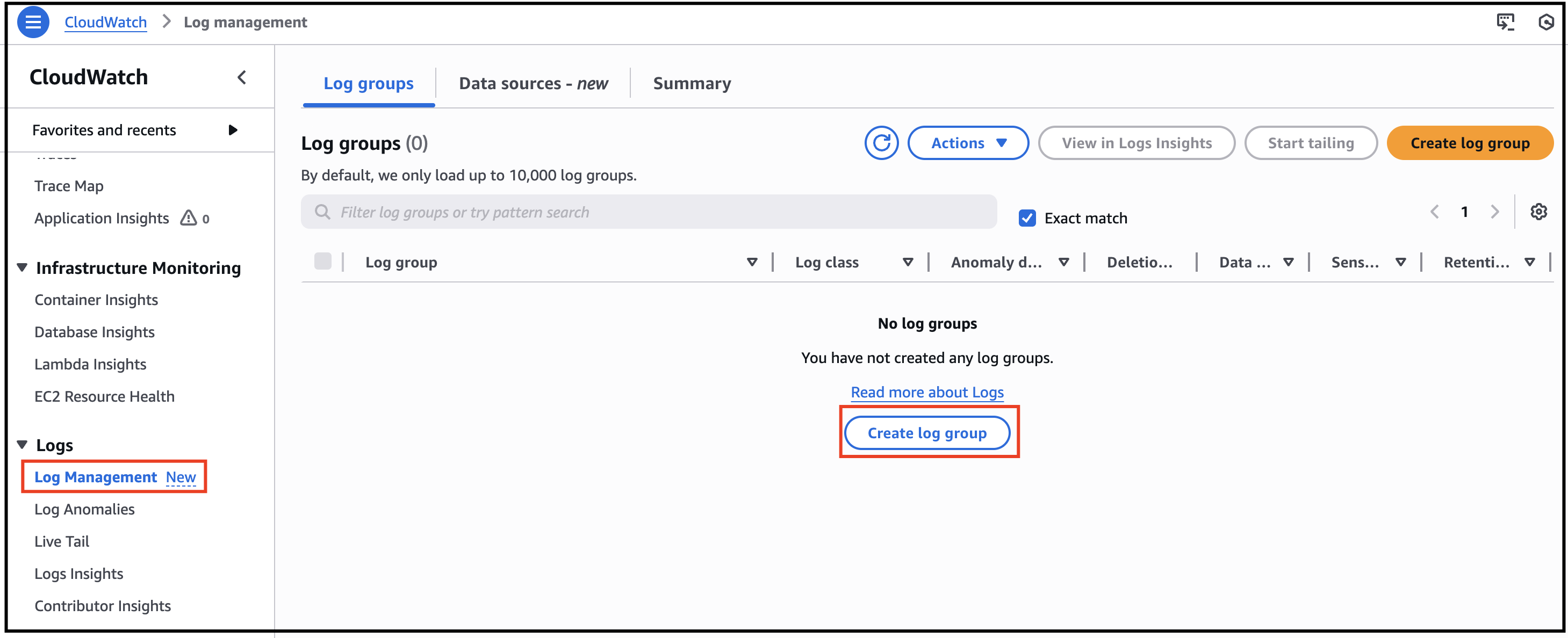
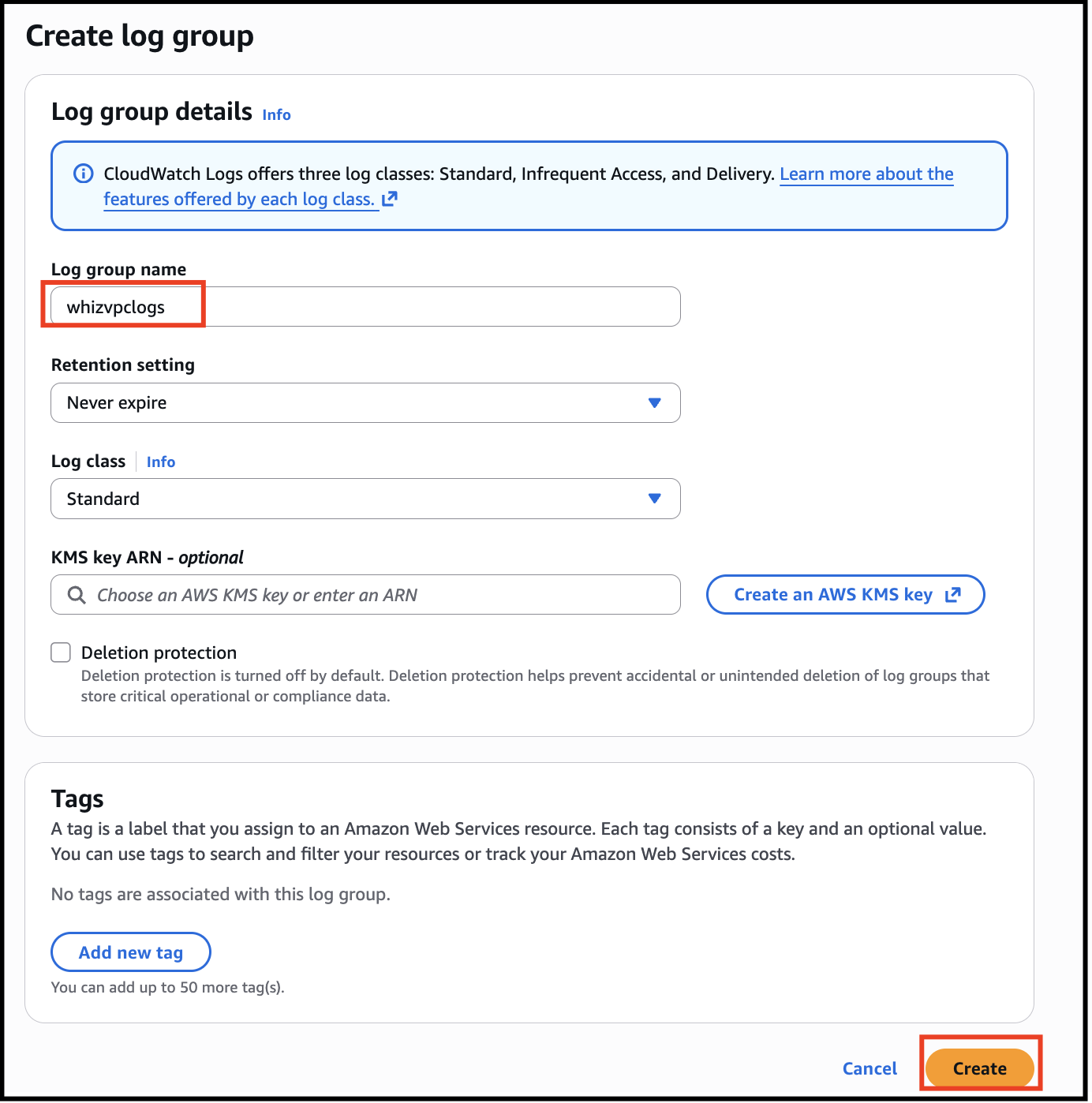
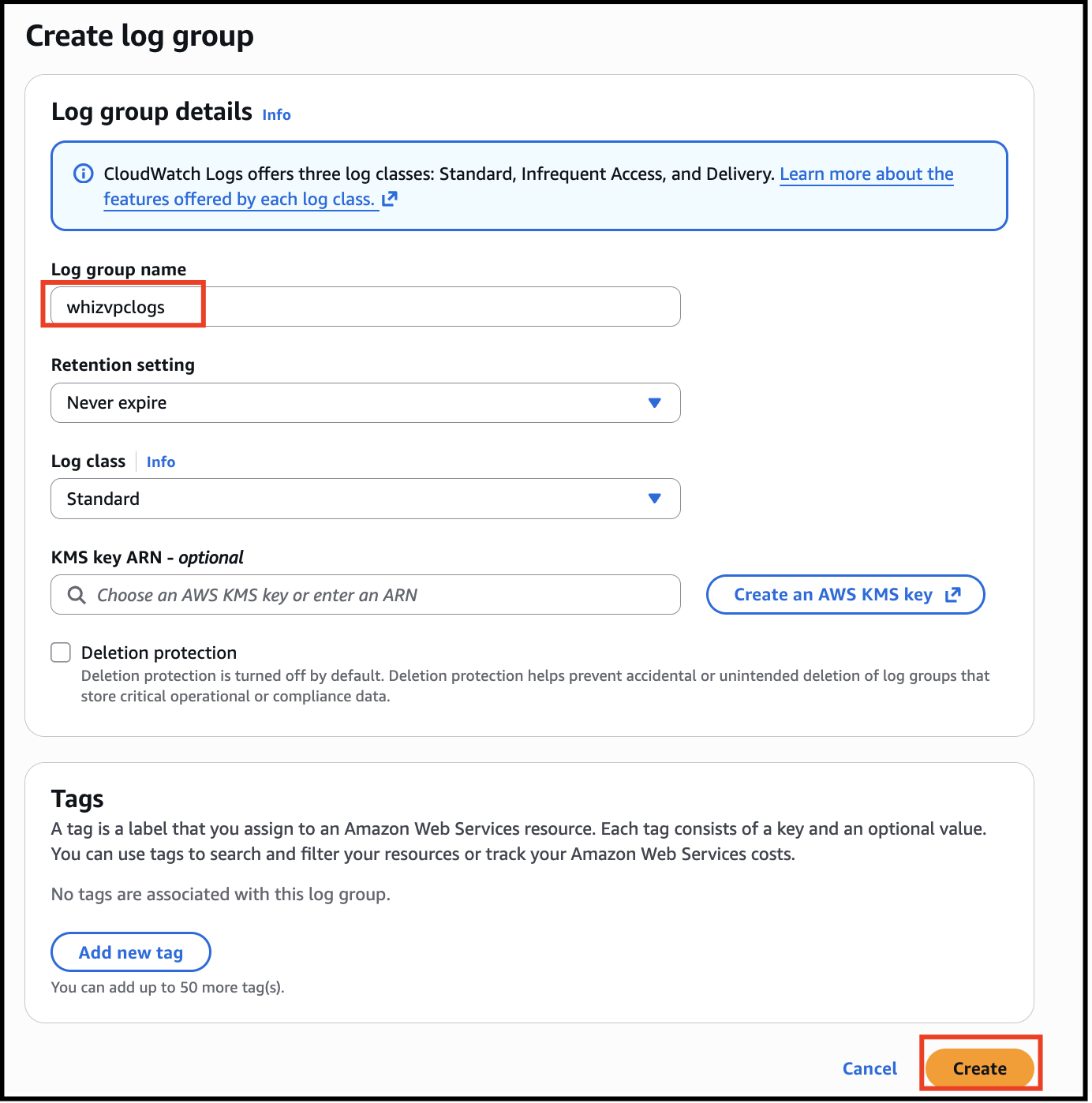
- In this task, you will create a CloudWatch Log Group called "whizvpclogs" using the CloudWatch service. Follow the steps below:
- Navigate to the Services menu at the top and choose CloudWatch under Management and Governance.
- Click on Log Management under Logs in the left-side panel, click on Create Log Group.
- Task 2: Create a CloudWatch Log
- Enter the Log Group Name : whizvpclogs and click on Create button.Note: You can ignore the error related to fetching CloudWatch metrics

- Task 2: Create a CloudWatch Log
- Navigate to the Services menu on the top and choose VPC under Networking and Content Delivery.
- Click on Your VPC’s in the left side panel then click on Create VPC.
- Select VPC only.
- Enter the Name tag: whizvpc and enter IPv4 CIDR block: 10.1.0.0/16. Leave other options as default and click on Create button.
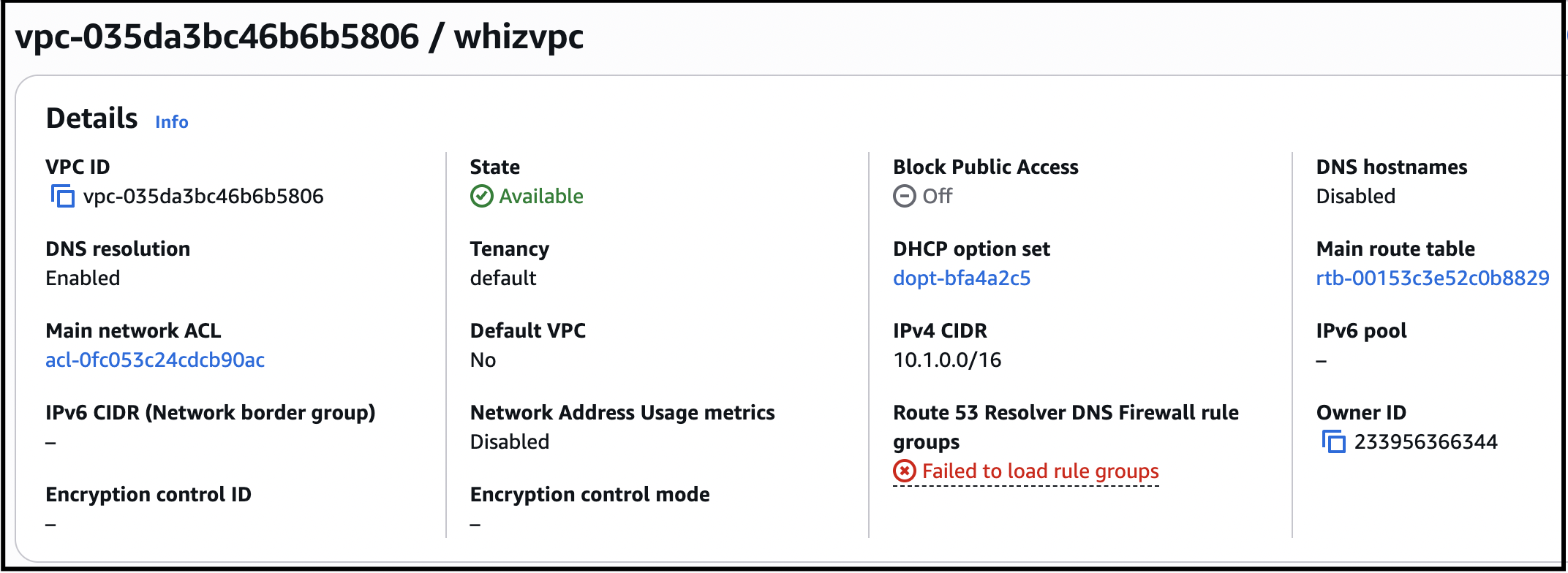
- Task 3: Create a VPC
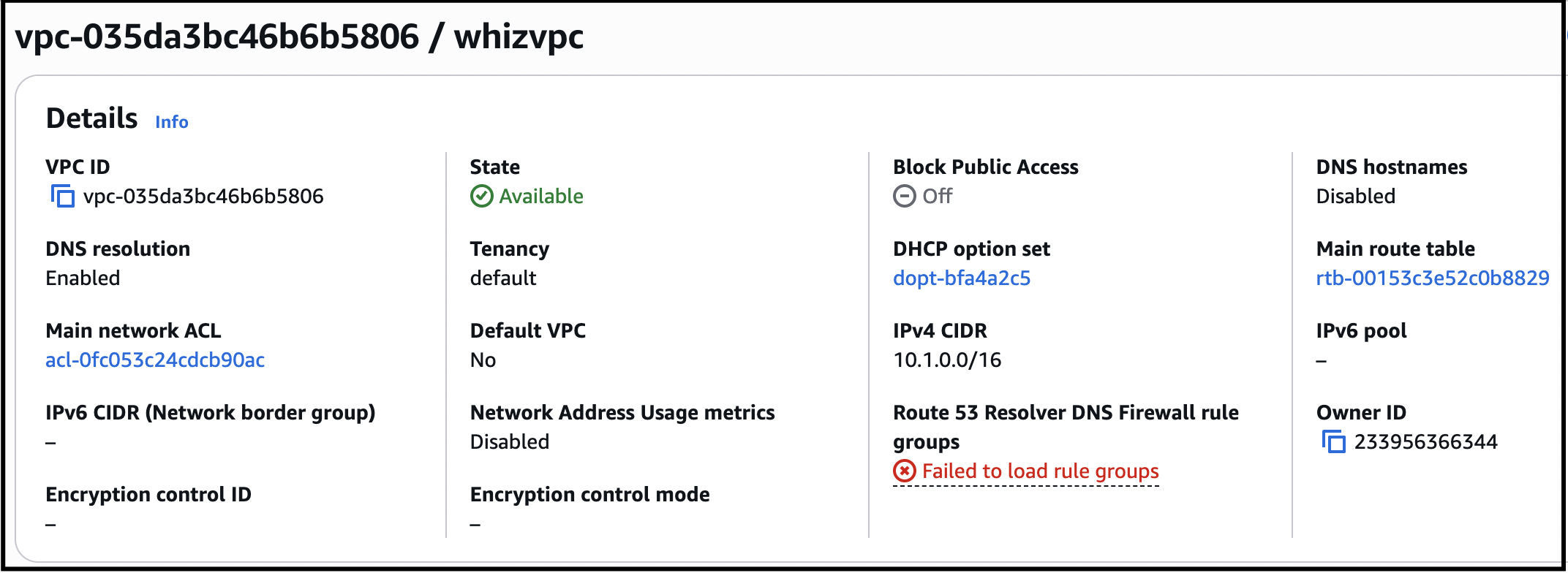
- In this task, you will create VPC Flow Logs for your VPC using the AWS Management Console. Follow the steps below:
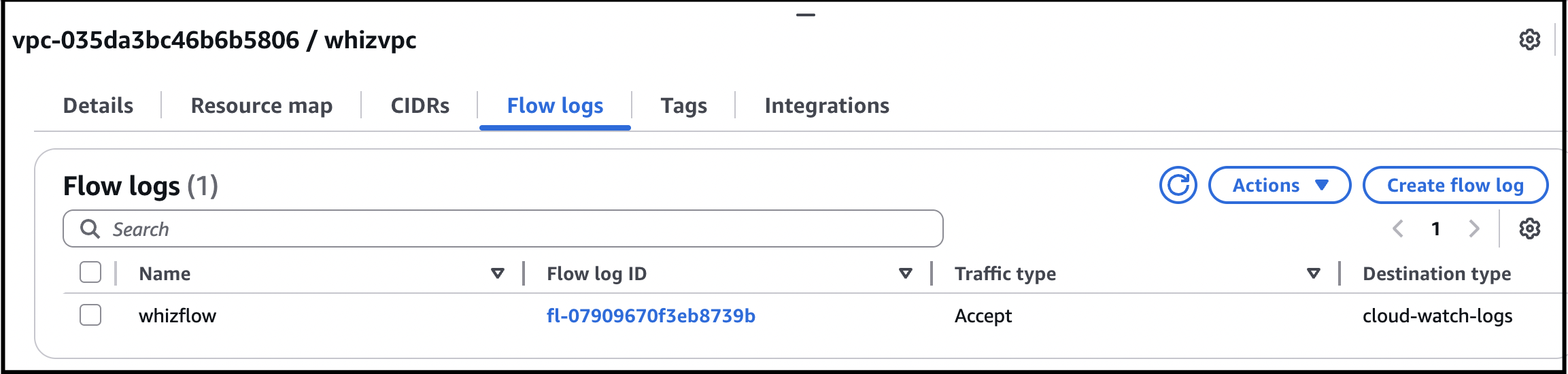
- Inside whizvpc, scroll down and click on Flow logs tab and click on Create Flow Log button.
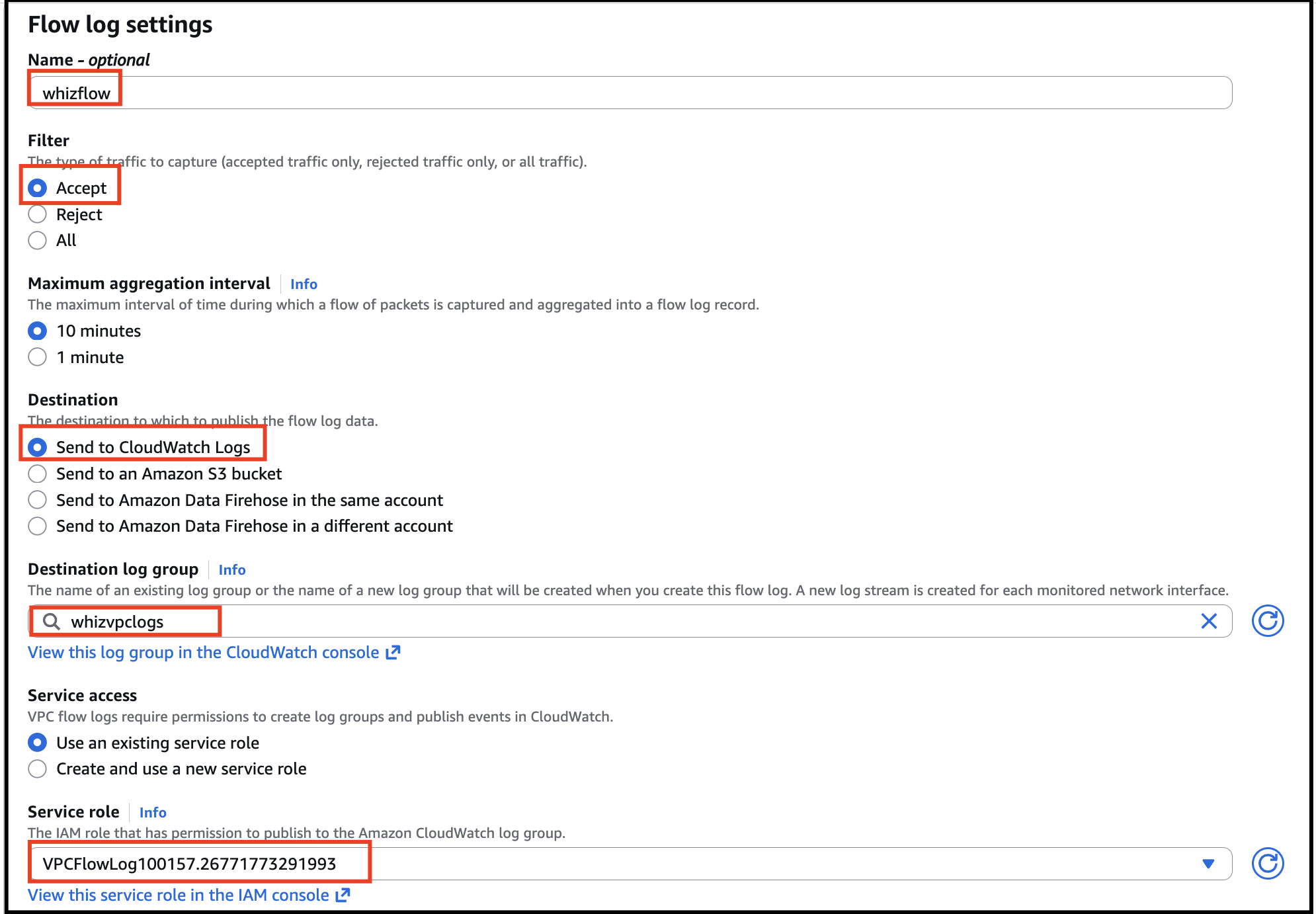
- Under Flow log settings: Name: whizflow
- Select “Filter” as Accept and select “Destination” as Send to CloudWatch Logs. Choose the above created CloudWatch Logs “whizvpclogs”.
- Choose the IAM role “VPCFlowLog<RANDOM_NUMBER>” and leave the others as default. Click on Create flow log.
- Once the flow logs are created, scroll down click on Flow Logs.
- Task 4: Create VPC Flow Logs
- Now you have successfully learned how to create VPC Flow Logs. Do You Know?AWS VPC Flow Logs can be used not only for network monitoring and security analysis but also for troubleshooting and performance analysis of your Amazon Virtual Private Cloud (VPC) environment.
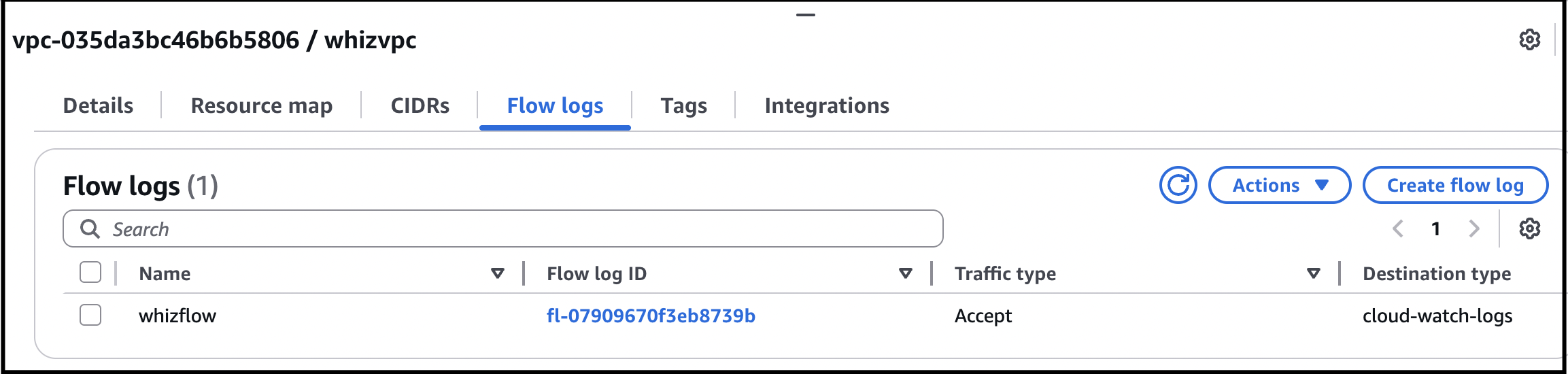
- Now you have successfully learned how to create VPC Flow Logs.
- Task 4: Create VPC Flow Logs
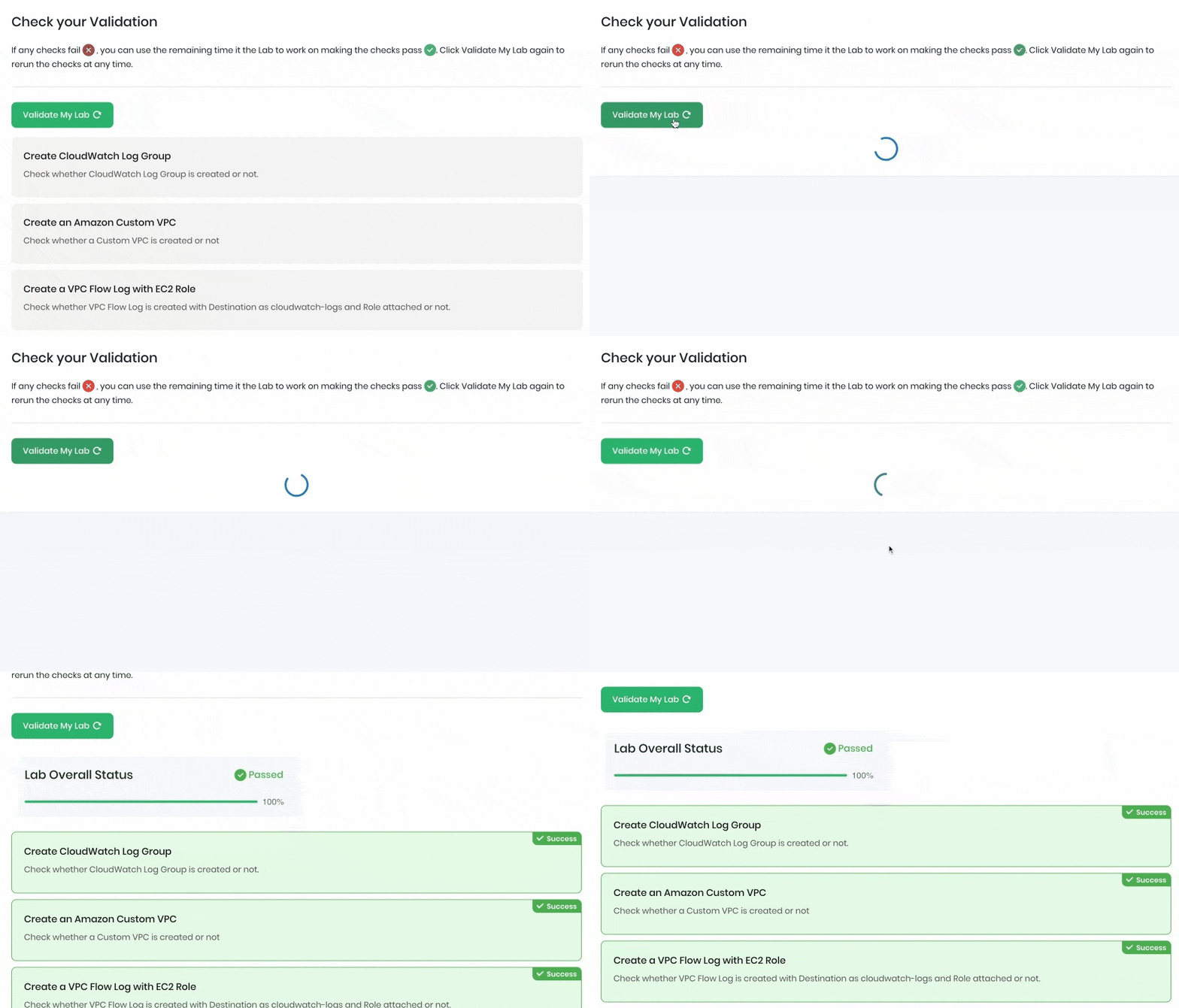
- Once the lab steps are completed, please click on the Validate button on the left side panel.
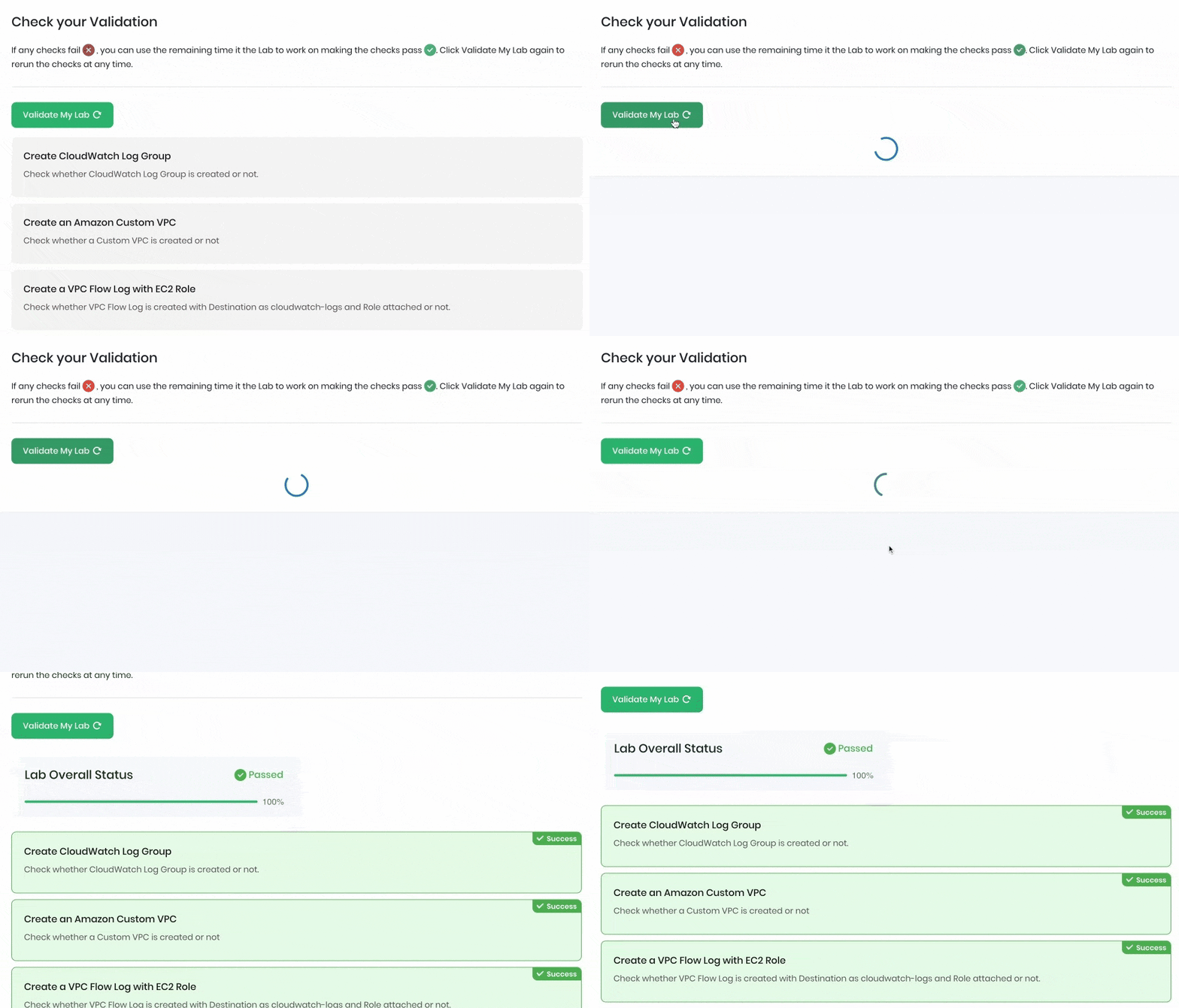
- This will validate the resources in the AWS account and displays whether you have completed this lab successfully or not.
- Sample output :
- Task 5: Validation Test
- You have successfully created the CloudWatch Logs.
- You have successfully created the VPC.
- You have successfully created the VPC Flow Logs.
- Sign out of AWS Account.
- You have successfully completed the lab.
- Once you have completed the steps click on End Lab from the lab console.