- Click on the Open Console button, and you will get redirected to AWS Console in a new browser tab.
- On the AWS sign-in page,
- Leave the Account ID as default. Never edit/remove the 12-digit Account ID present in the AWS Console. Otherwise, you cannot proceed with the lab.
- Now copy your Username and Password in the Lab Console to the IAM Username and Password in the AWS Console and click on the Sign-in button.
- Once Signed In to the AWS Management Console, make the default AWS Region as US East (N. Virginia) us-east-1.
- In this task, we are going to create new IAM users by providing the name, password access, permissions, and tags. These users will be added to their respective groups in the next task.
- Click on Services and select IAM under the Security, Identity, & Compliance section.
- In the IAM dashboard, select the IAM Users option in the left panel and click on the Create User button to create a new IAM user.
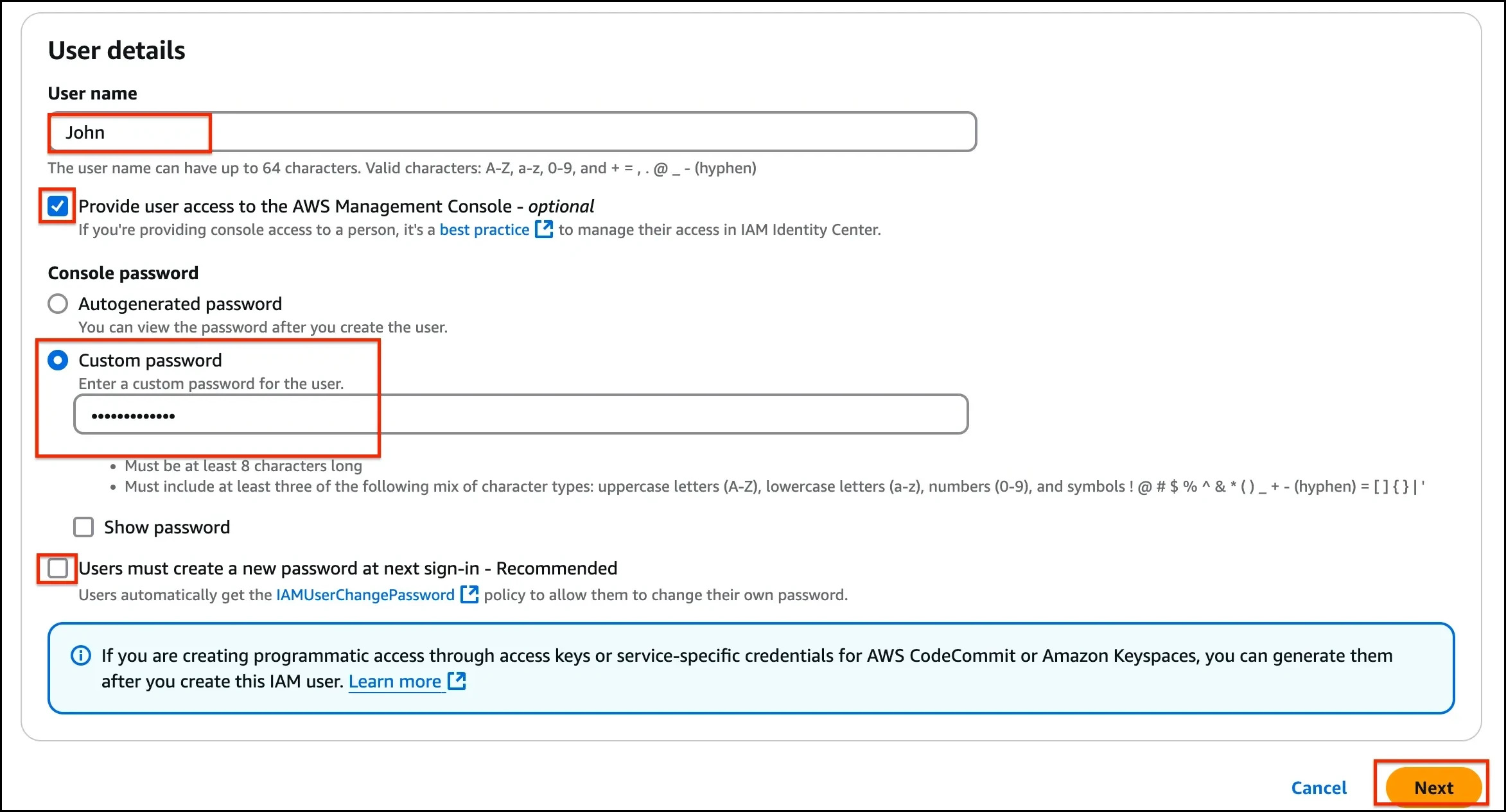
- In the Add User page, fill in the User Details section as follows:
- User name: Enter John (or the desired name for the user)
- Check the Provide user access to the AWS Management Console - optional checkbox
- Select Custom password under Console Password and Enter lab@123 (or the desired password for the user)
- Uncheck the Users must create a new password at the next sign-in (recommended) checkbox.
- Click on the Next button.
- In the Set permissions section, keep things as default. Click on the Next button.
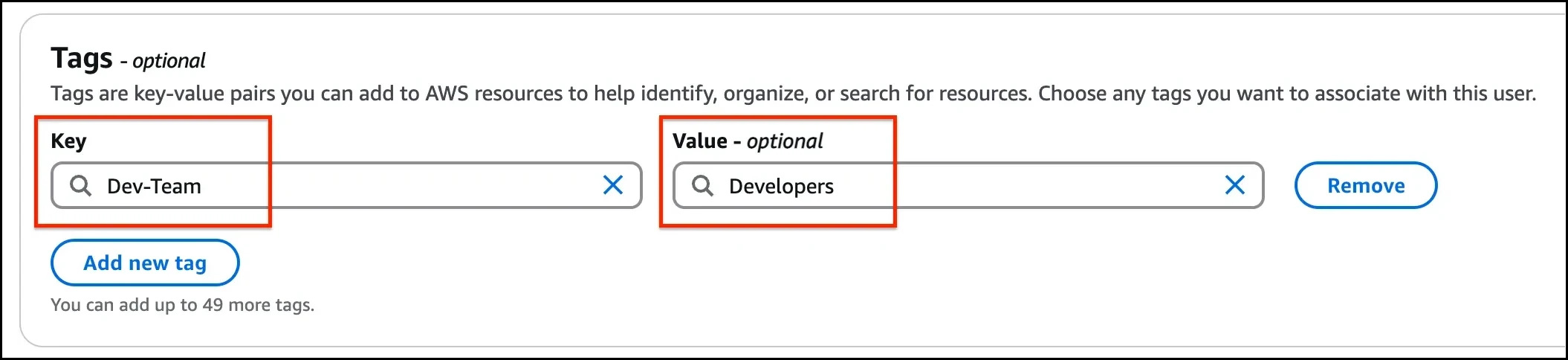
- Scroll down and Under Tags, Click on the Add new tag button:
- Key: Enter Dev-Team
- Value: Enter Developers
- Click on the Create User button
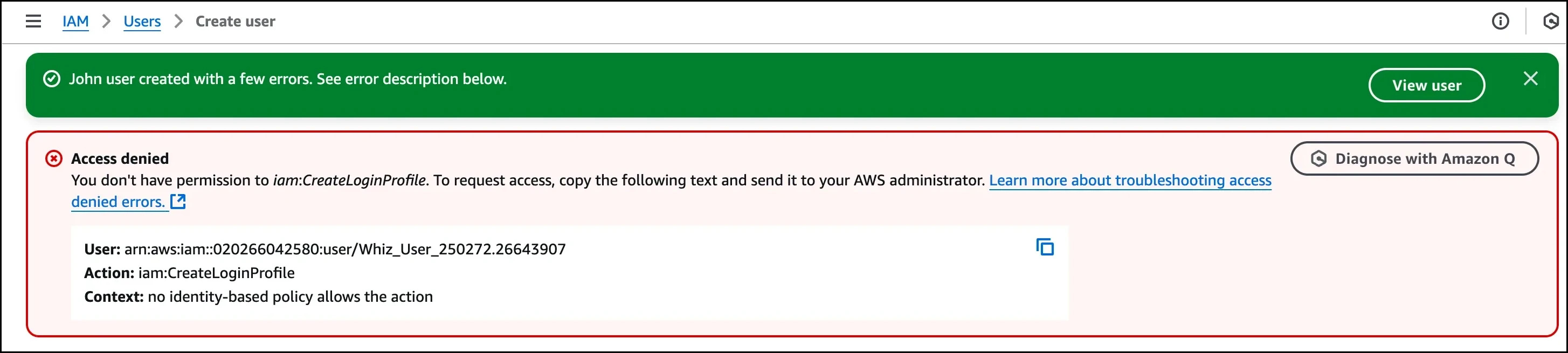
- Note: Ignore the above error if it appears while creating Users and click on Close.
- Click on the Return to users list button and then on the Continue button.
- Repeat the same steps and tags for the IAM user by the name Sarah.
- Repeat the steps to create IAM users by the name Ted and Rita with the following details,
- Custom password: lab@123
- Key: HR-Team
- Value: HR
- We have created 4 IAM users.
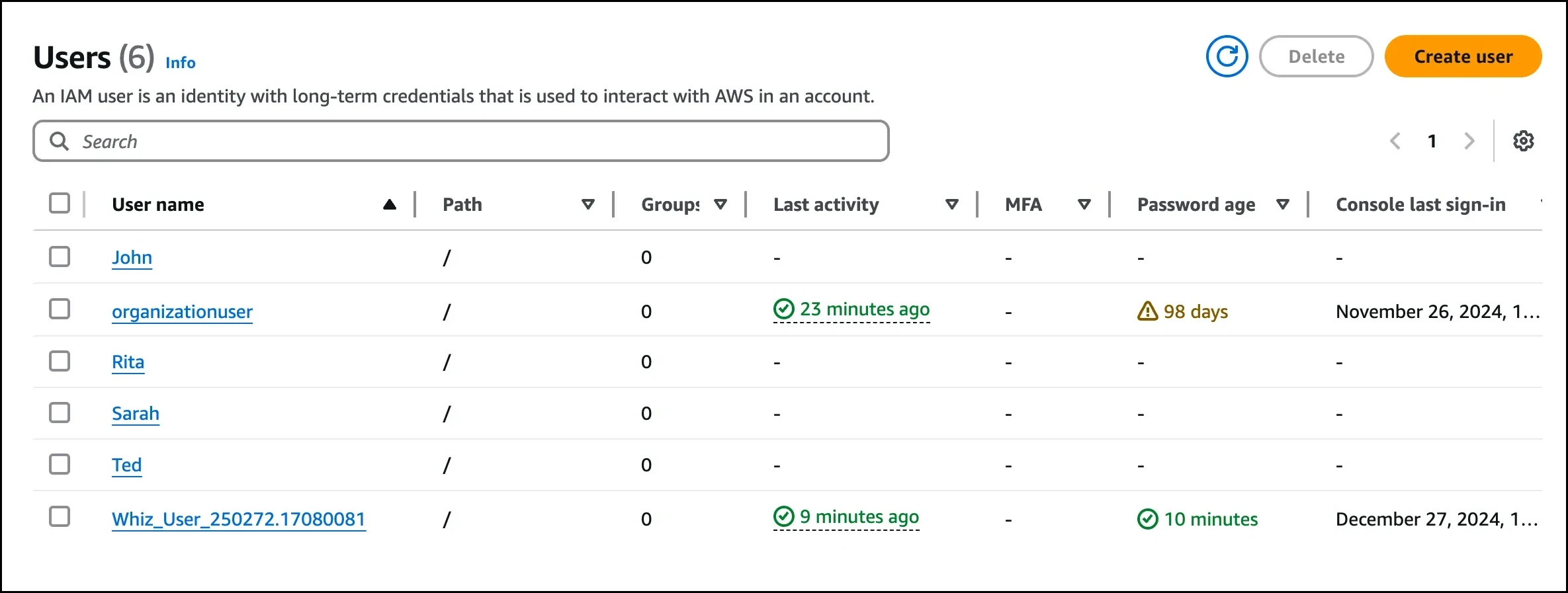
- In this task, we are going to create new IAM groups and will add the users to their respective groups. Moreover, we will be adding permissions to the group so that users within the group have access to the services allocated to them using the permission policies.
- Select the IAM User groups in the left panel and click on the Create group
- Set Group Name:
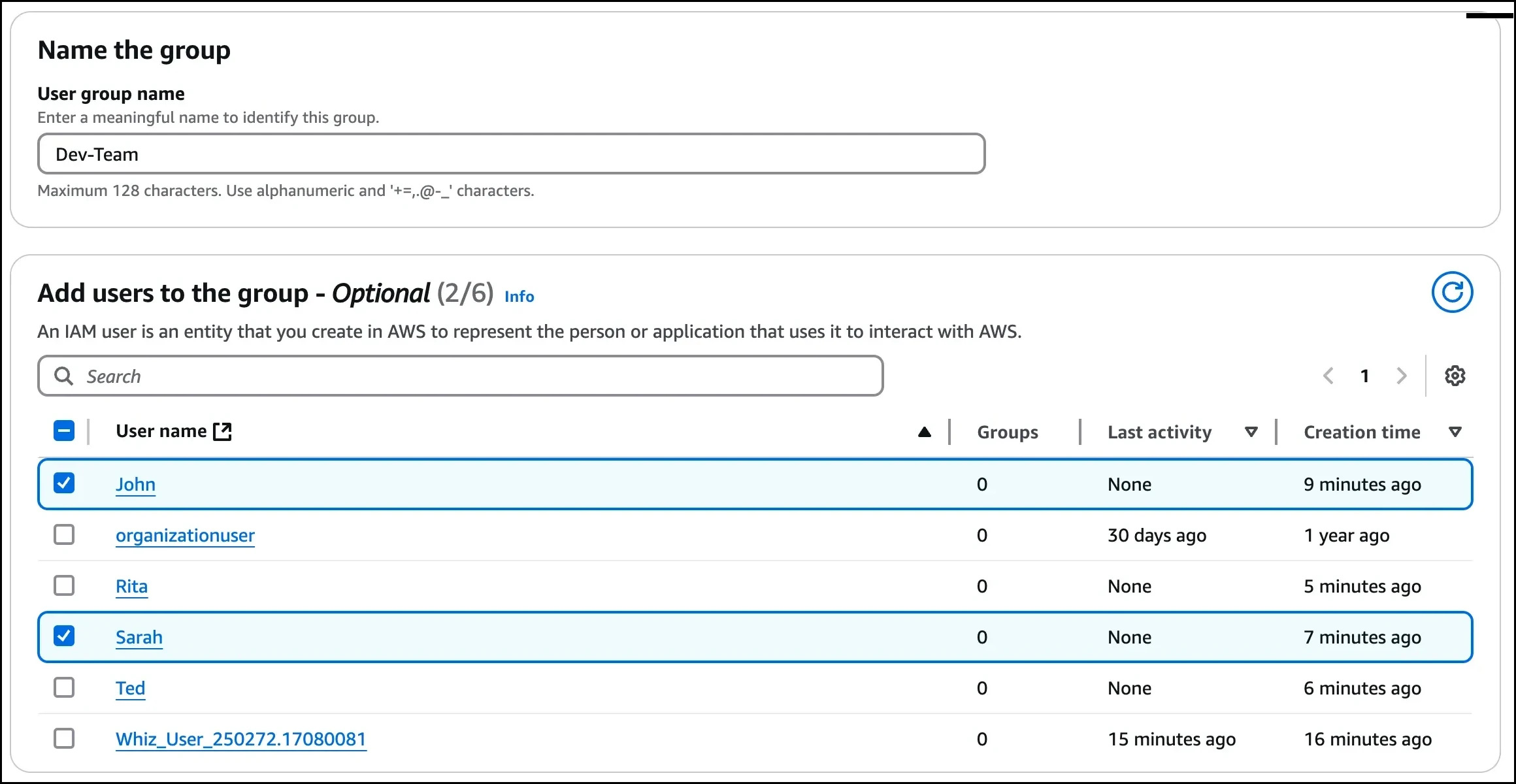
- User group name: Enter Dev-Team
- Scroll down and select John and Sarah under Add Users to the group.
- Scroll down to the Attach permissions Policies section and search for AmazonEC2ReadOnlyAccess and AmazonS3ReadOnlyAccess policies. These policies provide read access for EC2 and S3 to the added users in the group.
- Note: Do not add other policies than the ones mentioned above. You will get an error while creating a group
- Review all details and click on the Create group button.
- Repeat the same steps to create an HR-Team group.
- Click on the Create group
- User group name: HR-Team
- Scroll down and select Ted and Rita under Add Users to the group.
- Under Attach permissions Policies, select the Billing policy.
- Note: Do not add other policies than the ones mentioned above. You will get an error while creating a group
- Review all details and click on the Create group button.
- Do You Know?
- In 2021, AWS IAM introduced a new feature called Access Analyzer, which uses automated reasoning to help identify the resources that an IAM policy allows or denies access to. This can be useful for identifying unintended access and for auditing IAM policies to ensure they conform to security best practices. Access Analyzer also provides recommendations for how to modify policies to remove unintended access, making it easier to maintain a secure AWS environment
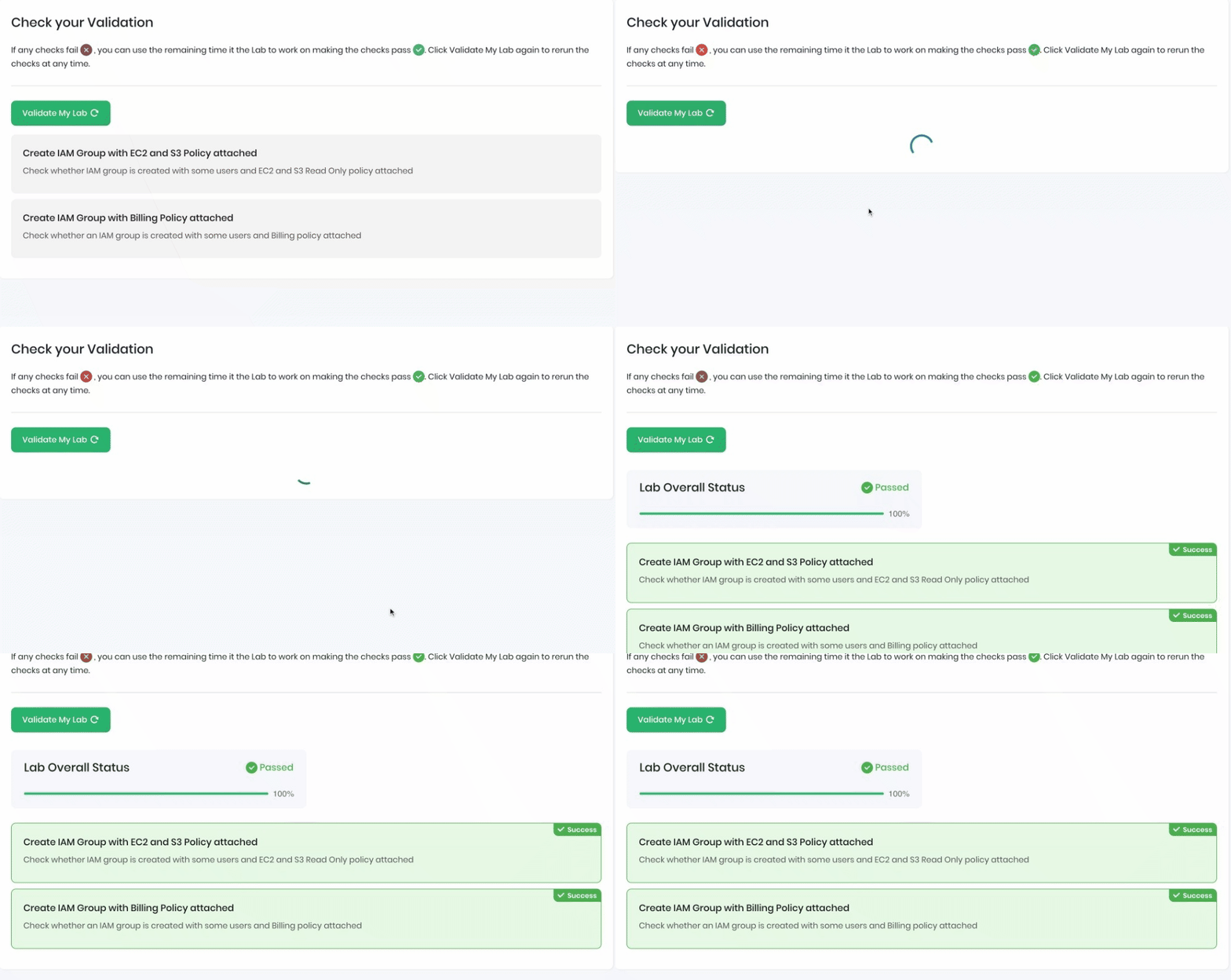
- Once the lab steps are completed, please click the Lab Validation button on the left side panel. Click Validate My Lab on the Lab Validation tab.
- This will validate the resources in the AWS account and display whether you have completed this lab successfully or not.
- Sample output :
- Completion and Conclusion
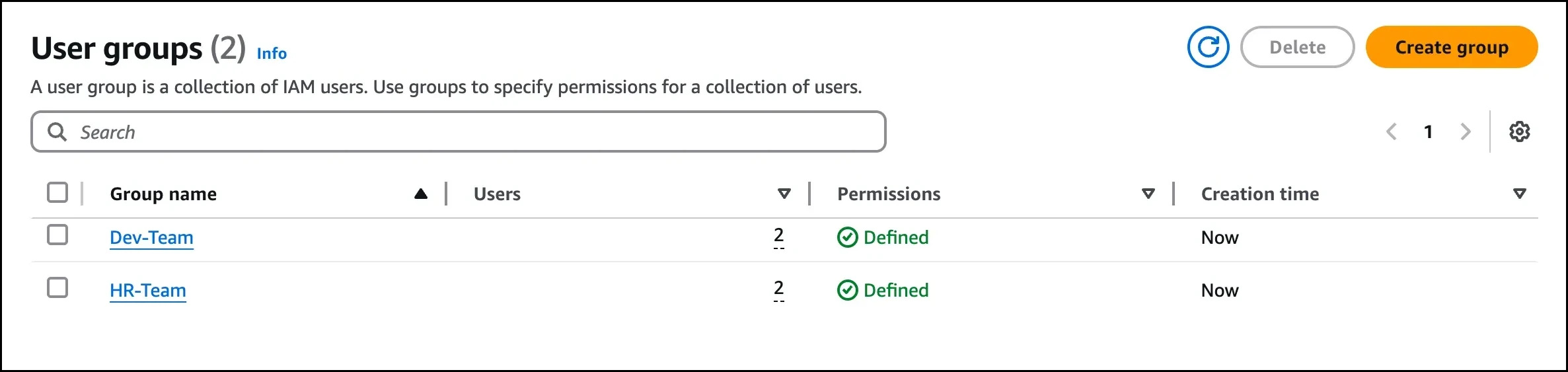
- In this lab, you created 4 IAM users & 2 IAM groups. At the time of the IAM groups creation, you attached the required IAM policies, added John and Sarah to the Dev Team group, and added Ted and Rita to the HR Team group.
- You have learned how to create IAM users and groups.
- You have learned how to add users to the respected IAM groups.
- You have learned how to attach a policy while creating the IAM groups.
- You have learned how to allow a specific user/group to access services and resources in your AWS account.
- You have successfully validated the lab.
- End Lab
- Sign out of AWS Account.
- You have successfully completed the lab.
- Once you have completed the steps click on End Lab from the lab console.