Intermediate01:20:00
How to Encrypt an Unencrypted RDS DB Instance
- Click on the Open Console button, and you will get redirected to AWS Console in a new browser tab.
- On the AWS sign-in page, Leave the Account ID as default. Never edit/remove the 12 digit Account ID present in the AWS Console. otherwise, you cannot proceed with the lab. Now copy your User Name and Password in the Lab Console to the IAM Username and Password in AWS Console and click on the Sign in button.
- On the AWS sign-in page,
- Leave the Account ID as default. Never edit/remove the 12 digit Account ID present in the AWS Console. otherwise, you cannot proceed with the lab.
- Now copy your User Name and Password in the Lab Console to the IAM Username and Password in AWS Console and click on the Sign in button.
- Once Signed In to the AWS Management Console, Make the default AWS Region as US East (N. Virginia) us-east-1.
- Navigate to the Services menu at the top left corner and click on RDS present under the Database section.
- Select the Database from the left panel.
- Click on Create Database and you are navigated to the page where you will provide all the required details to create a MySQL database.
- Task 2: Create an RDS DB Instance (without enabling the Encryption)

- On the page, click on the option Standard create a method for our lab requirement.
- Task 2: Create an RDS DB Instance (without enabling the Encryption)

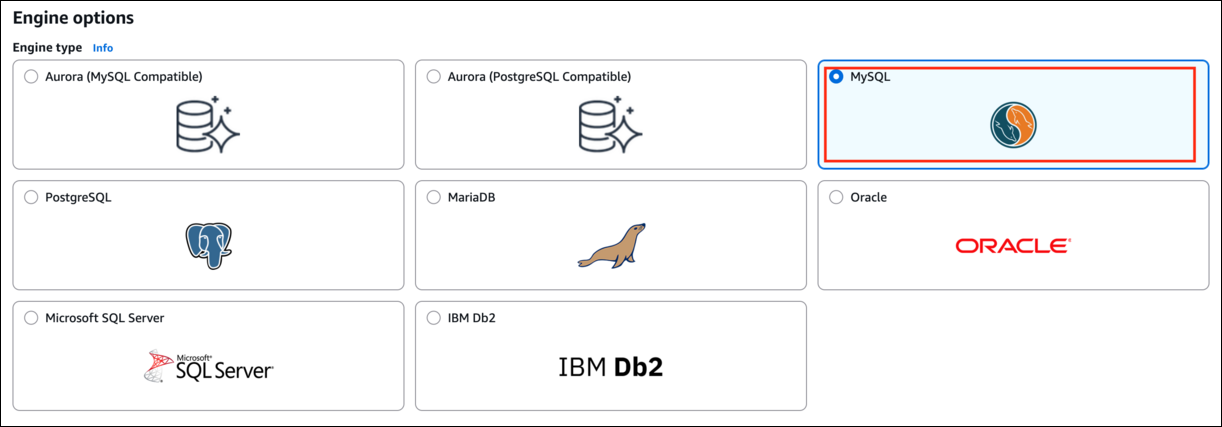
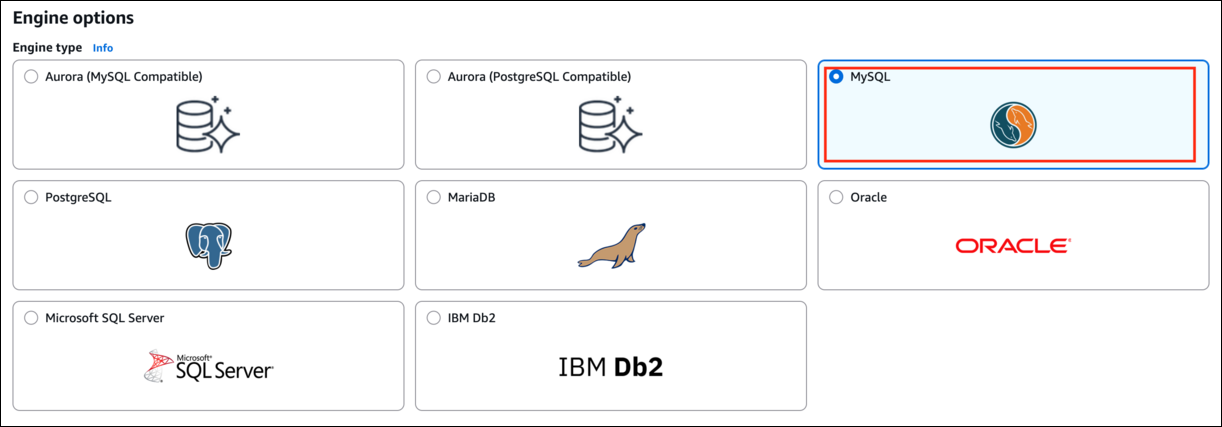
- In the Engine options, select MySQL engine type.
- Task 2: Create an RDS DB Instance (without enabling the Encryption)
- Edition: Leave it as default
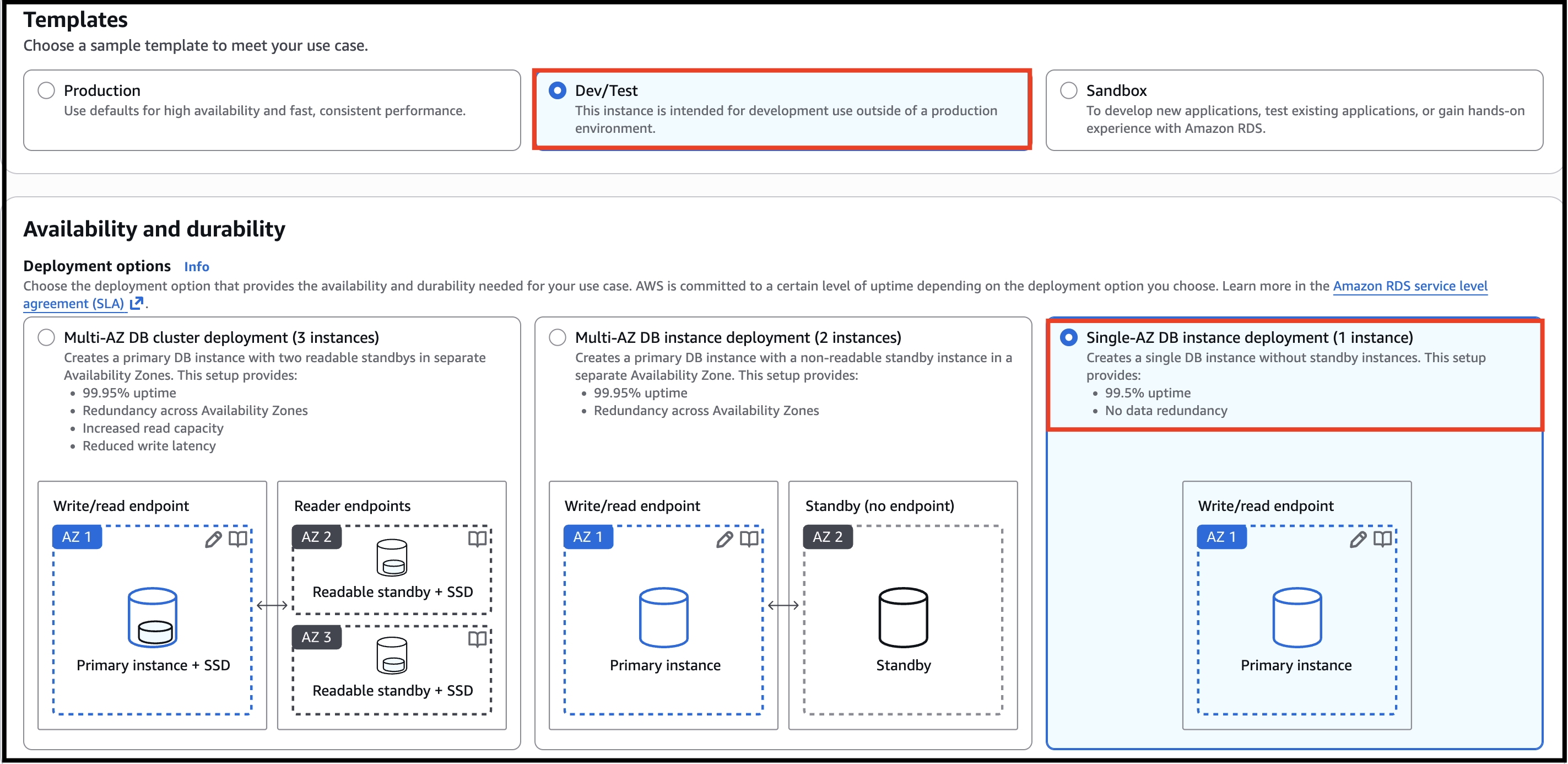
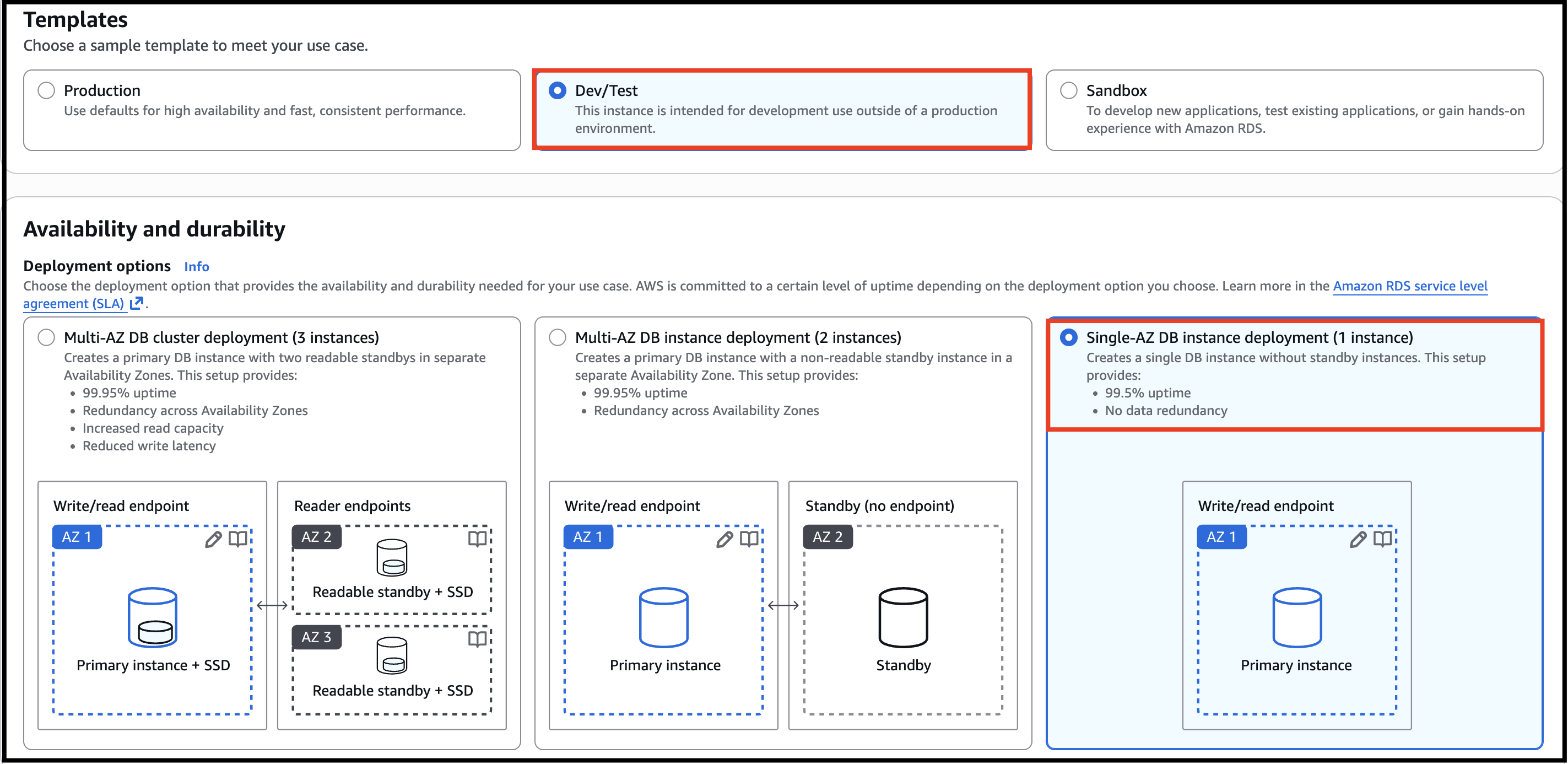
- Under Templates, select the Dev/Test option. Availability option as Single-AZ DB instance deployment (1 Instance).
- Task 2: Create an RDS DB Instance (without enabling the Encryption)
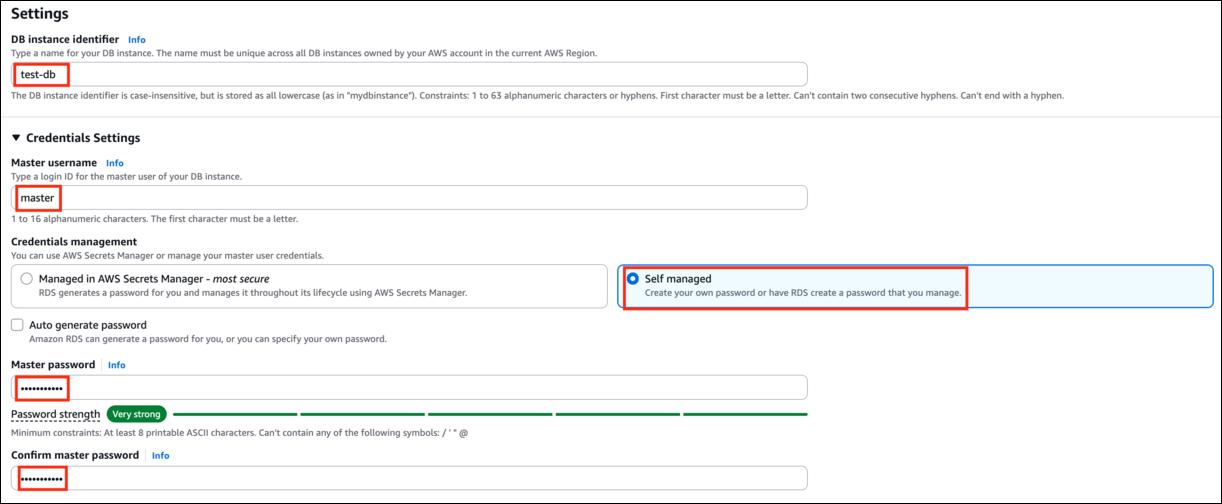
- Under Settings, provide the following details.
- DB cluster identifier: Enter test-db
- Master username: Enter master
- Credentials management: select Self managed
- Master password and Confirm master password: Enter lab123
- Task 2: Create an RDS DB Instance (without enabling the Encryption)
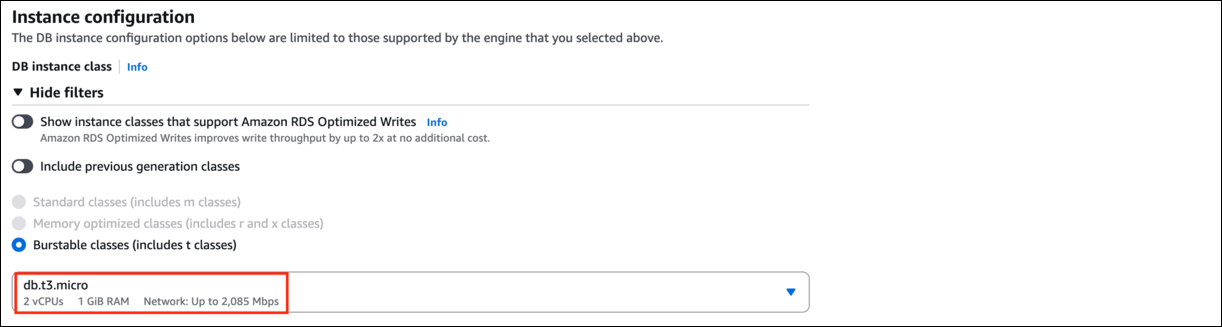
- Under DB instance class, select Burstable classes (includes t classes) and select db.t3.micro
- Task 2: Create an RDS DB Instance (without enabling the Encryption)
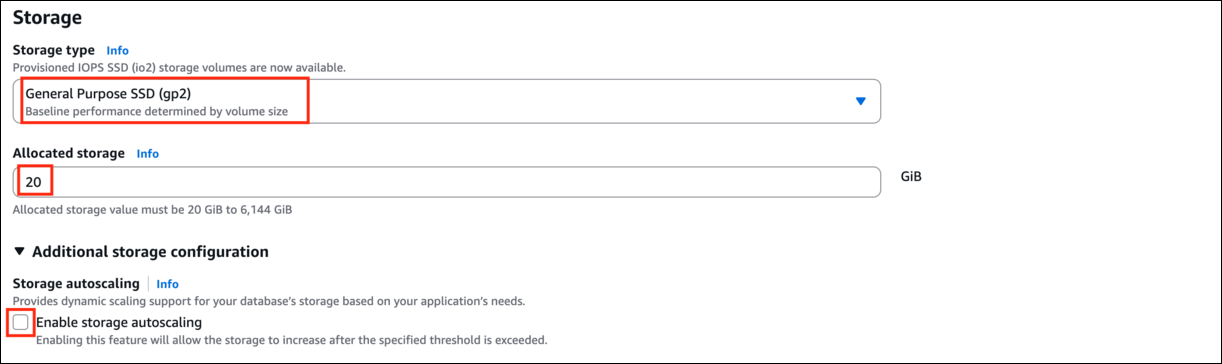
- Storage type : General Purpose (SSD)
- Allocated storage : 20
- Uncheck Enable storage autoscaling.
- Task 2: Create an RDS DB Instance (without enabling the Encryption)
- Leave the Availability and durability as default.
- Under Connectivity, make sure that Public access is No. Leave everything else as default.
- Task 2: Create an RDS DB Instance (without enabling the Encryption)

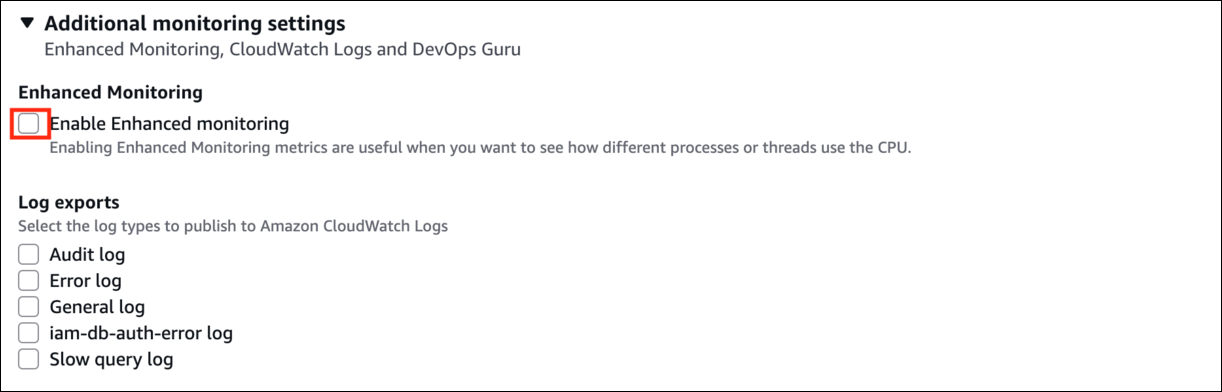
- Uncheck Enhanced Monitoring option.
- Task 2: Create an RDS DB Instance (without enabling the Encryption)
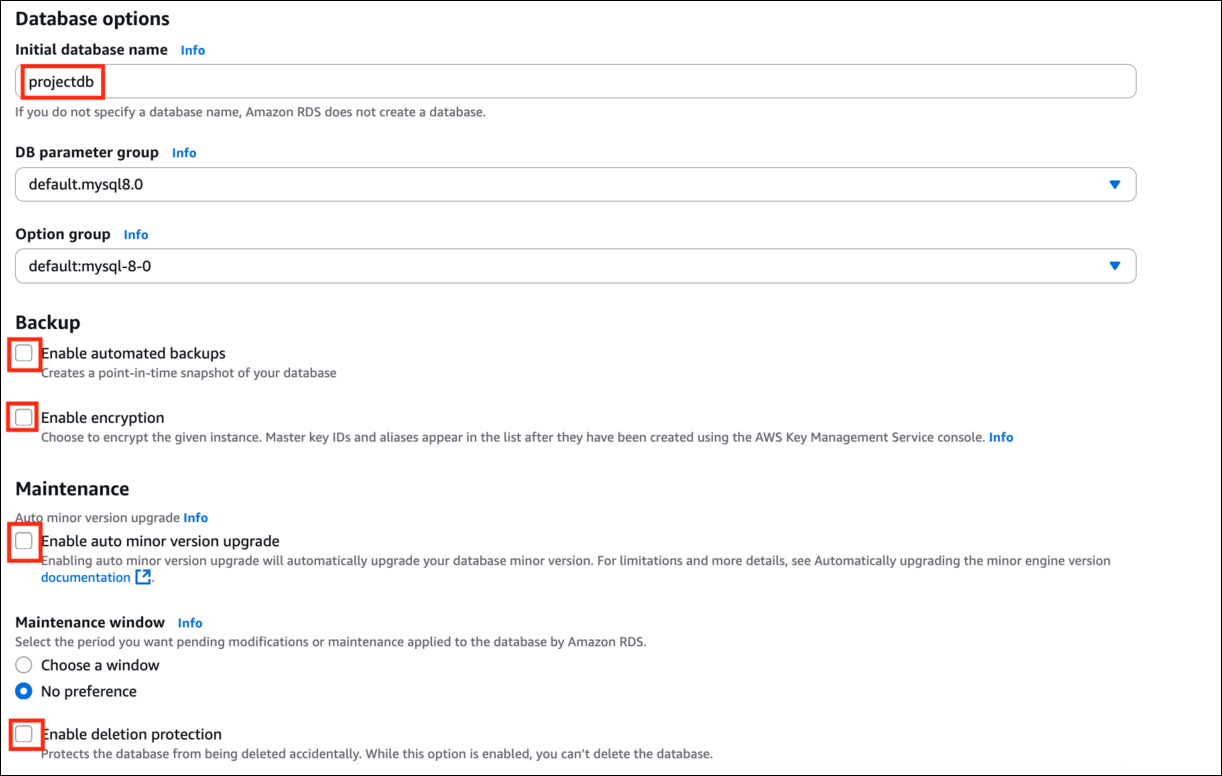
- Expand the Additional configuration.
- Initial database name : Enter projectdb
- Leave DB parameter group and Option group as default.
- Uncheck Enable automatic backups.
- Uncheck Enable encryption option.
- Uncheck Deletion protection.
- Task 2: Create an RDS DB Instance (without enabling the Encryption)
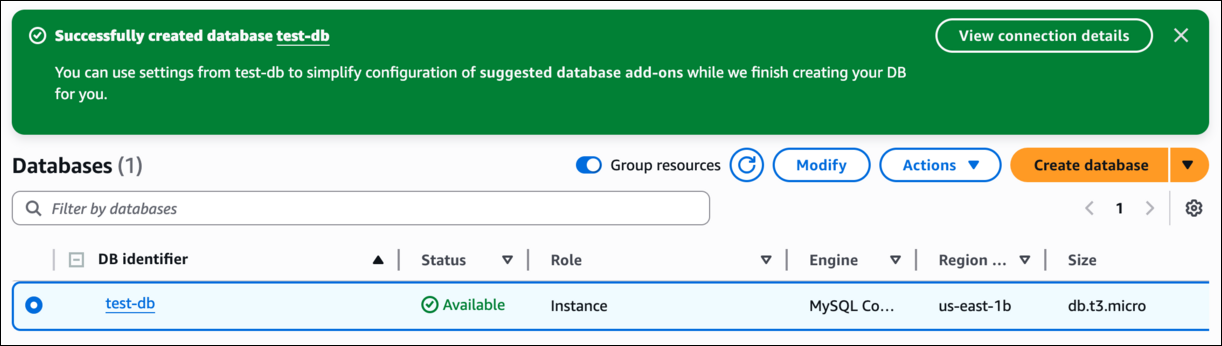
- Click on Create Database to create the database. This process does take time between 5-10 minutes.
- Once the database is created the status changes to Available.
- Task 2: Create an RDS DB Instance (without enabling the Encryption)
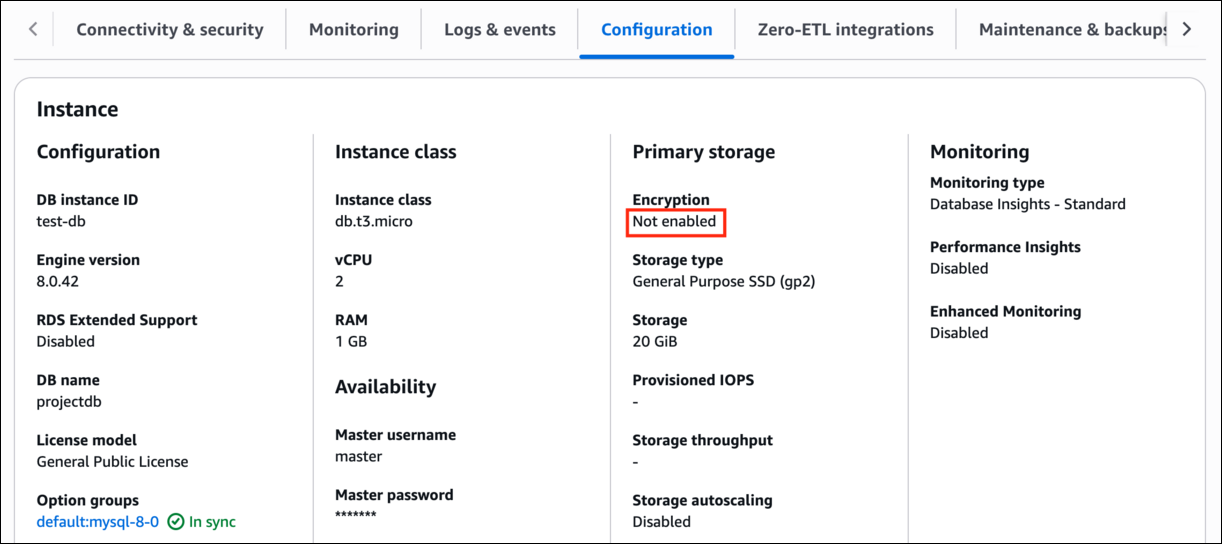
- Click on the database and navigate to the Configuration tab. You can notice that the Encryption is not enabled, as we wanted it to be.
- Task 2: Create an RDS DB Instance (without enabling the Encryption)
- If we select the database and go to modify it, we will not find an option to Encrypt the database.
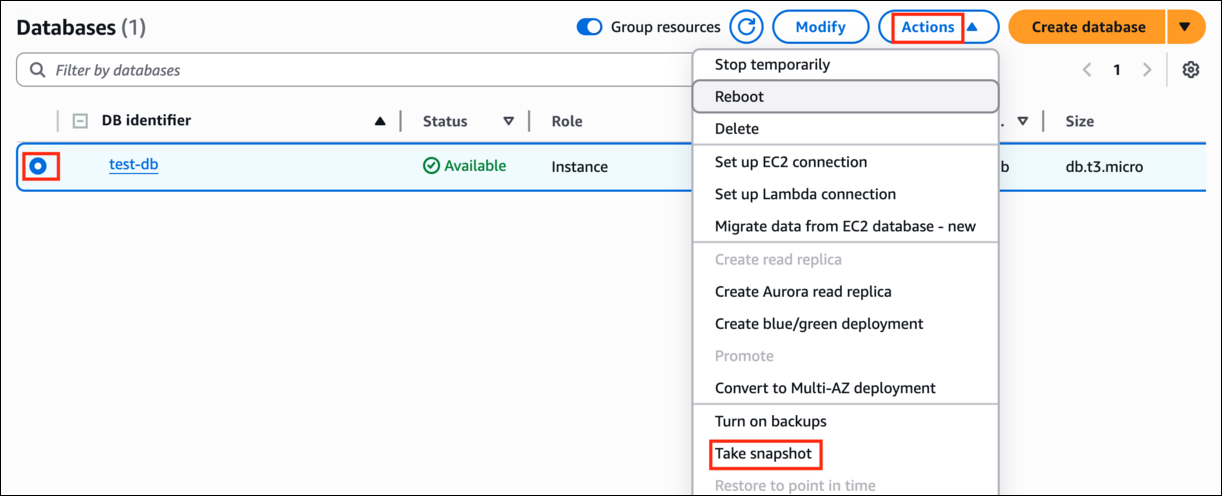
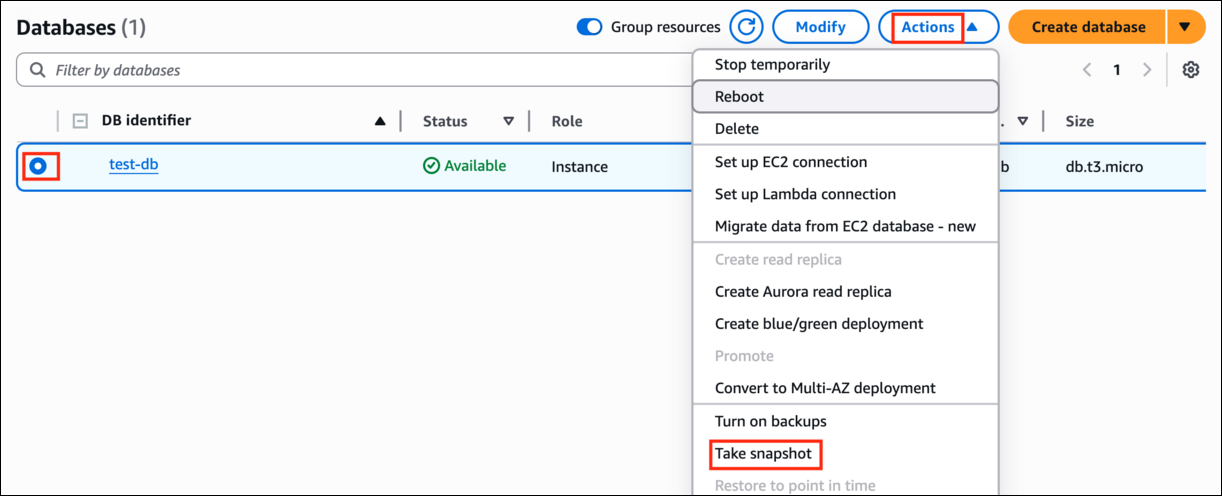
- Select the created DB Instance and click on Actions.
- Click Take snapshot from the options.
- Task 3: Take a snapshot from the existing DB Instance
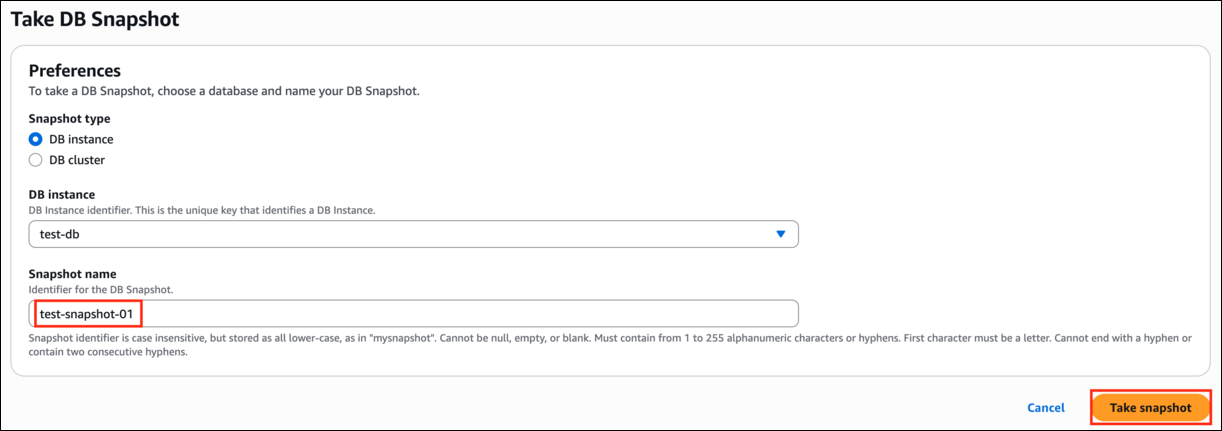
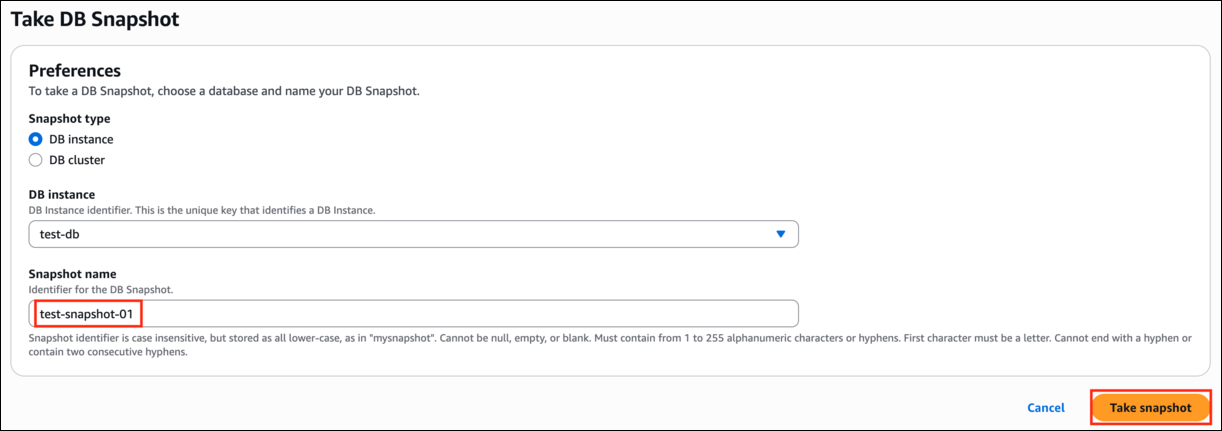
- Give a name to the snapshot, test-snapshot-01 and click on the Take snapshot button.
- Task 3: Take a snapshot from the existing DB Instance
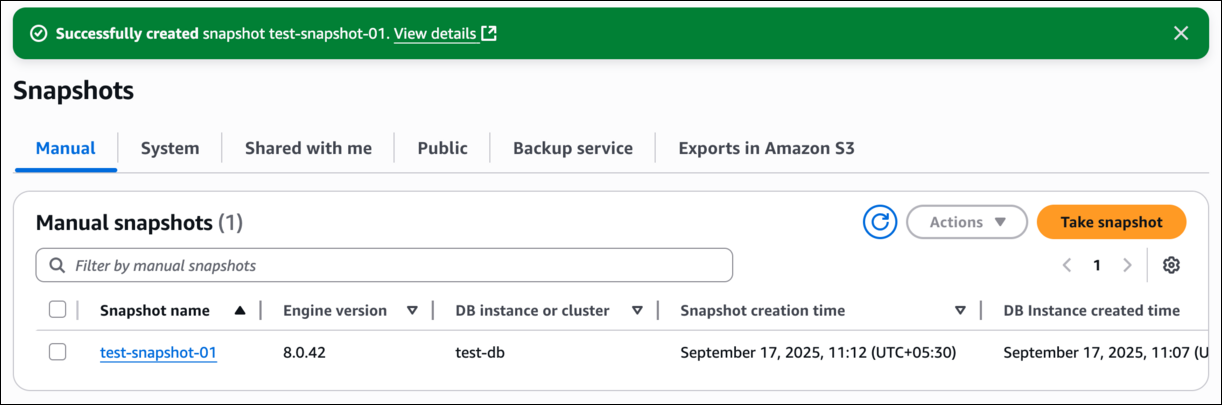
- The snapshot creation takes 3-5 minutes. Refresh after some time, the snapshot creation status will be available.
- Task 3: Take a snapshot from the existing DB Instance
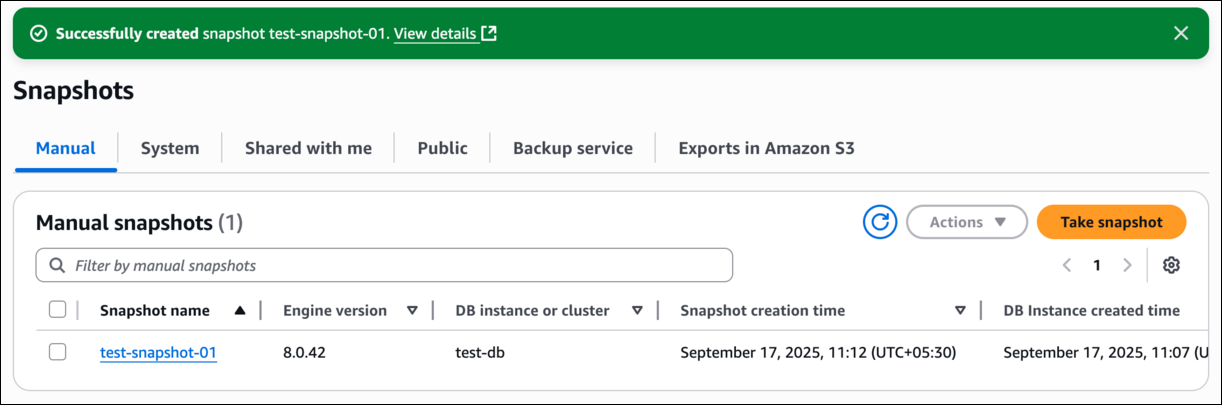
- It is not possible to encrypt the snapshot in this stage. We need to encrypt the snapshot while taking a copy of it.
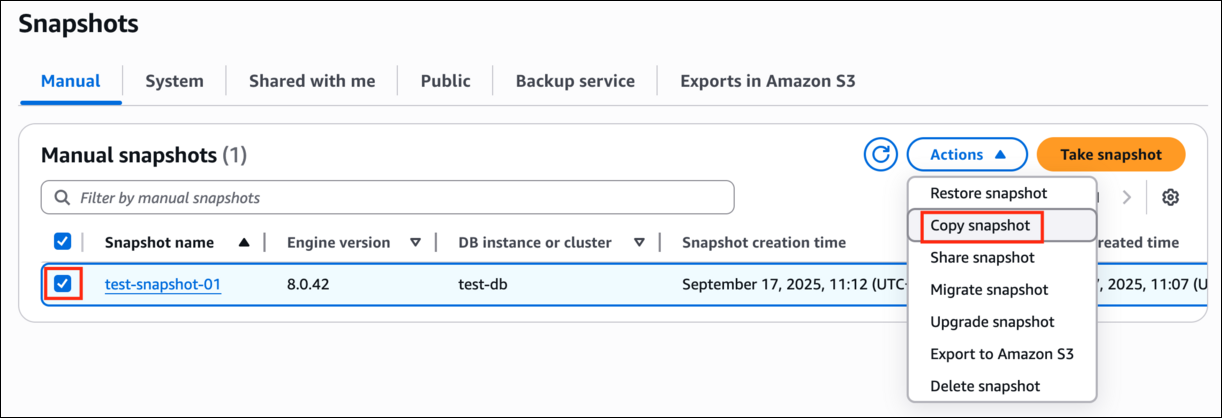
- Under the Manual snapshots, select the created snapshot and click on Actions.
- Click Copy snapshot from the options.
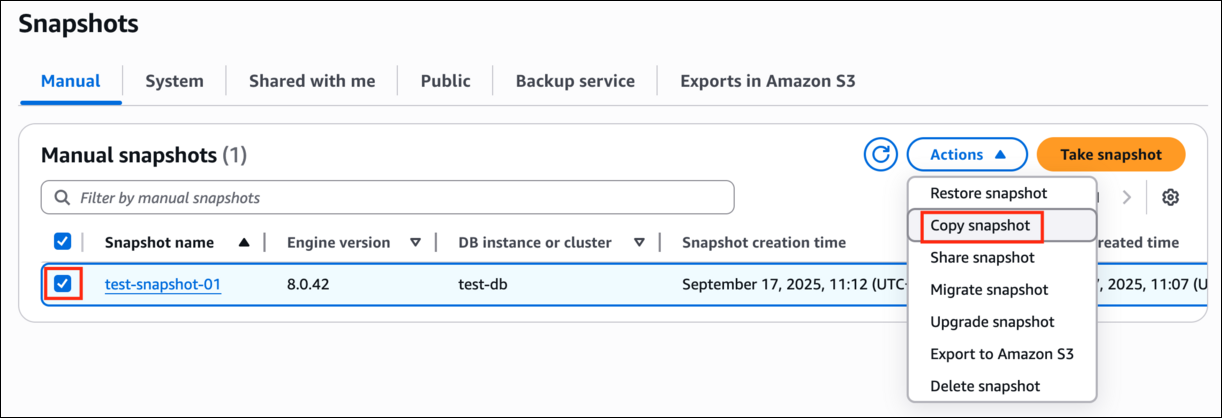
- Task 4: Make a copy of the snapshot and encrypt it
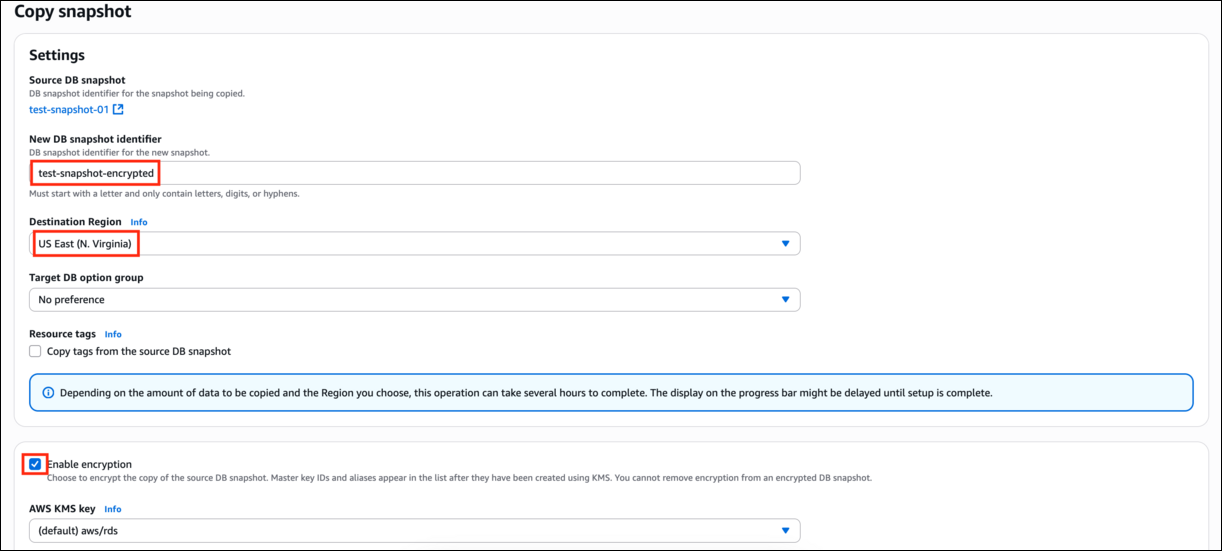
- Under settings, provide the following details.
- New DB Snapshot Identifier: Enter test-snapshot-encrypted
- Destination Region: Select US East (N.Virginia)
- Under Encryption, check Enable Encryption. Leave the master key as default.(IMPORTANT)
- Task 4: Make a copy of the snapshot and encrypt it
- Click on the Copy snapshot button. The snapshot will be created within 3 - 5 minutes.
- Task 4: Make a copy of the snapshot and encrypt it
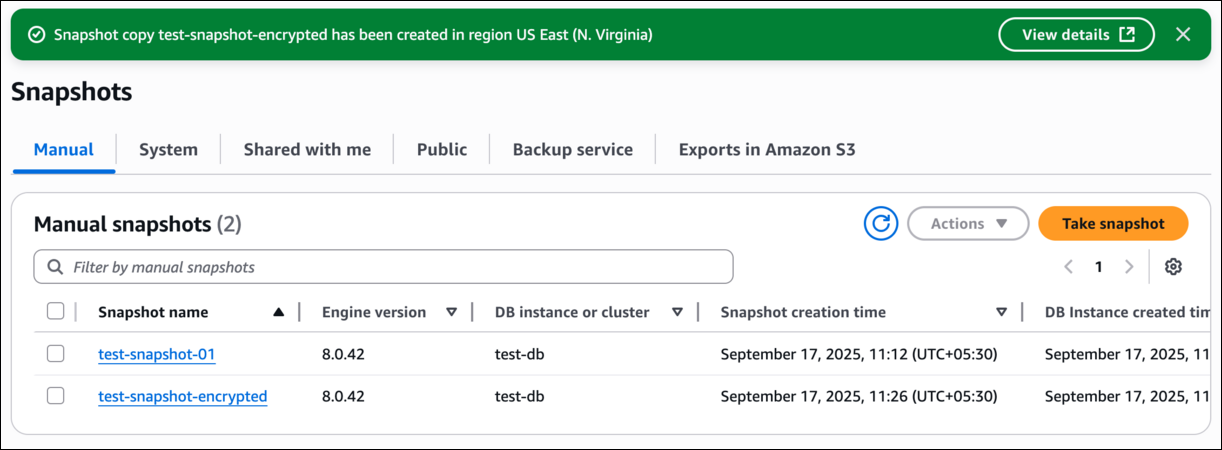
- Click on the encrypted snapshot and click on Actions.
- Click on Restore snapshot from the options.
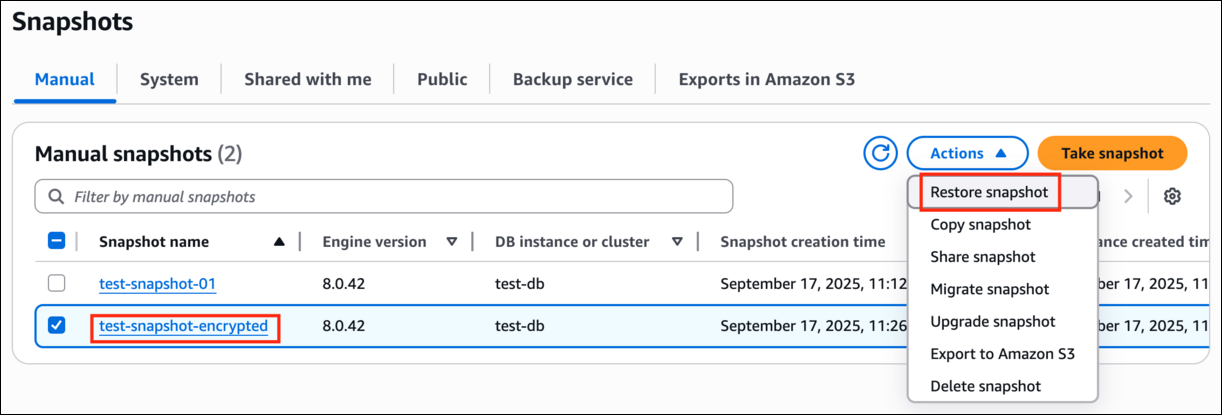
- Task 5: Restore DB Instance from the encrypted snapshot
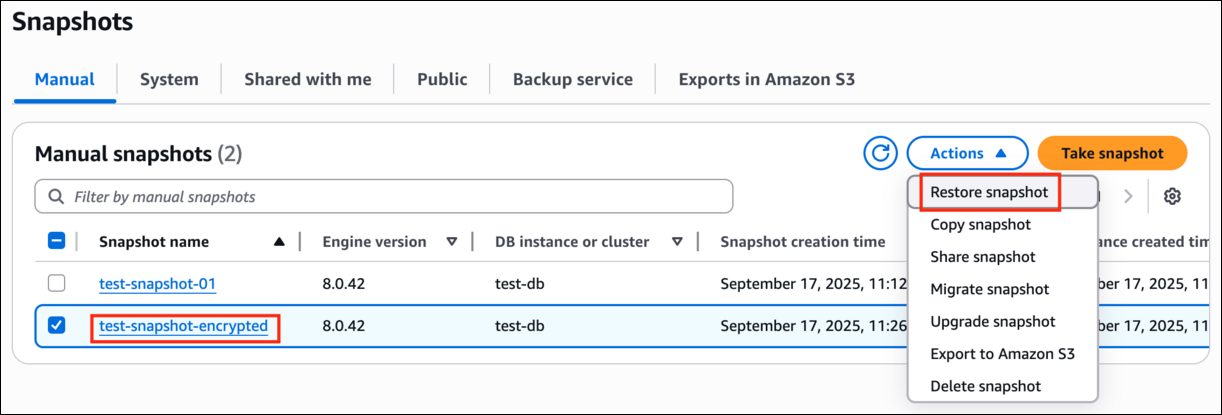
- Under Availability and Durability select Single DB Instance zone
- Task 5: Restore DB Instance from the encrypted snapshot
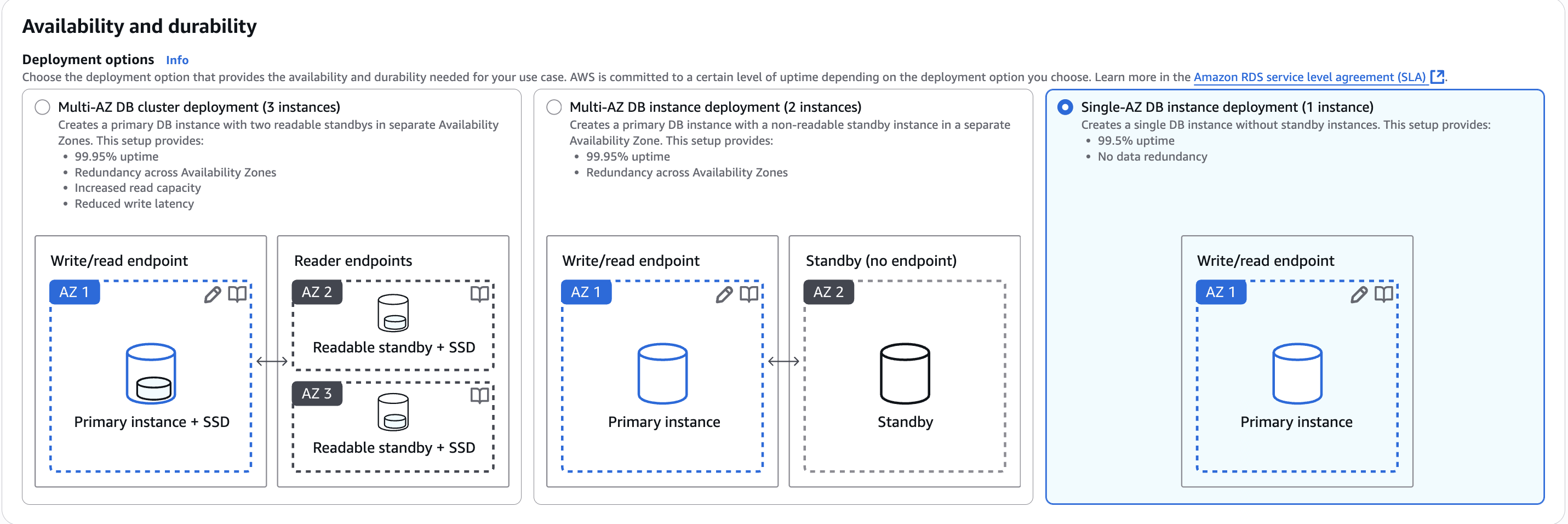
- Settings, enter the name of DB Instance as test-db-encrypted.
- Make the other settings exactly as the original DB Instance.
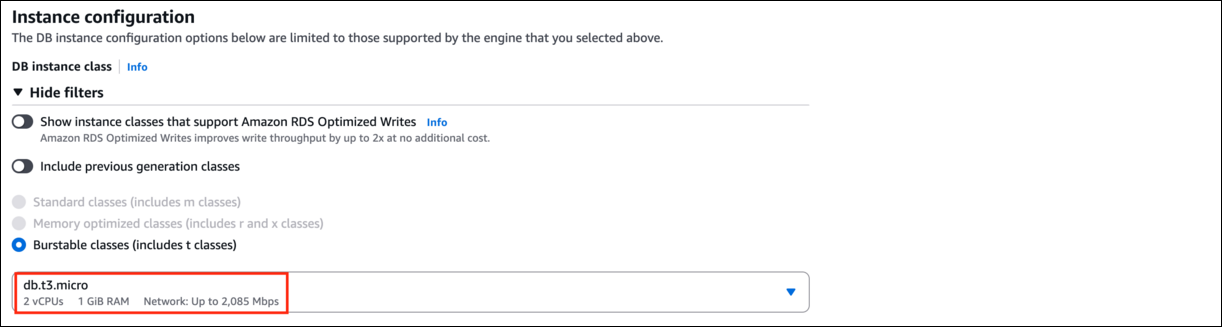
- Under the DB instance class, select Burstable classes (including t classes) and select db.t3.micro
- Task 5: Restore DB Instance from the encrypted snapshot
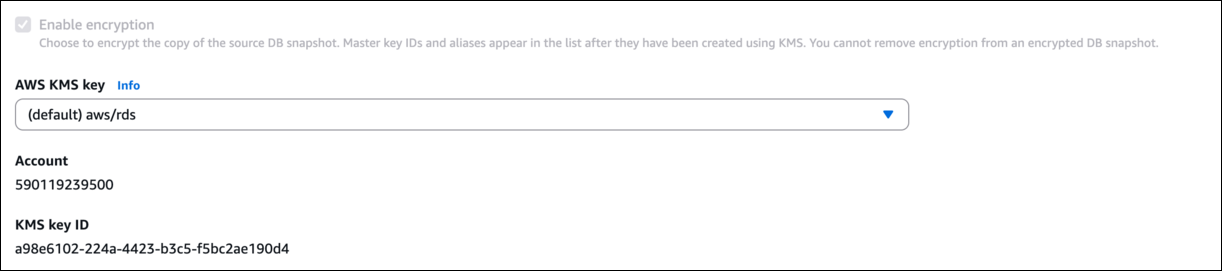
- Under Encryption, you can see the Enable Encryption is enabled and cannot make changes since the snapshot is encrypted.
- Task 5: Restore DB Instance from the encrypted snapshot
- Leave DB parameter group and Option group as default.
- Click on Restore DB Instance button. The database creation takes around 5-10 minutes.
- Task 5: Restore DB Instance from the encrypted snapshot
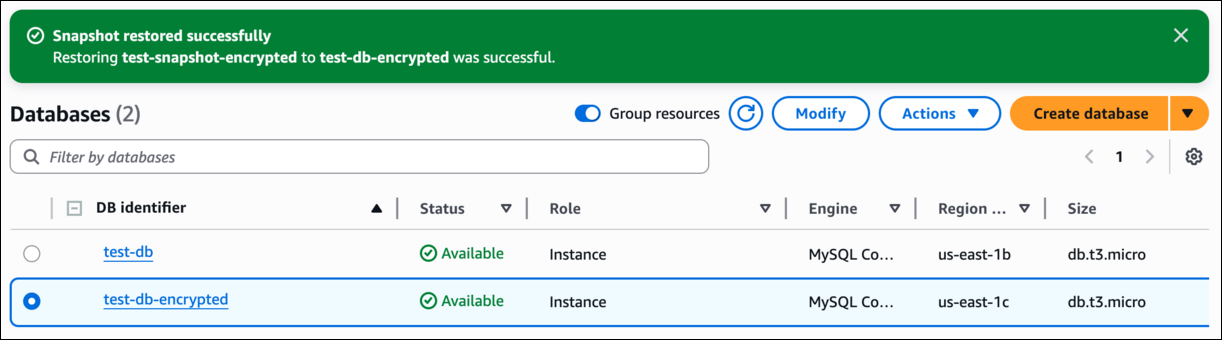
- We have to make sure that the Endpoint of the restored DB Instance should be the same as the original DB Instance.
- To do so, we have to change the names of the DB Instances as the names are unique.
- Select the original DB Instance and click on Modify.

- Task 6: Change the name of the original DB Instance

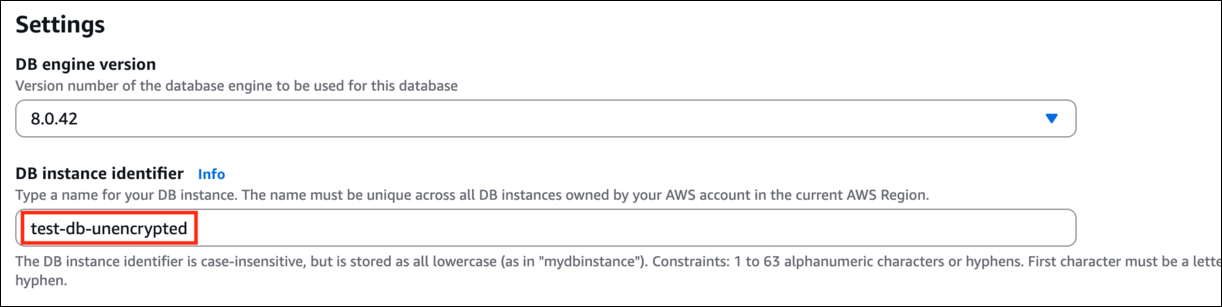
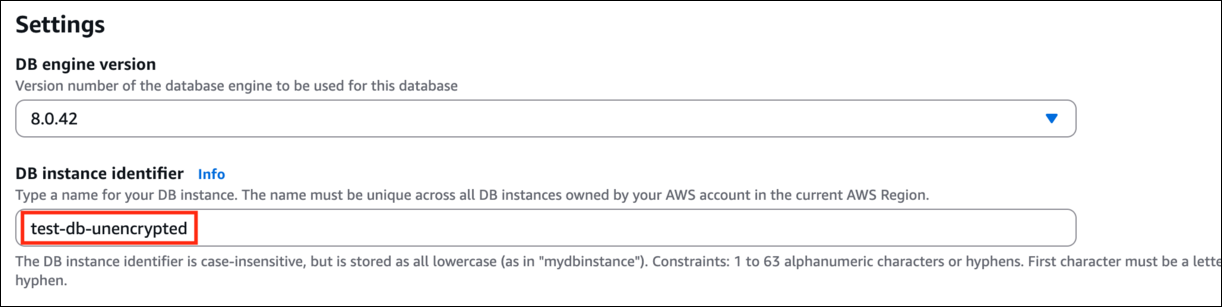
- Change the DB Instance Identifier to test-db-unencrypted.
- Task 6: Change the name of the original DB Instance
- Leave everything as default and click on Continue.
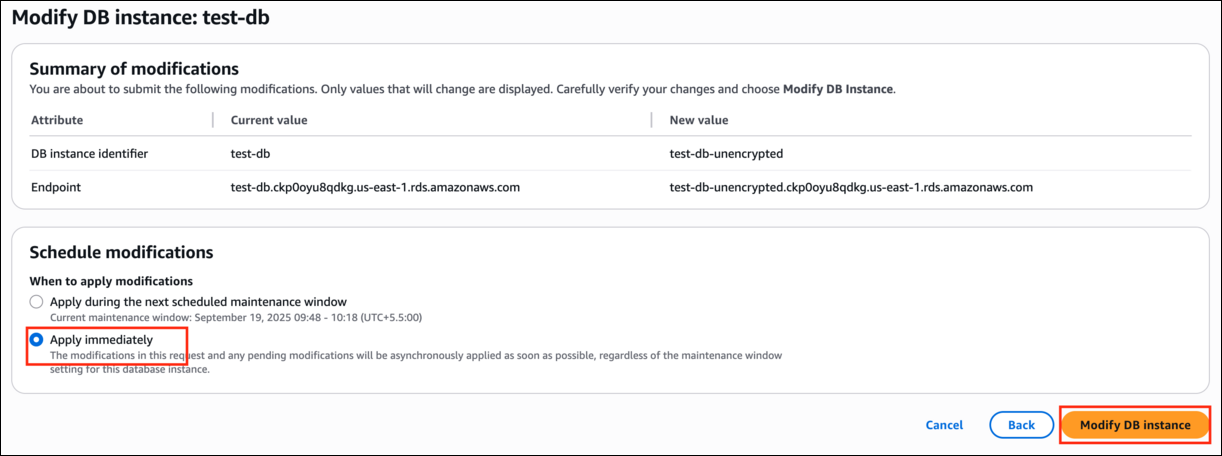
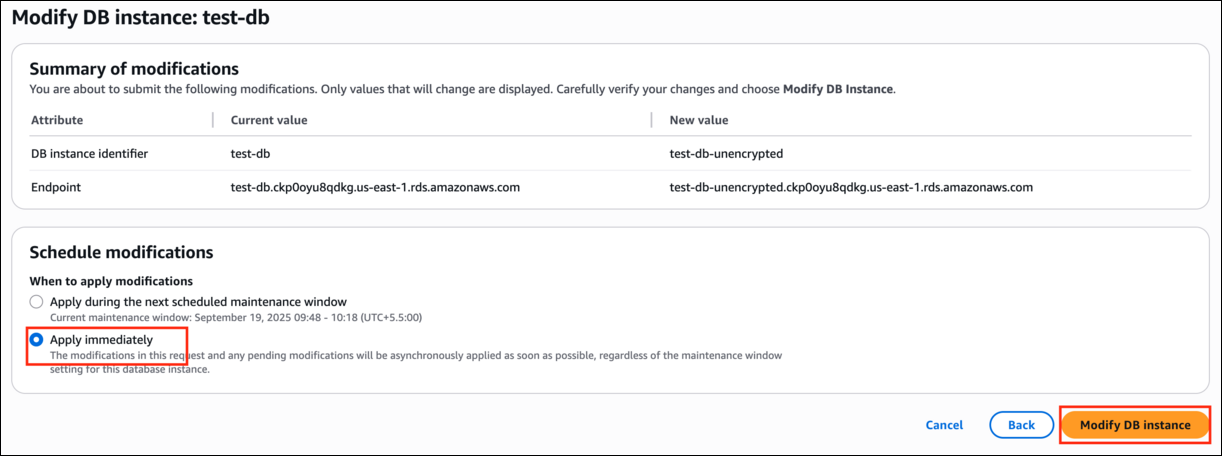
- Verify the new values of the DB Instance Identifier and the Endpoint.
- Under Scheduling of modifications, select Apply Immediately and click on Modify DB Instance button.
- Task 6: Change the name of the original DB Instance
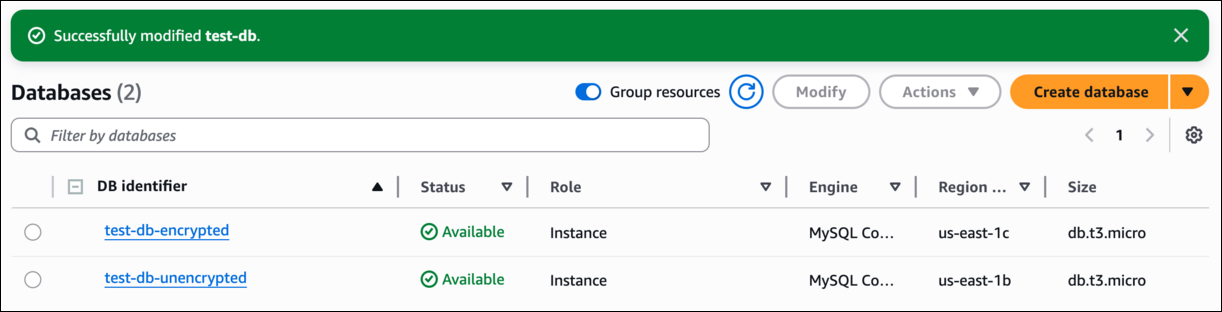
- It might take some time to reboot the DB Instance. Press ctrl+R if you are not able to see the changes.
- Task 6: Change the name of the original DB Instance
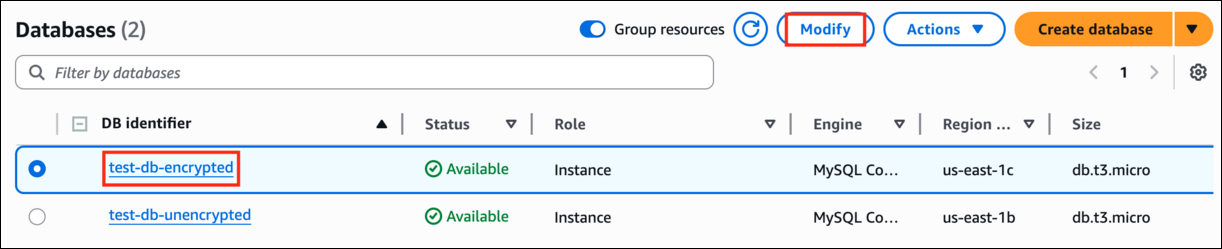
- Select on the restored database and click on Modify.
- Task 7: Change the name of the Restored DB Instance to the original DB Instance name
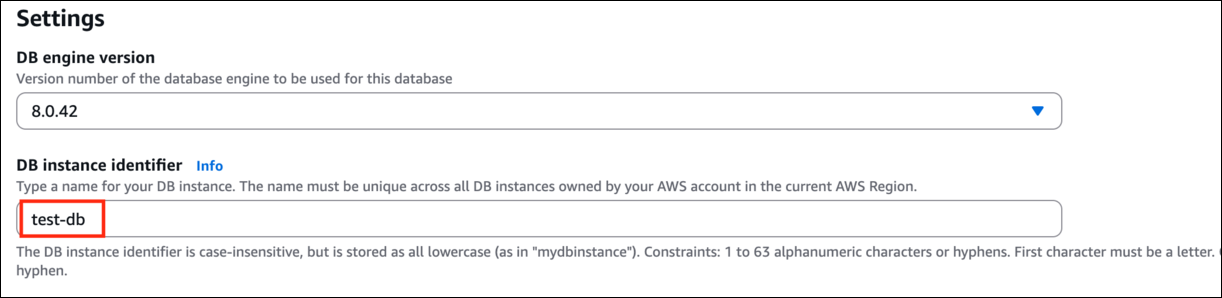
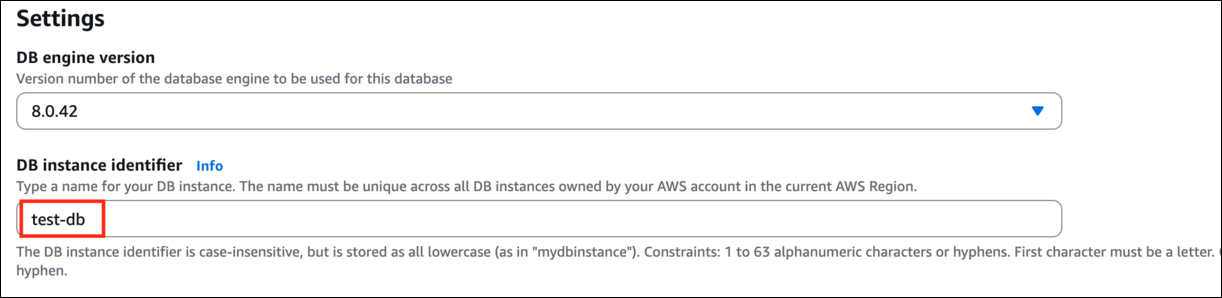
- Change the DB Instance Identifier to test-db.
- Task 7: Change the name of the Restored DB Instance to the original DB Instance name
- Leave everything as default and click on Continue.
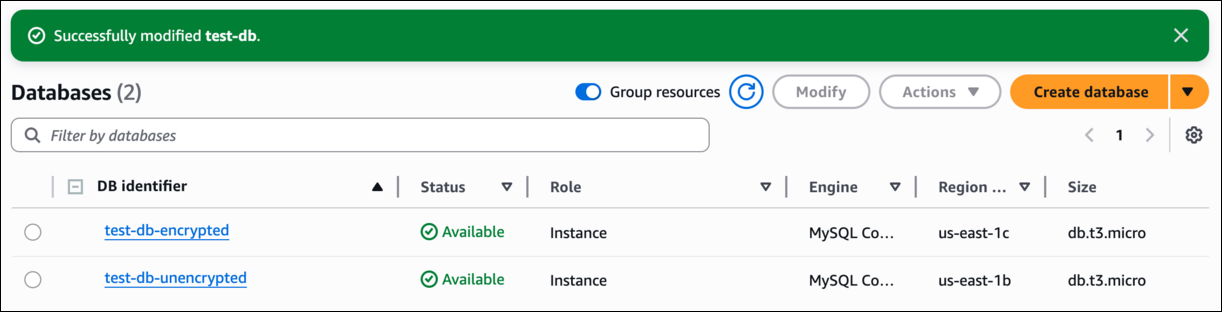
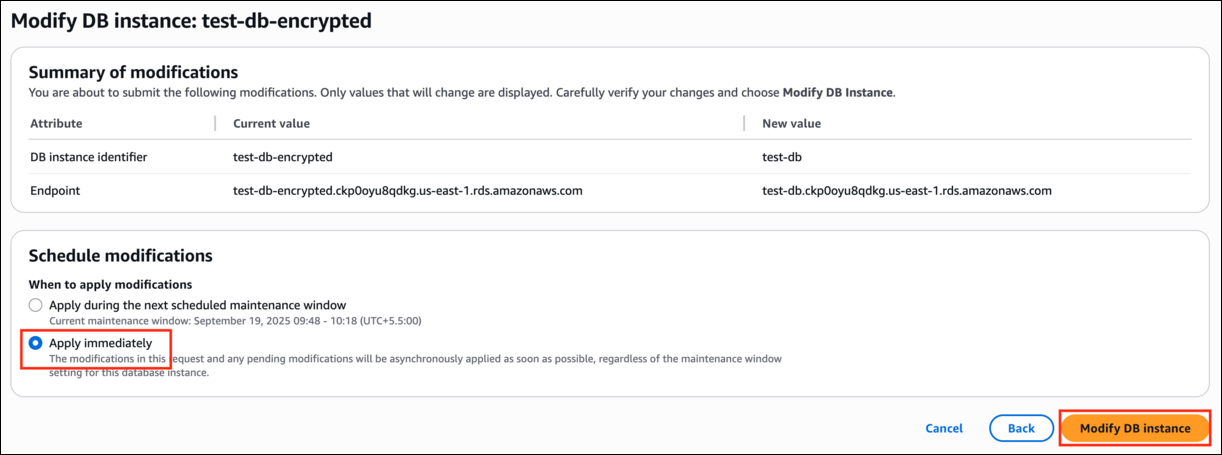
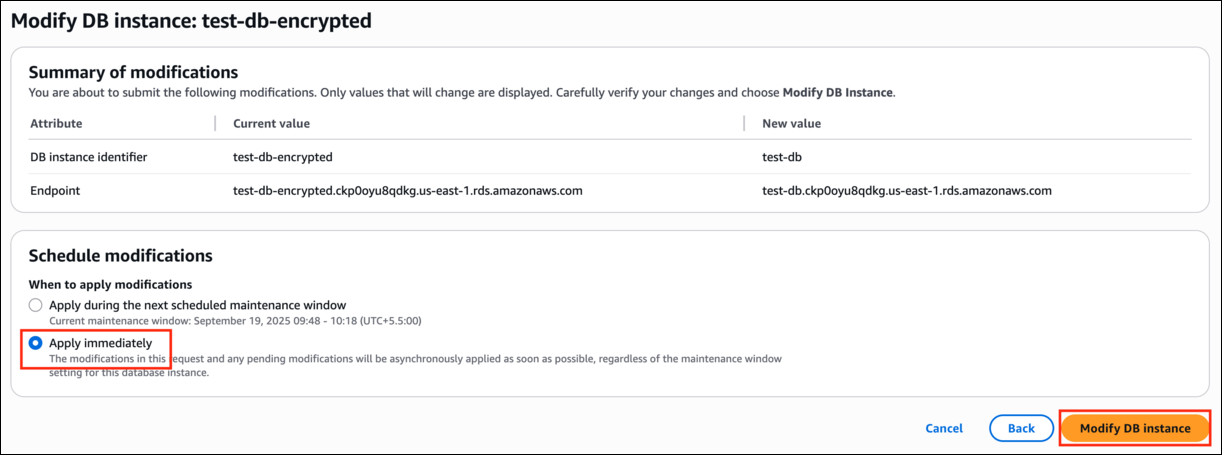
- Verify the new values of the DB Instance Identifier and the Endpoint.
- Under Scheduling of modifications, select Apply Immediately and click on Modify DB Instance button.
- Task 7: Change the name of the Restored DB Instance to the original DB Instance name
- It might take some time to reboot the DB Instance. Press ctrl+R if you are not able to see the changes.
- Task 7: Change the name of the Restored DB Instance to the original DB Instance name
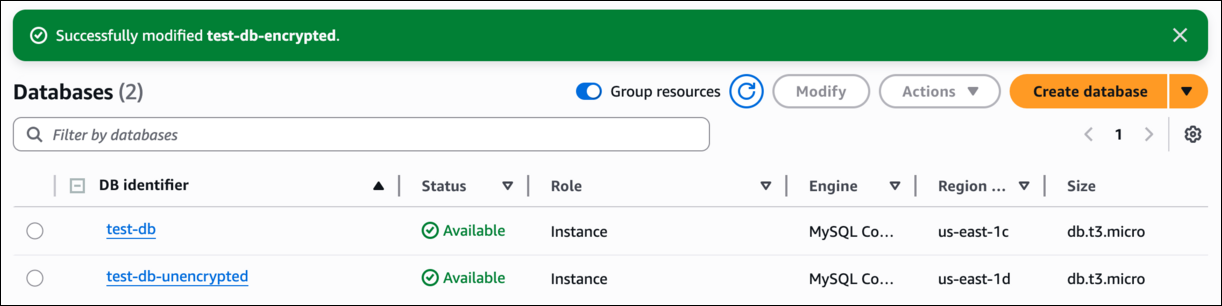
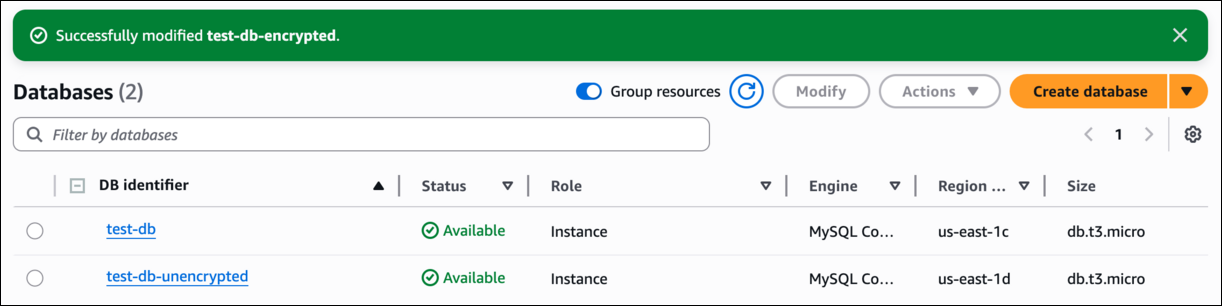
- Once the database is modified, click and open test-db i.e, the encrypted DB Instance.
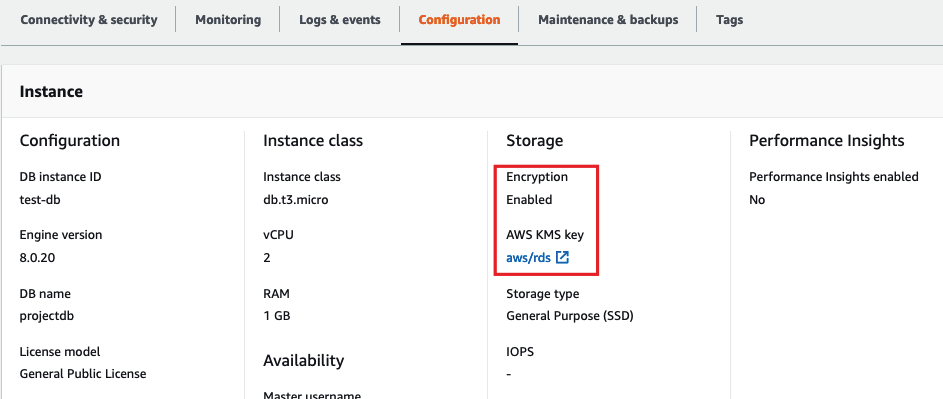
- Click on the database and navigate to the Configuration tab. You can notice that the Encryption is enabled.
- Task 7: Change the name of the Restored DB Instance to the original DB Instance name
- Since we have the encrypted DB Instance, we shall delete the unencrypted DB Instance and the snapshot associated.
- Click on Databases present to the left of the screen.
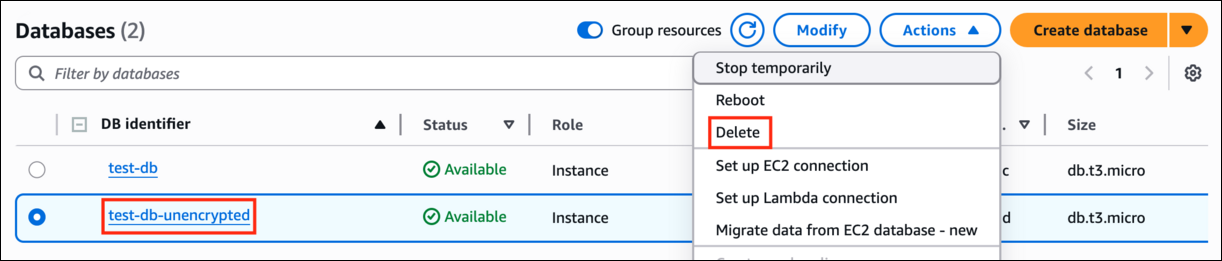
- Select the Unencrypted DB Instance (i.e test-db-unencrypted) and click on Actions.
- Task 8: Delete the unencrypted RDS DB Instance and snapshot
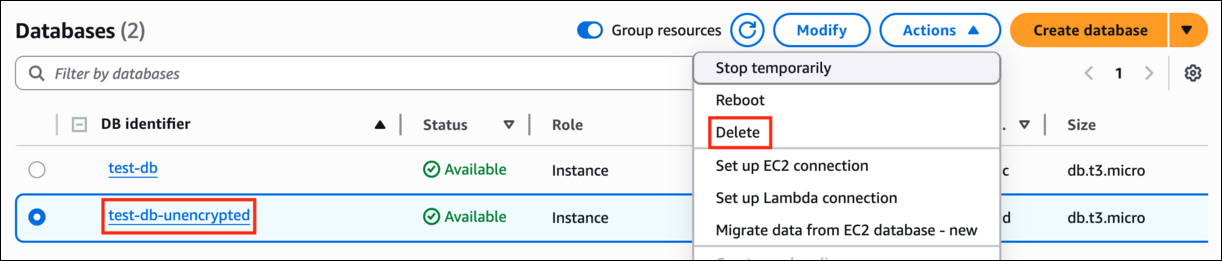
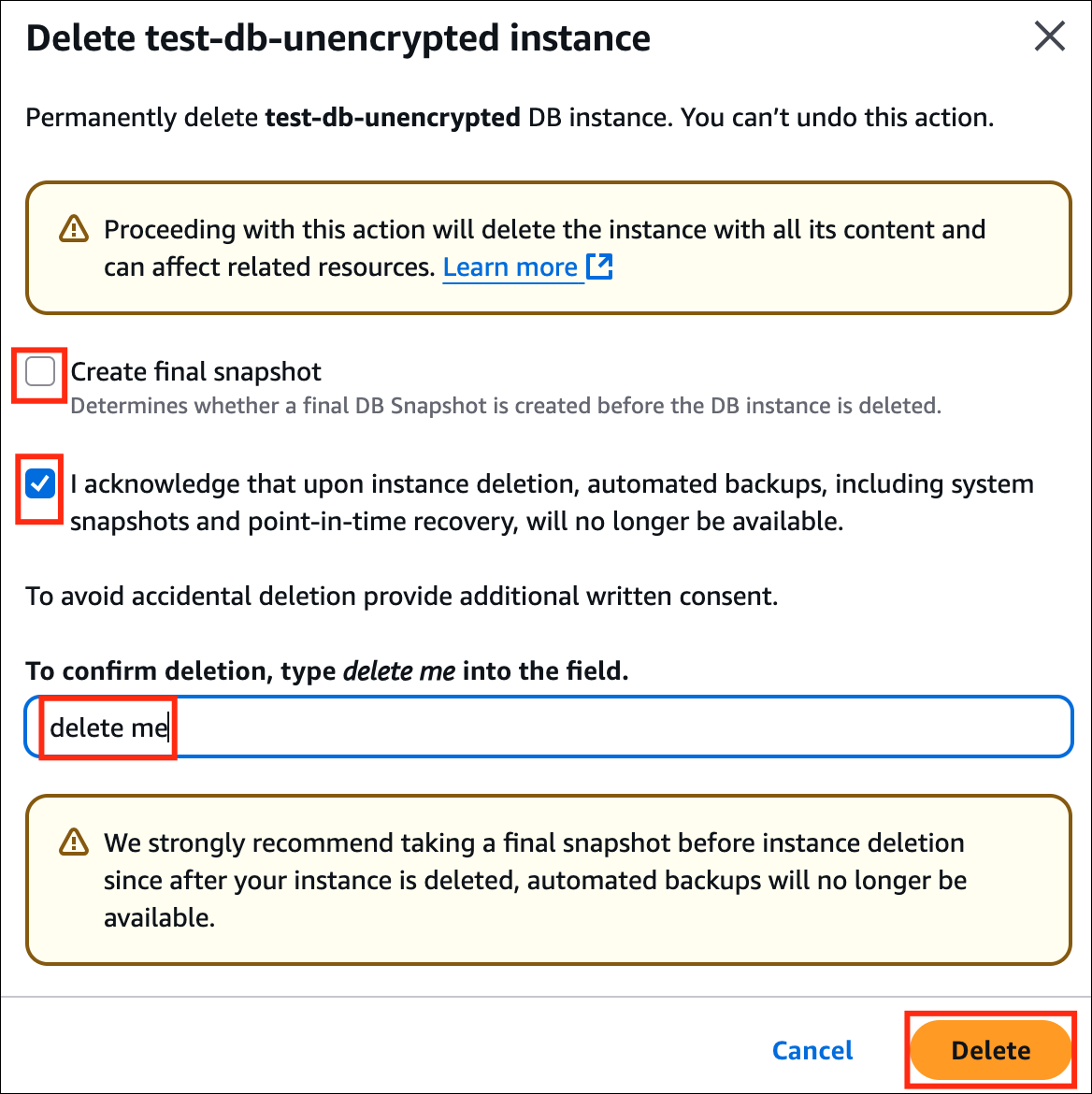
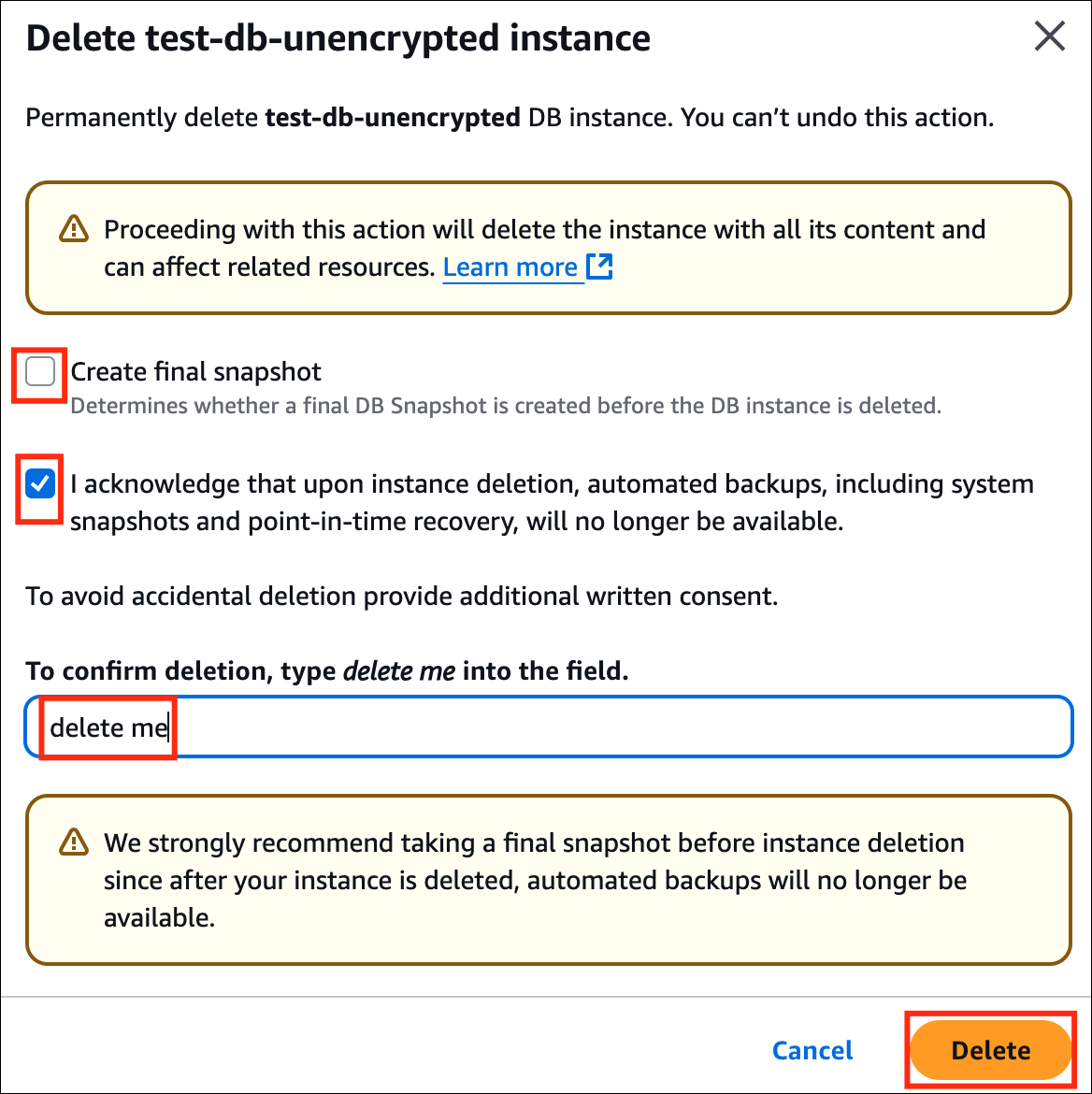
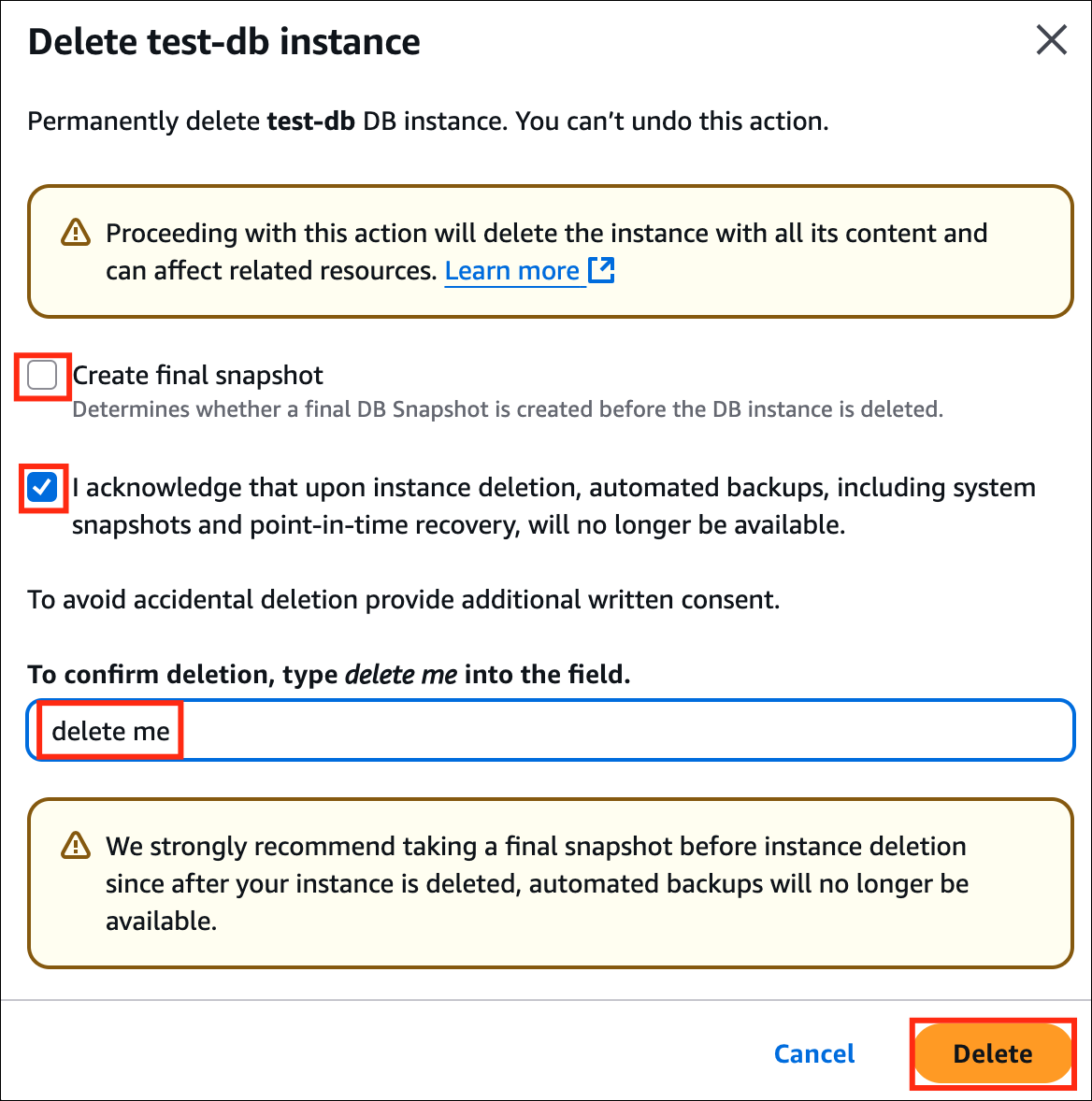
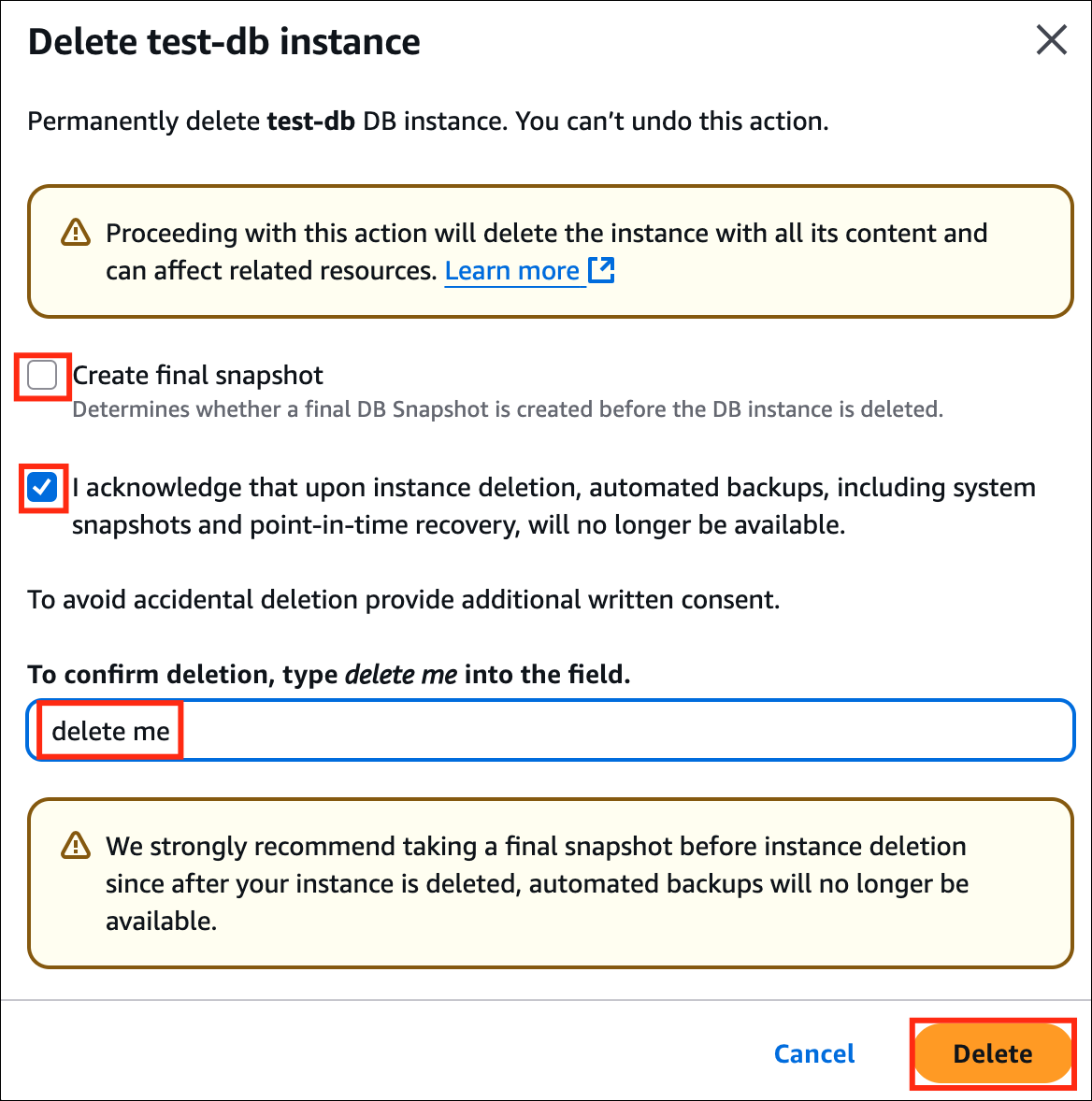
- Click on the Delete option.
- Uncheck the Create final snapshot option.
- Check the Acknowledge box.
- Confirm the deletion by entering delete me and click on delete.
- Task 8: Delete the unencrypted RDS DB Instance and snapshot
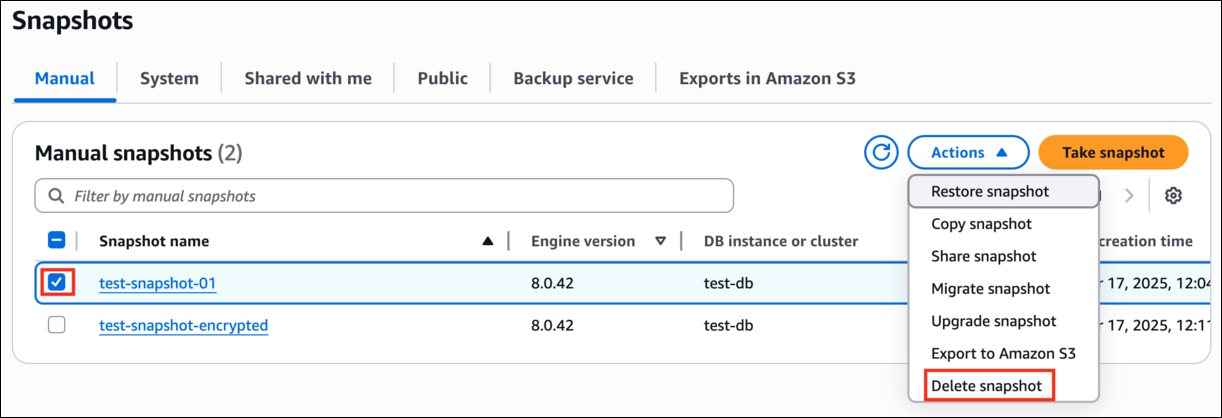
- Click on the Snapshots on the left of your screen.
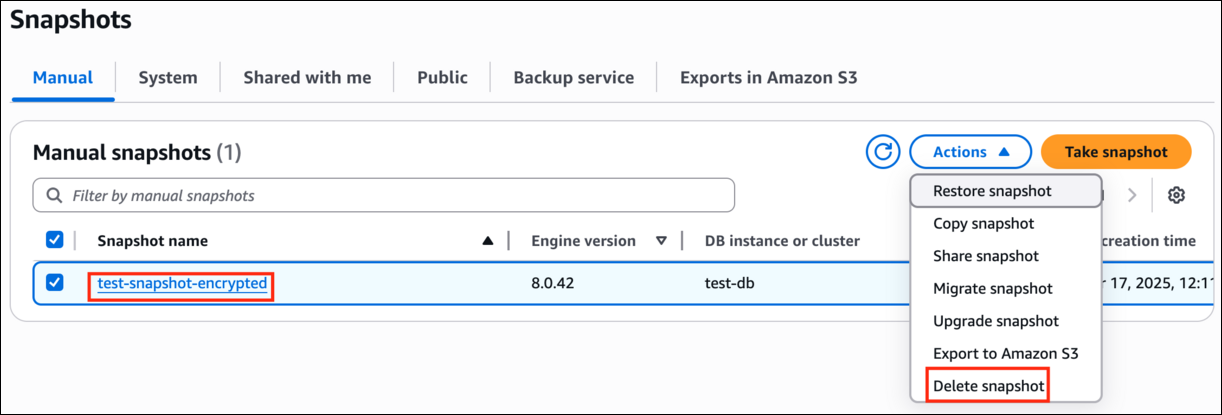
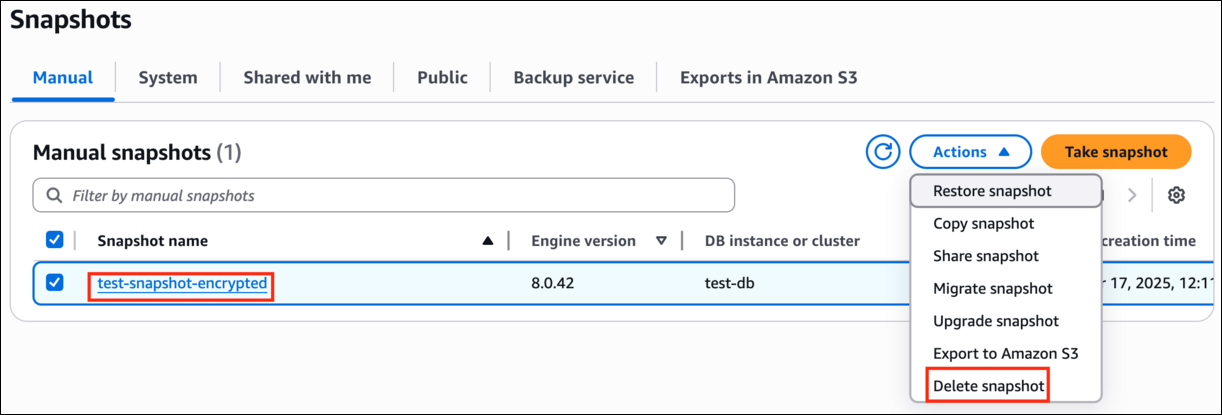
- Under Manual snapshots, select the unencrypted snapshot (i.e. test-snapshot-01) and click on Actions.
- Click on the Delete snapshot option.
- Task 8: Delete the unencrypted RDS DB Instance and snapshot
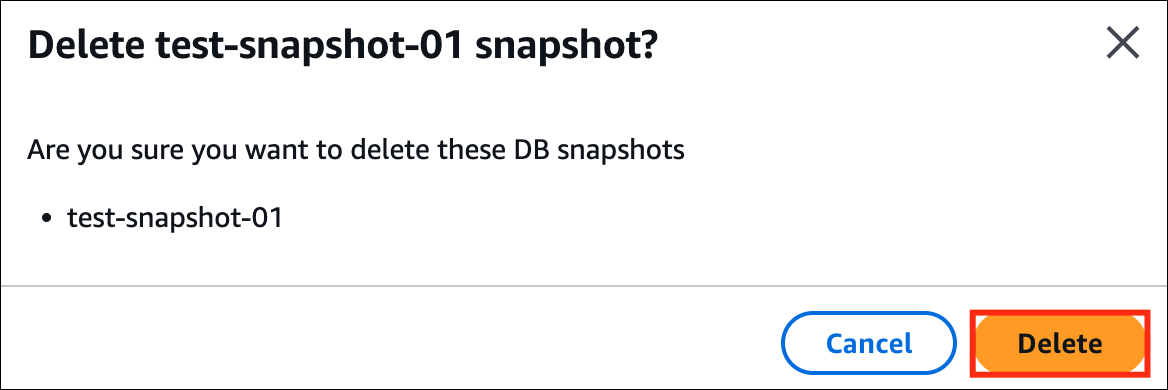
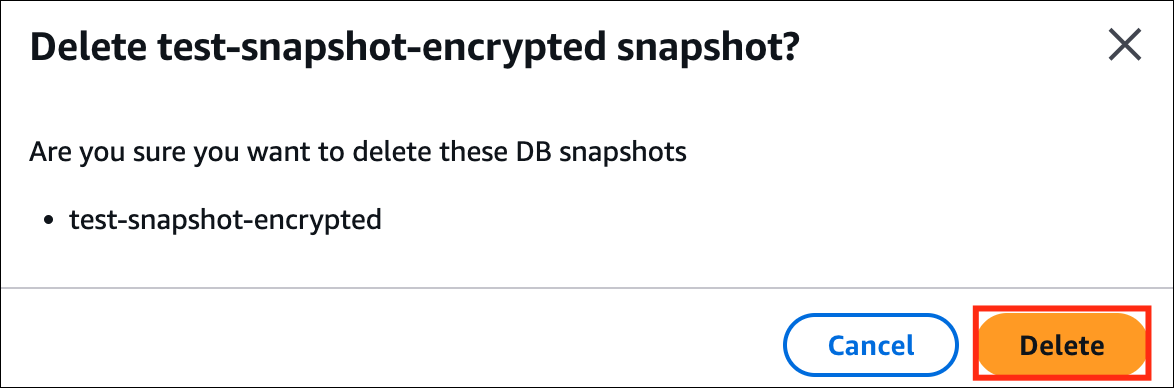
- Confirm by clicking on the Delete button.
- Task 8: Delete the unencrypted RDS DB Instance and snapshot
- In this way, you can encrypt an unencrypted RDS DB Instance.
- Wait till both resources are completely deleted. This step is to avoid confusion in the validation report.
- Database encryption is a critical component of a comprehensive security strategy. It helps protect data from unauthorized access, complies with regulatory requirements, mitigates the impact of data breaches, enhances cloud security, builds trust with customers, and mitigates insider threats.
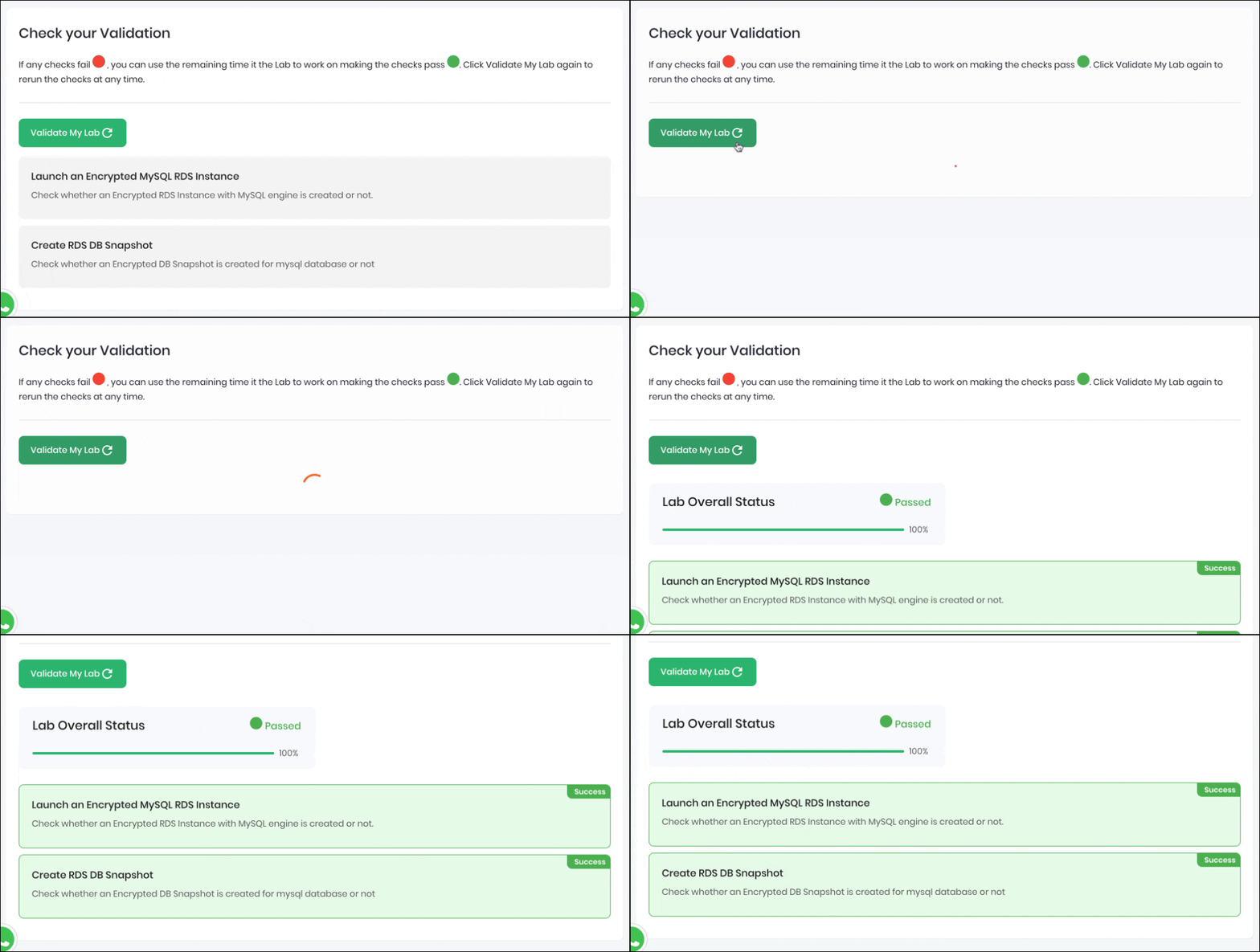
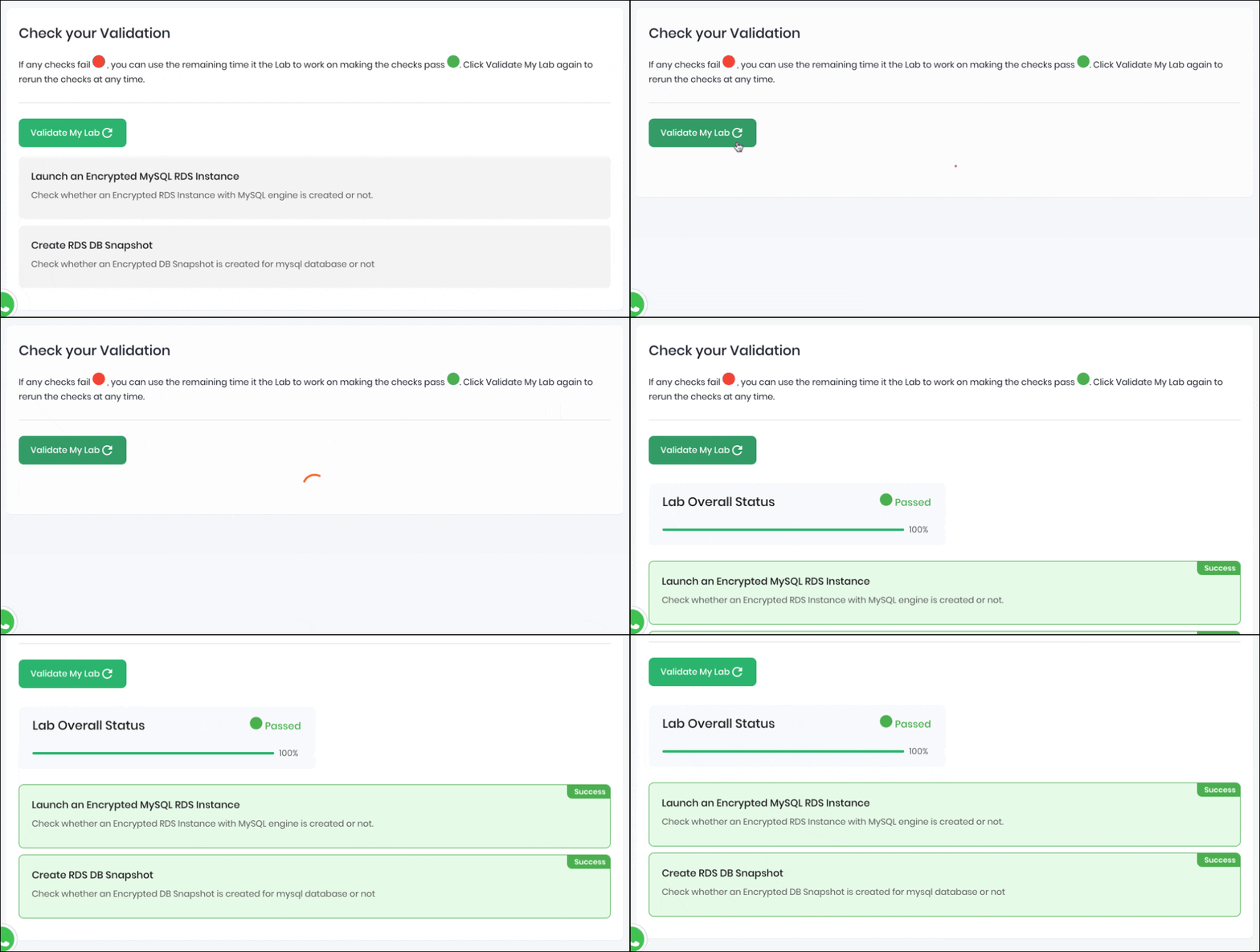
- Once the lab steps are completed, please click on the Validation button on the right-side panel.
- This will validate the resources in the AWS account and displays whether you have completed this lab successfully or not.
- Sample output :
- Task 9: Validation Test
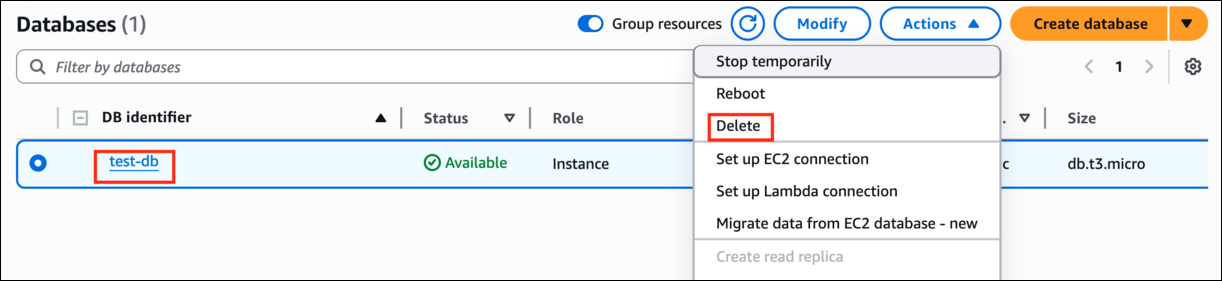
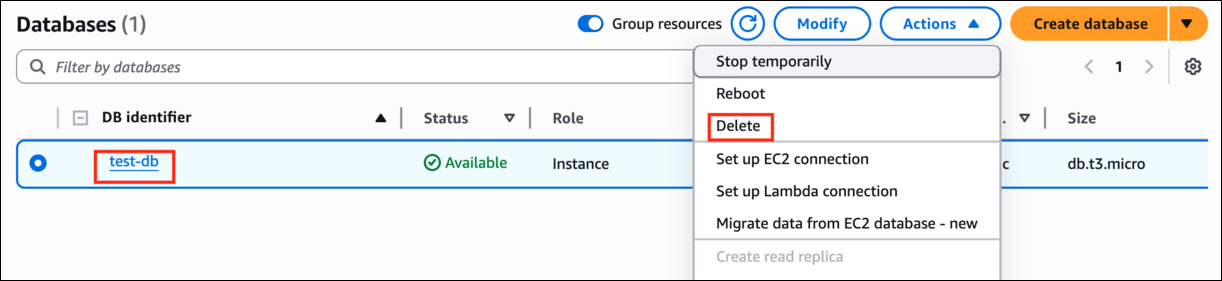
- Click on Databases present to the left of the screen.
- Select the DB Instance and click on Actions.
- Click on the Delete option.
- Task 9: Validation Test
- Uncheck the Create final snapshot option.
- Check the Acknowledge box.
- Confirm the deletion by entering delete me and click on delete.
- Task 9: Validation Test
- The status changes to Deleting and the DB Instance gets deleted.
- You can proceed to further steps even if it is in a deleting state.
- Click on the Snapshots on the left of your screen. Under Manual snapshots, select the unencrypted snapshot and click on Actions.
- Click on the Delete Snapshot option.
- Task 9: Validation Test
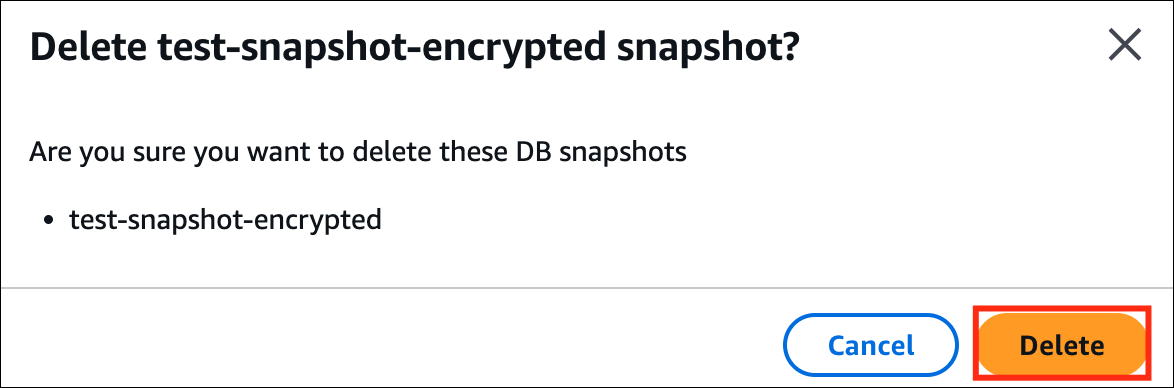
- Confirm by clicking on the Delete button.
- Task 9: Validation Test
- You have created an unencrypted Amazon RDS DB Instance.
- You have taken the snapshot of the DB Instance.
- You have made a copy of the snapshot and encrypted it.
- You have restored the DB Instance with the copied snapshot.
- You have changed the names of the original and restored DB instances.
- You have made sure that the Endpoint of the restored database is the same as the originally created DB Instance.
- You have deleted the Unencrypted DB Instance and snapshot.
- Sign out of AWS Management Console.
- You have successfully completed the lab.
- Once you have completed the steps, click on End Lab from your lab lab console and wait till the process gets completed.