Intermediate01:00:00
Encryption and Decryption Using KMS
- Click on the Open Console button, and you will get redirected to AWS Console in a new browser tab.
- On the AWS sign-in page, Leave the Account ID as default. Never edit/remove the 12 digit Account ID present in the AWS Console. otherwise, you cannot proceed with the lab. Now copy your User Name and Password in the Lab Console to the IAM Username and Password in AWS Console and click on the Sign in button.
- On the AWS sign-in page,
- Leave the Account ID as default. Never edit/remove the 12 digit Account ID present in the AWS Console. otherwise, you cannot proceed with the lab.
- Now copy your User Name and Password in the Lab Console to the IAM Username and Password in AWS Console and click on the Sign in button.
- Once Signed In to the AWS Management Console, Make the default AWS Region as US East (N. Virginia) us-east-1.
- Make sure to choose N.Virginia region in the AWS Management console dashboard, which is present in the top right corner.
- Navigate to the Services menu at the top, click on IAM in the Security, Idenitity, & Compliance section.
- In the IAM section, click on User groups.
- Click on Create group
- Enter the following user group name: KMSGroup
- Attach permissions policies: For the Policy name type KMS and select KMS_Policy

- Now, Click on Create Group button.
- We have successfully created a new group for our KMS lab.
- In this task, We are going to add two users to the group we created.
- KeyManager: Has access to the Console to manage keys (Create, Delete, Rotate).
- KeyEncryption: Has programmatic access to use the keys for encryption/decryption but cannot manage them. This separation minimizes the impact if credentials are compromised.
- Click on Users on the left side of the IAM dashboard.
- Click on the Create User button.
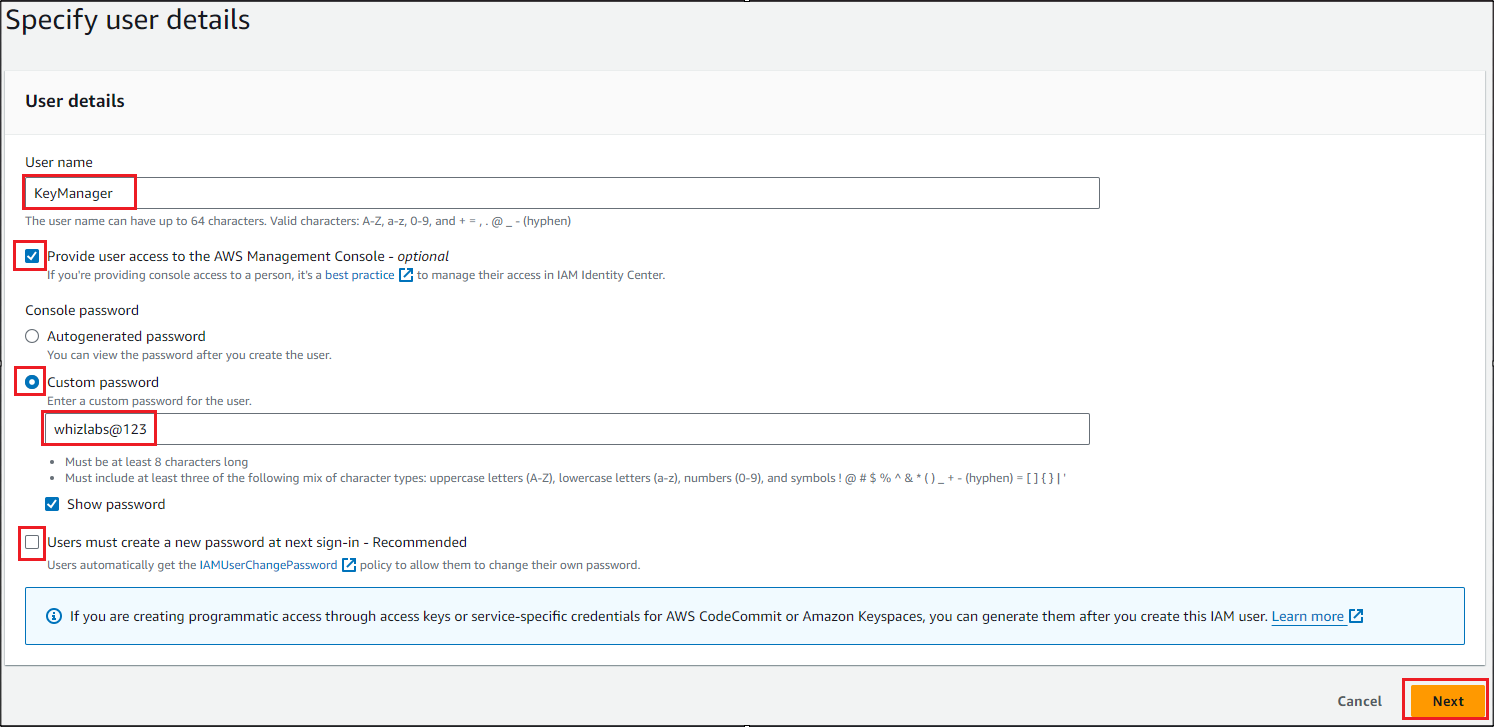
- Enter the following user name: KeyManager
- Check the Provide user access to the AWS Management Console checkbox.
- Click on the Custom password.
- Give the following password: lab@123
- Uncheck the Users must create a new password at the next sign-in. Click on Next.
- Task 3: Create two users for managing the KMS
- For permission, select Add User to group.
- Select the KMSGroup that we created, and click on the Next button.
- In the review section, if all the settings are as per the requirement.
- Click on Create User.
- We have successfully created our KeyManager. Click on Return to users list button and click again on Continue button to return back to Users tab.
- Now, similarly, we're going to create a new user, and this will be the person who does the decryption.
- Click on Users on the left side of the IAM dashboard.
- Click on the Create User button.
- Enter the following user name: KeyEncryption
- Check the Provide user access to the AWS Management Console checkbox.
- Click on the Custom password
- Give the following password: 123@lab
- Uncheck the Users must create a new password at the next sign-in. Click on Next.
- For permission, select Add User to group .
- Select the KMSGroup that we created, and click on the Next button.
- In the review section, if all the settings are as per the requirement
- Click on Create User. Click on Return to users list button and click again on Continue button to return back to Users tab.
- Now, to get the Access Key and Secret Access Key
- Click on Users on the left side of the IAM dashboard.
- Click on KeyEncryption user and go to the Security credentials tab.
- Scroll down and click on Create access key button.
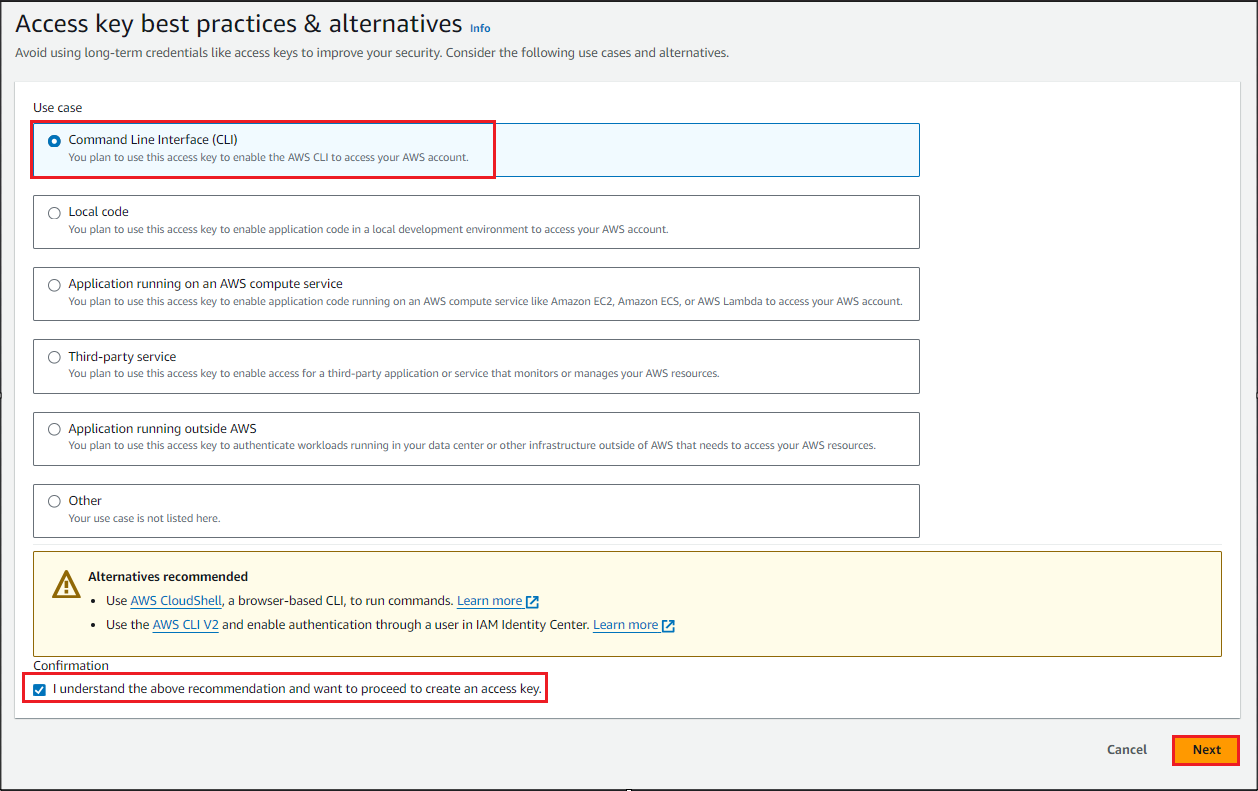
- Select Use case as Command Line Interface (CLI), check the confirmation box and click on Next button.
- Leave Description tag value as blank in Set description tag step.
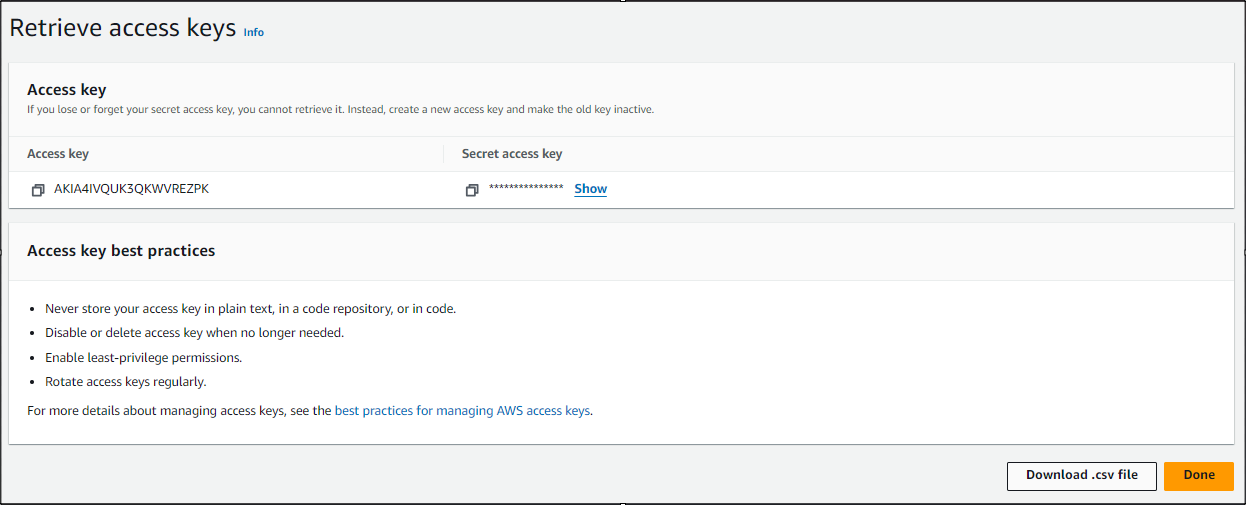
- Click on Create access key button.
- Click on Download .csv file button to download the secret access key of the user as it will be required to connect with our EC2 instance for encryption.
- AWS Managed Keys: Created by AWS services (like S3) for you. You cannot manage their policies.
- Customer Managed Keys: Created by you. You have full control over Key Policies, rotation, and deletion. This lab uses a CMK.
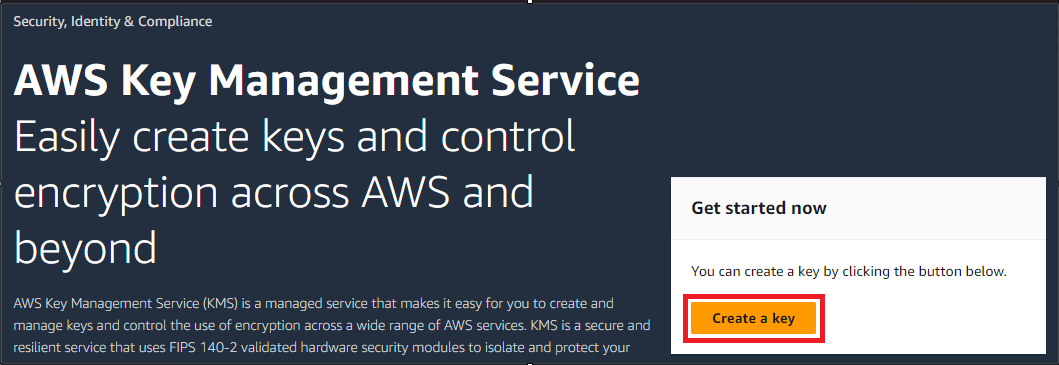
- Navigate to the Services menu at the top, click on AWS Key Management Service (KMS) in the Security, Identity, & Compliance section
- Click on the Create a key button.
- Select Key type as Symmetric and Key usage as Encrypt and decrypt, click on next button.
- Task 4 : Creating a KMS Key
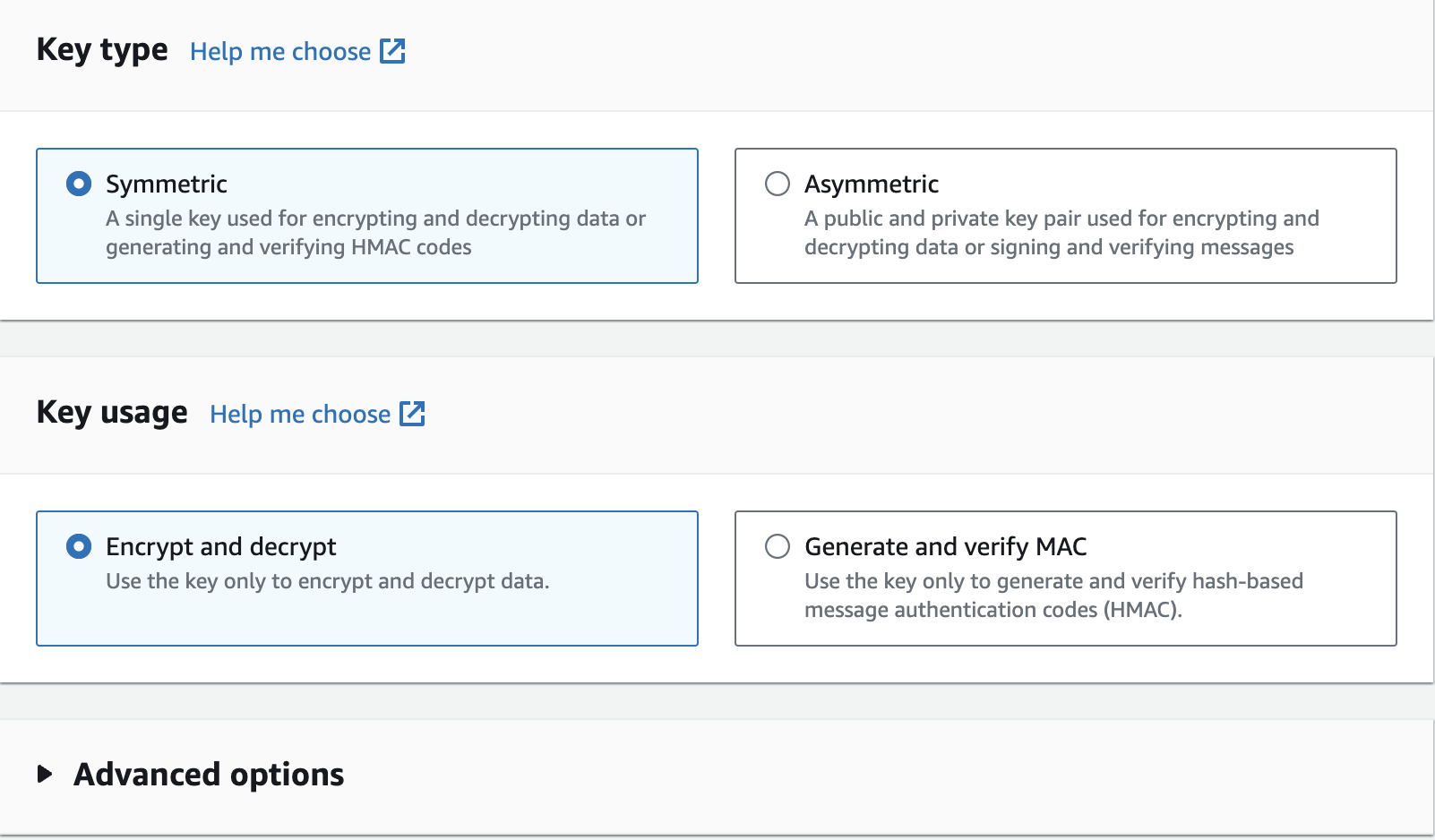
- Symmetric (AES-256): Same key for encryption and decryption. Used for most AWS services (S3, EBS, RDS). Fast and efficient.
- Asymmetric (RSA/ECC): Public key encrypts, Private key decrypts. Used when you need to share the encryption key publicly without compromising the decryption capability.
- Enter Alias as : Admin
- Leave the other field as it is, and click on the Next button.
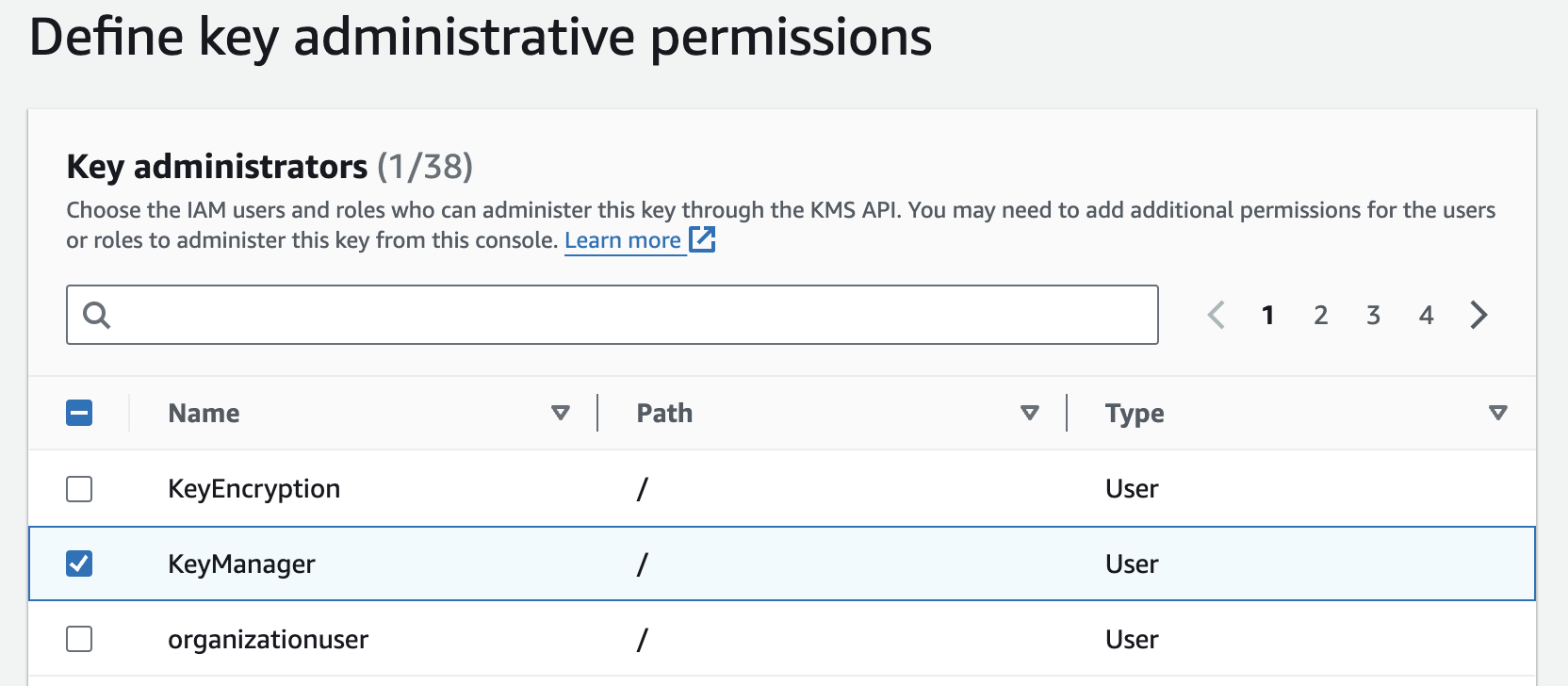
- In Define key administrative permissions select KeyManager and click on Next button.
- Task 4 : Creating a KMS Key
- In Define key usage permissions select KeyEncryption and click on Next button.
- Once you click on Next you’ll be moved to the review section. Review the key policy that we have created and if everything is fine, just click on Finish button.
- We have successfully created the KMS key. Copy the Key ID in Notepad for future use.
- Task 4 : Creating a KMS Key

- Now that we have created the KMS and User policies, move to the service section and choose EC2 under the Compute section.
- We will use this EC2 instance as our "workstation" to run AWS CLI commands. It represents an application server that needs to encrypt data.
- Make sure you are in N.Virginia Region.
- Navigate to the Services menu at the top, click on EC2 in the Compute section.
- Click on Launch Instance
- Enter Name as following: MyEC2Server
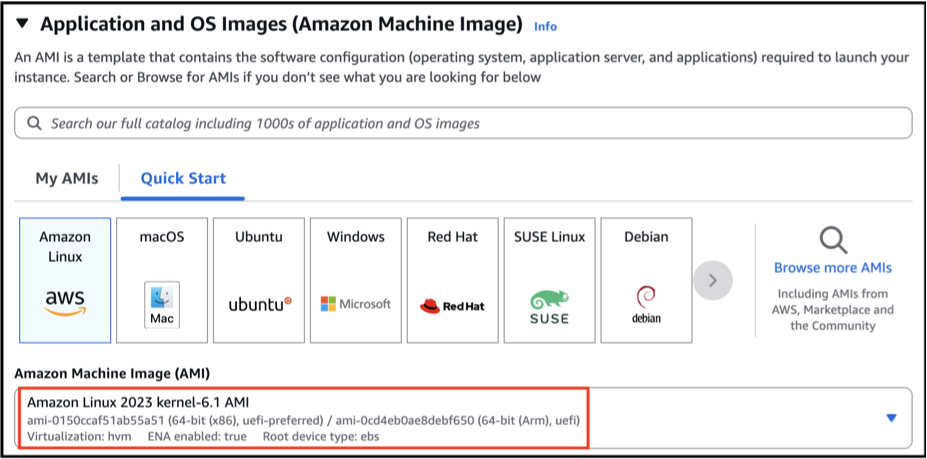
- For AMI Select Amazon Linux 2023 in the quickstart menu.
- Task 5 : Launching an EC2 Instance
- For Instance Type: Select t2.micro.
- For Key pair(login): Select Create a new key pair Button Key pair name: WhizKey Key pair type: RSA Private key file format: .pem
- For Key pair(login): Select Create a new key pair Button
- Key pair name: WhizKey
- Key pair type: RSA
- Private key file format: .pem
- Keep all the settings as default and click on the Launch instance button.
- Click on View all instances button.
- Your instance is now launching, wait for the complete initialization of the instance till the Status check changes to 2/2 checks passed

- Please follow the steps in SSH into EC2 Instance.
- Now you will use the AWS CLI to interact with the KMS service.
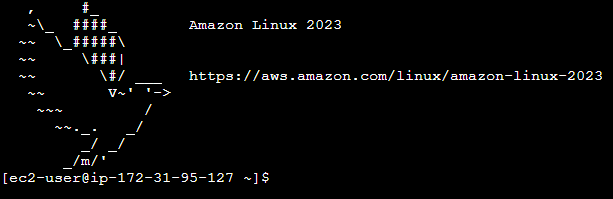
- Once you click on connect you get a terminal which is our EC2-user login on EC2-instance. Here we will perform KMS Encryption and Decryption.
- First we need to create a file with the name secret.txt , Execute the command.
- Now that we have created a file secret.txt we need to execute the following configuration command.
- Enter the AWS Access key ID and AWS Secret Access Key from the user KeyEncryption file that you downloaded in task 3.
- Enter default region as us-east-1
- Leave the default output as blank and press Enter
- Once AWS configure is complete, we need to execute the command for encryption.
- Run the following command to encrypt text file but first replace <replace-key-id> with the Key ID copied earlier.
- Ask KMS to generate a Data Key (GenerateDataKey).
- Use the Data Key to encrypt your large file locally (using OpenSSL etc.).
- Store the Encrypted Data Key alongside your encrypted file.
- We have successfully encrypted our text file. To view the statement, execute
- We are going to decrypt the encrypted file to view the data.
- We have successfully decrypted our text file . To view the statement execute.
- Run the following command to re-encrypt text file but first replace <replace-key-id> with the Key ID copied earlier.
- You can check the created files by using command :
- We have successfully encrypted our text file . To view the statement execute
- Task 7: Perform KMS Encryption and Decryption

- We have successfully executed the re-encrypt statement.
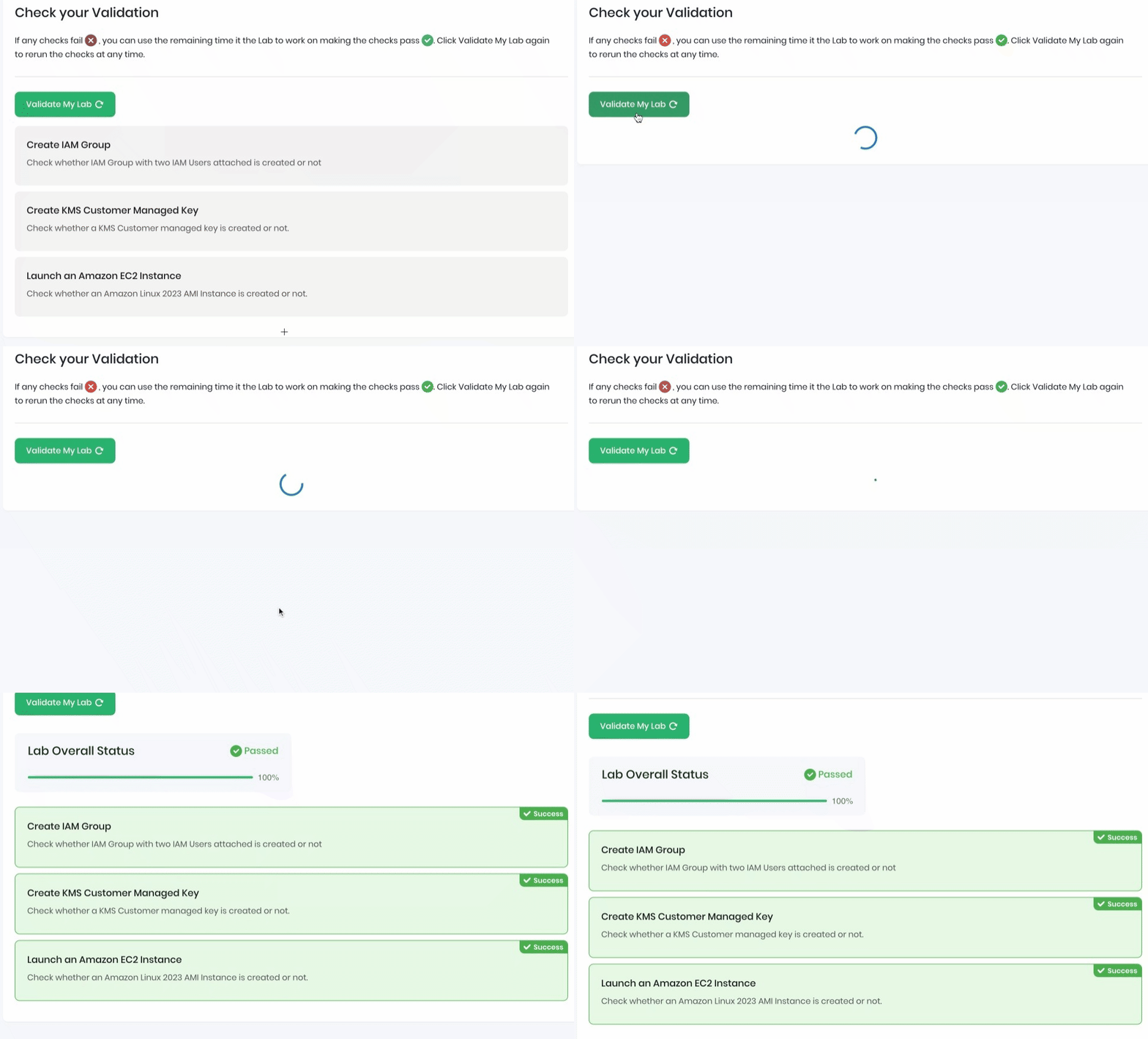
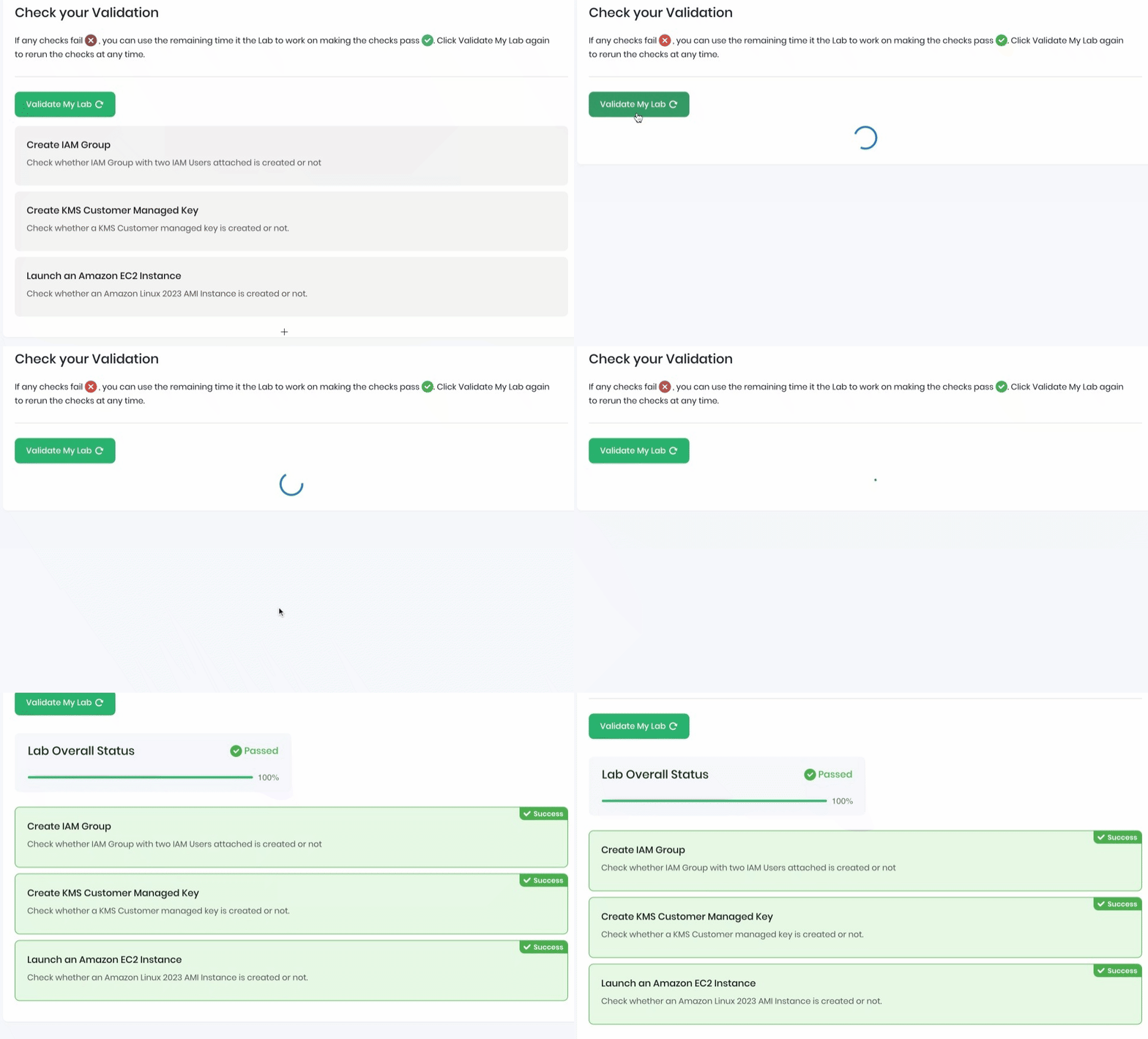
- Once the lab steps are completed, please click on the Validation button on the left side panel.
- This will validate the resources in the AWS account and displays whether you have completed this lab successfully or not.
- Sample output :
- Task 8 : Validation of the Lab
- AWS Documentation: AWS KMS Developer Guide
- Best Practice: Best practices for IAM policies in AWS KMS
- You have successfully created a group for KMS users and attached a policy to the group.
- You have successfully created 2 users for managing the KMS.
- You have successfully created a KMS Key.
- You have successfully launched an EC2 Instance and connected to SSH using the browser.
- You have successfully configured KMS.
- You have become familiar with Encryption, decryption, re-encryption.
- Sign out of AWS Account.
- You have successfully completed the lab.
- Once you have completed the steps, click on End Lab from your lab lab console and wait till the process gets completed.