Intermediate01:00:00
Configure NAT Instance and Stream Web Logs to CloudWatch Using CloudWatch Agent
- Click On the Open Console Button, And You Will Get Redirected To AWS Console In A New Browser Tab.
- On The AWS Sign-In Page,
- Leave The Account ID As Default. Never Edit/Remove The 12 Digit Account ID Present In the AWS Console. Otherwise, You Cannot Proceed with the Lab.
- Now Copy Your User Name And Password In the Lab Console to the IAM Username and Password In AWS Console and Click On the Sign in Button.
- Once Signed in to the AWS Management Console, Make the Default AWS Region As US East (N. Virginia) Us-East-1.
- In the AWS Management Console, you can find the VPC service by clicking on the “Services” dropdown at the top and type VPC in the search bar. Then, select the VPC service from the search results.
- Task 2 : VPC and Subnet Setup
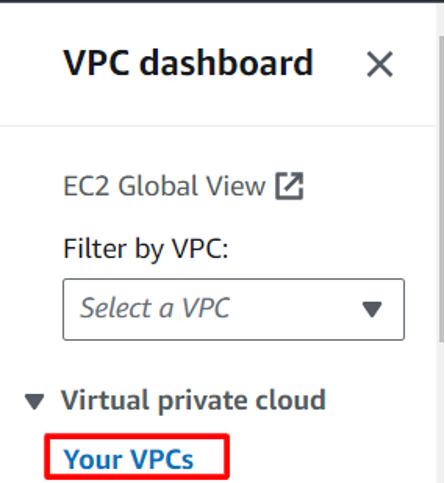
- Once you're in the VPC service, you'll see the option to create a new VPC on the side menu or by clicking on the create VPC button and VPC only.
- Create a new VPC: Name: Nat_vpc
- Specify an IPv4 CIDR block for your VPC (10.0.0.0/16) in the IPv4 CIDR block field.
- Task 2 : VPC and Subnet Setup
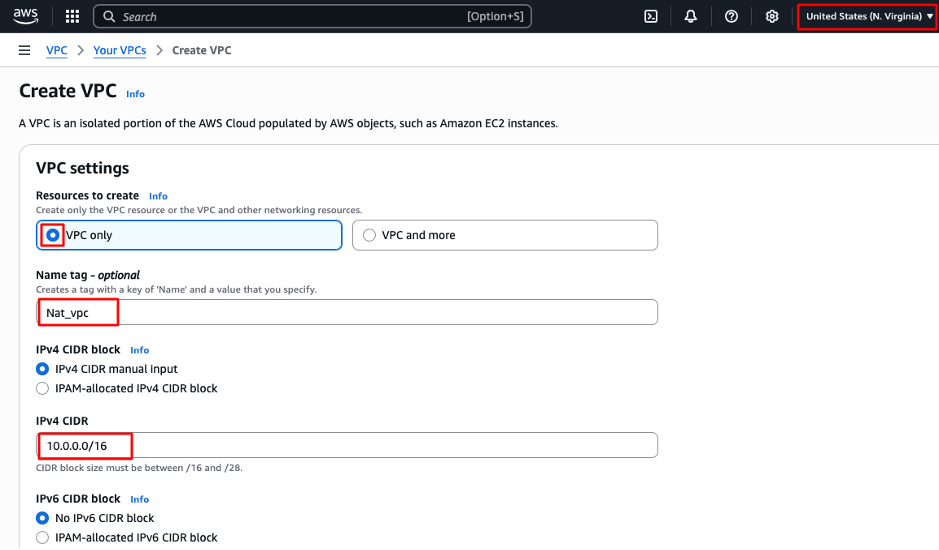
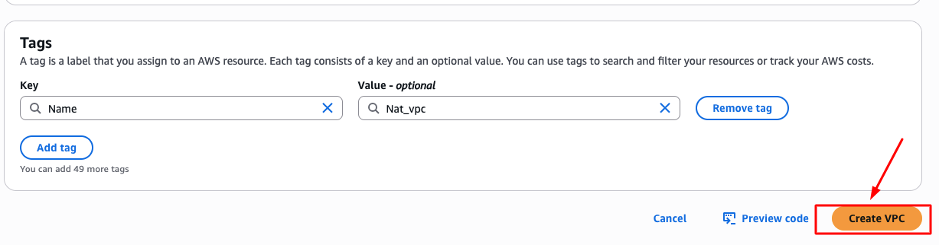
- Click on the Create VPC button.
- Task 2 : VPC and Subnet Setup
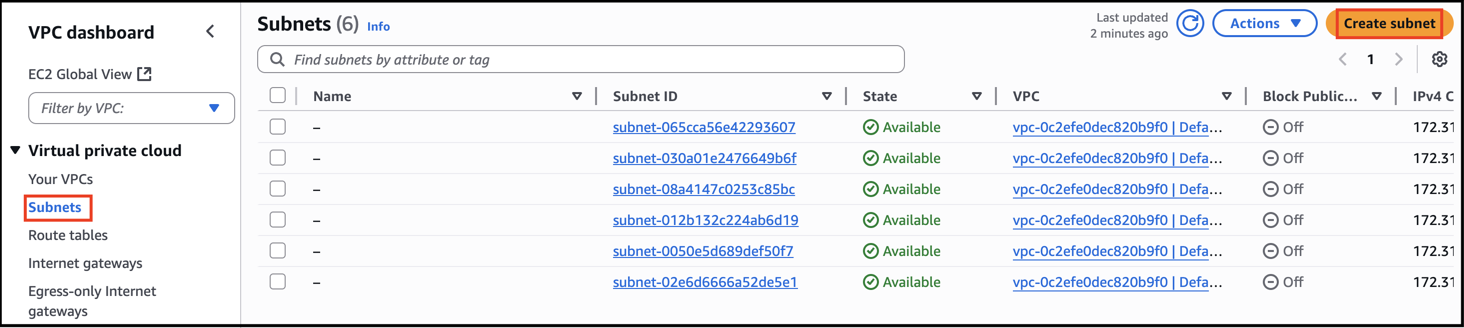
- Within your newly created VPC, you'll need to create two subnets: one public and one private.
- To create a subnet, go to the subnets section in the VPC service and click on the Create Subnet button.
- Task 2 : VPC and Subnet Setup
- Click the VPC which we created before i.e., Nat_vpc
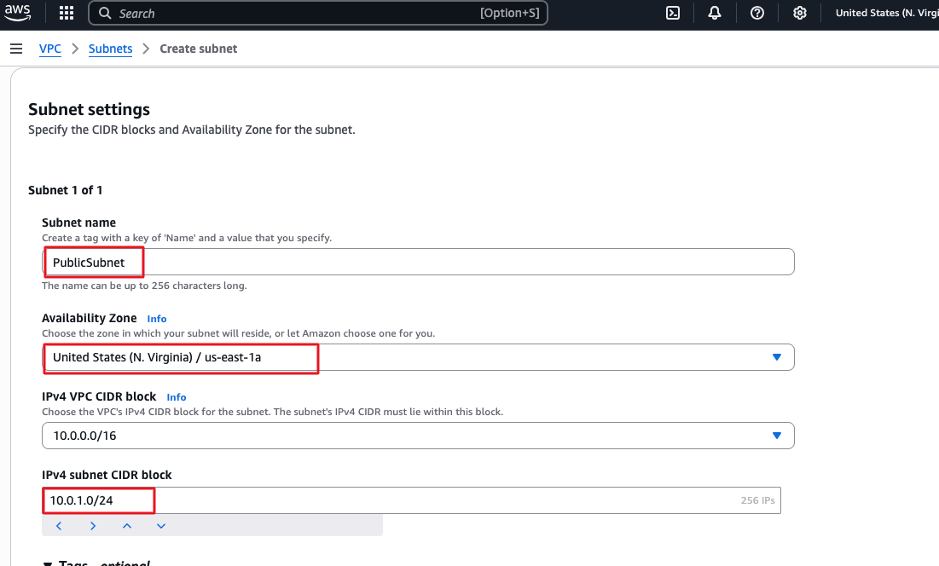
- Specify the VPC you just created, the CIDR block for the subnet
- Subnet Name: PublicSubnet
- Choose Availability zone “us-east-1a”
- IPv4 subnet CIDR block: 10.0.1.0/24
- Task 2 : VPC and Subnet Setup
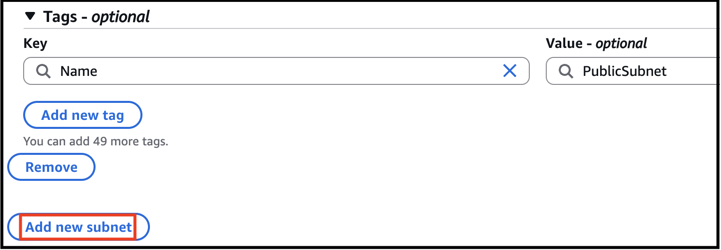
- scroll down click add “Add new Subnet”
- Task 2 : VPC and Subnet Setup
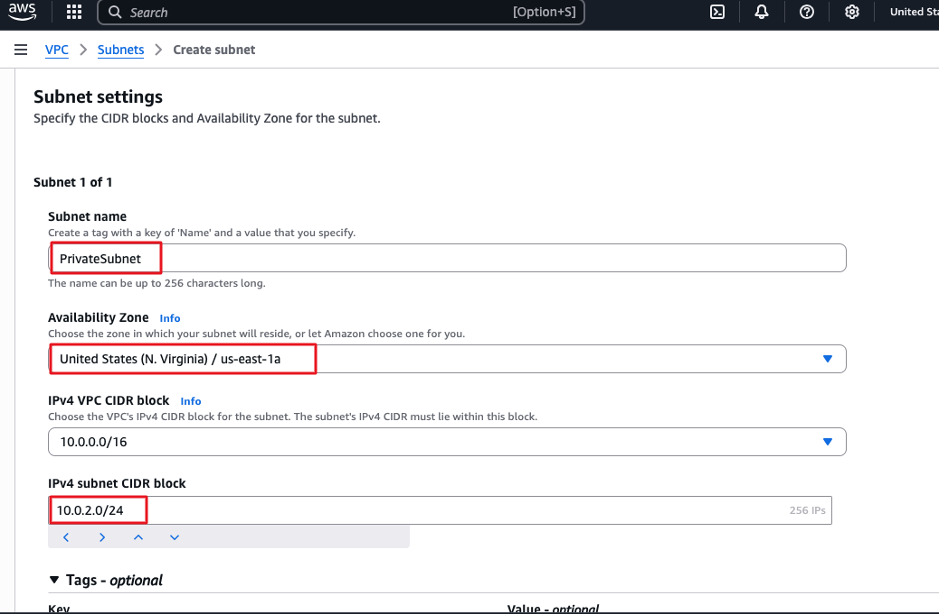
- Now we are going to create the same steps,
- Subnet name: PrivateSubnet
- Choose Availability zone “us-east-1a”
- subnet CIDR block: 10.0.2.0/24
- Click Create Subnet .
- Task 2 : VPC and Subnet Setup
- Configure the route tables and internet gateway for the public subnet
- For the public subnet to have internet access, you'll need to configure the route table and attach an internet gateway.
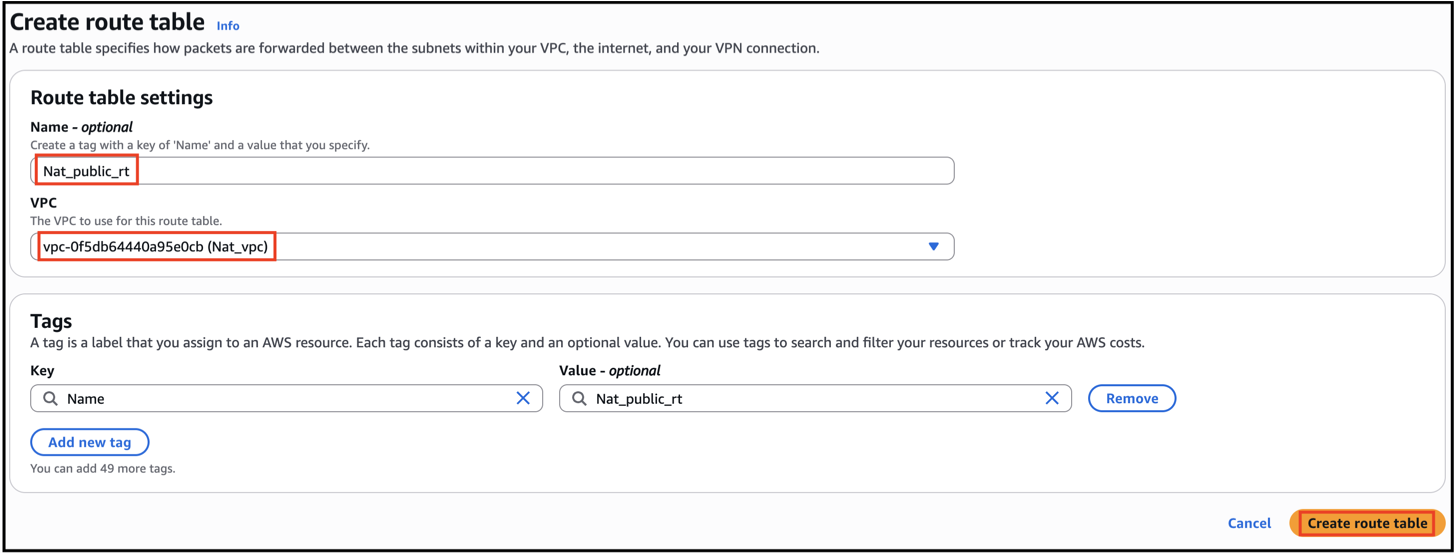
- Go to the Route Tables section in the VPC service and create a new route table for the public subnet.
- Route Table Name: “Nat_public_rt”
- Select vpc : “Nat_vpc”
- Task 2 : VPC and Subnet Setup
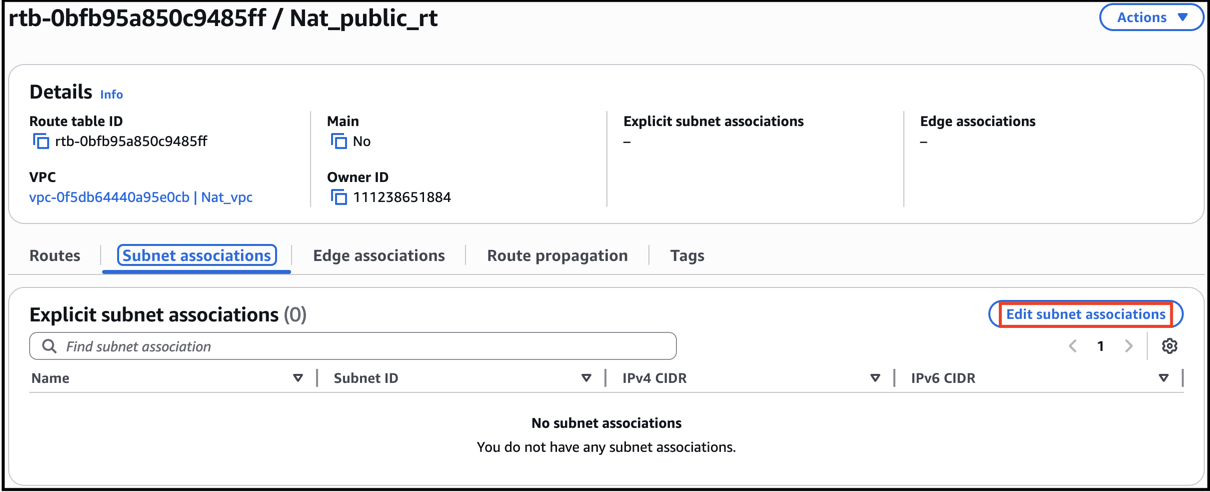
- Click Subnet associations then “Edit subnet associations”
- Task 2 : VPC and Subnet Setup
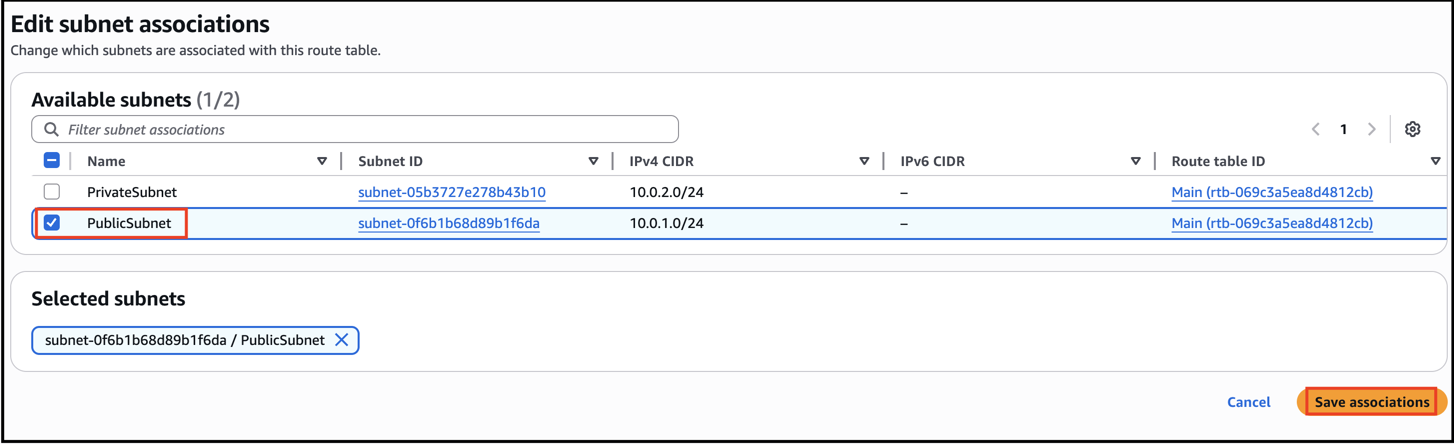
- Select PublicSubnet then click Save associations .
- Task 2 : VPC and Subnet Setup
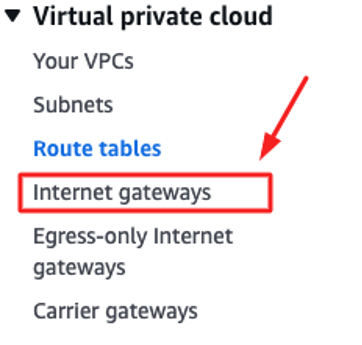
- Next, go to the Internet Gateways section and create a new internet gateway.
- Task 2 : VPC and Subnet Setup
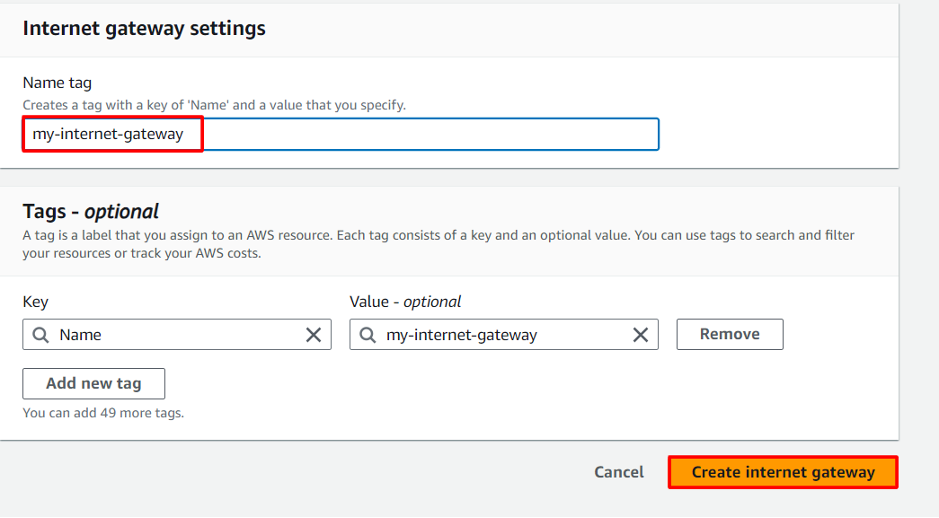
- Internet Gateway Name: My-Internet-Gateway
- Task 2 : VPC and Subnet Setup
- Once Internet gateway is created attach it the VPC that you have created.
- Task 2 : VPC and Subnet Setup
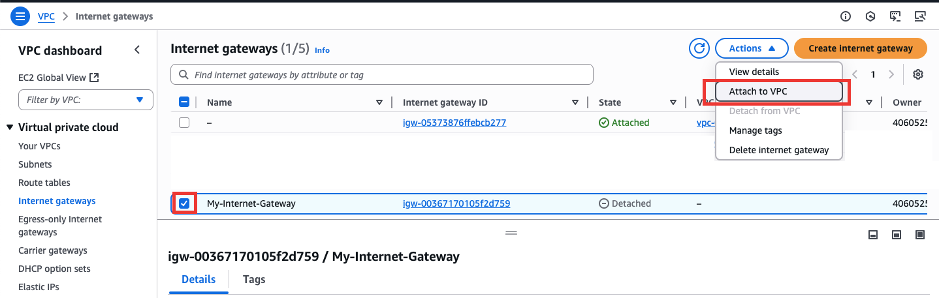
- In the ”Nat_public_rt“ route table, click on Edit routes, then add your internet gateway. The destination should be (0.0.0.0/0), and the target should be the internet gateway.
- Task 2 : VPC and Subnet Setup
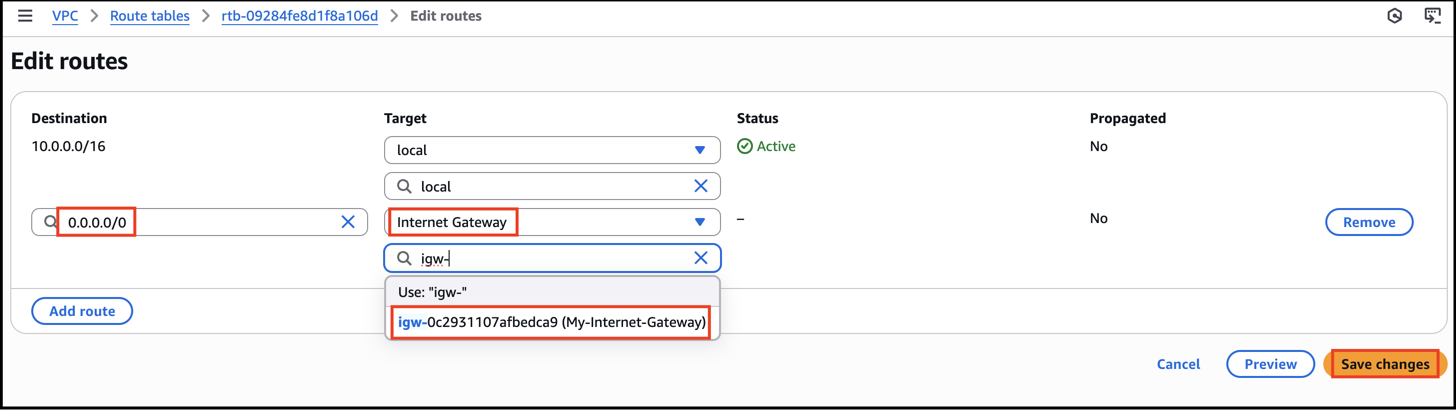
- Again create a route table for “PrivateSubnet”
- Route Table Name: “private_rt”
- Select vpc : “Nat_vpc”
- Task 2 : VPC and Subnet Setup
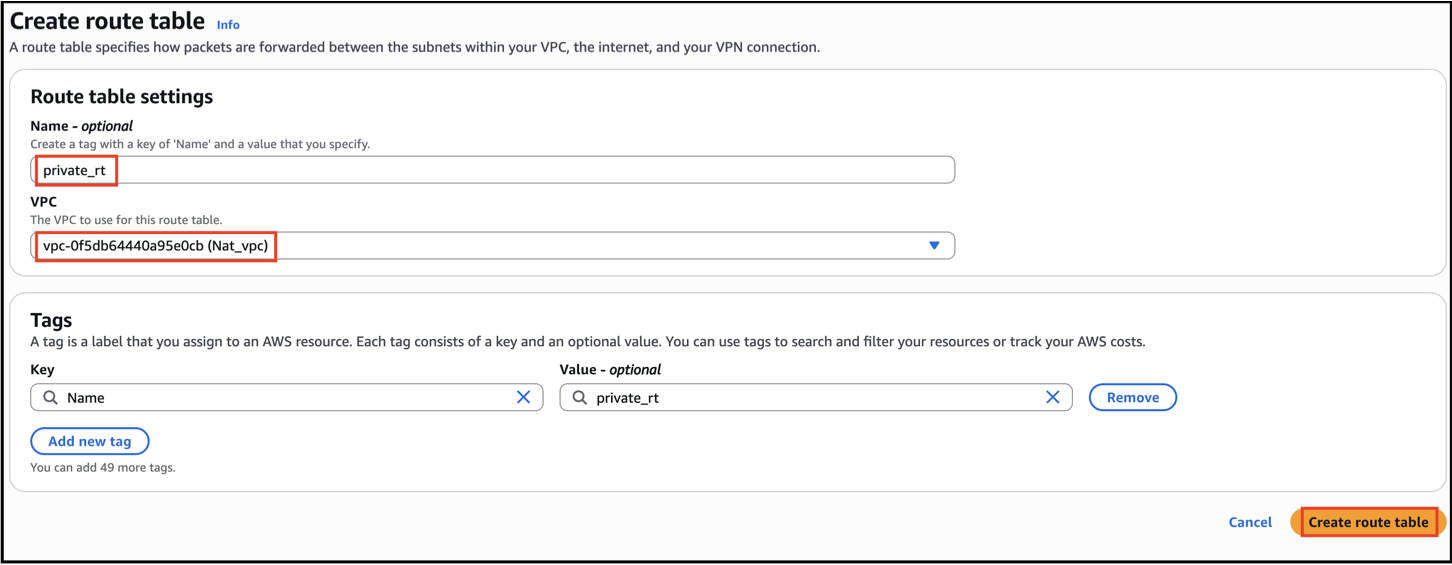
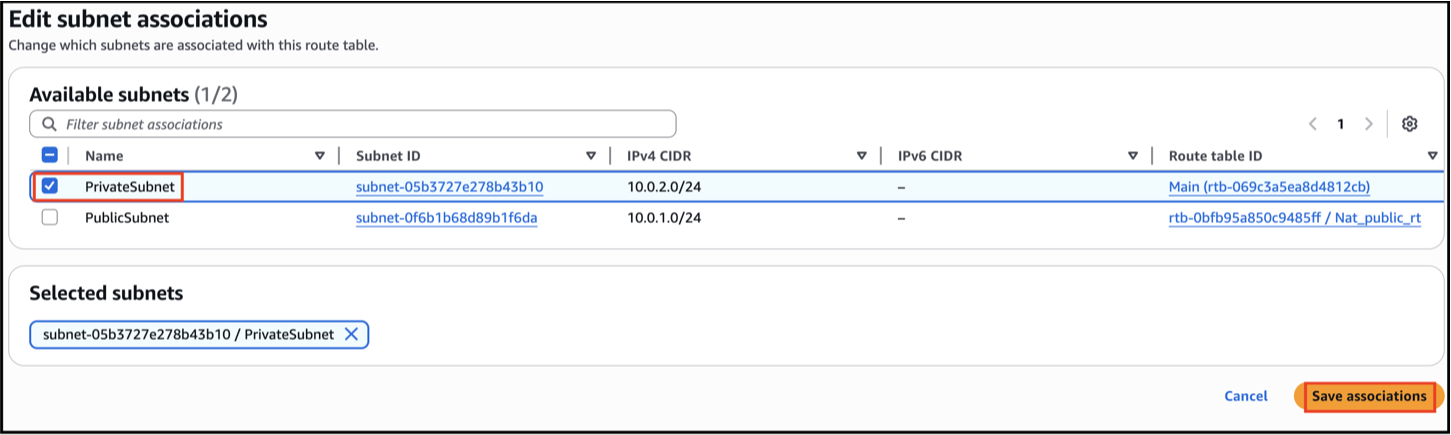
- Click Subnet associations then “Edit subnet associations”
- Select PrivateSubnet then click Save associations.
- Task 2 : VPC and Subnet Setup
- Navigate to EC2 by clicking on the Services menu in the top, then click on EC2 in the Compute section.
- In the EC2 service, you'll see a left-hand side menu. Click on the Instances option, and then click on the Launch Instances button to start the process of creating a new EC2 instance.
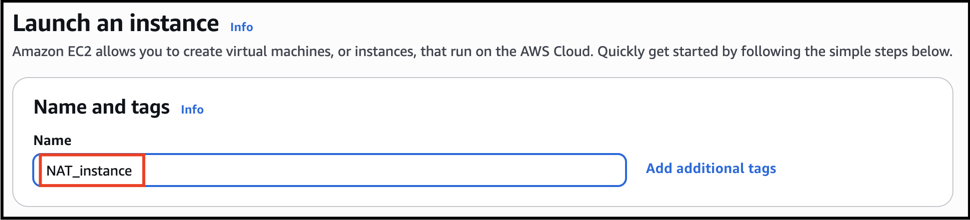
- Name: Enter NAT_instance
- Choose “Amazon Linux 2023 AMI”
- Task 3 : Launch EC2 instance within this VPC
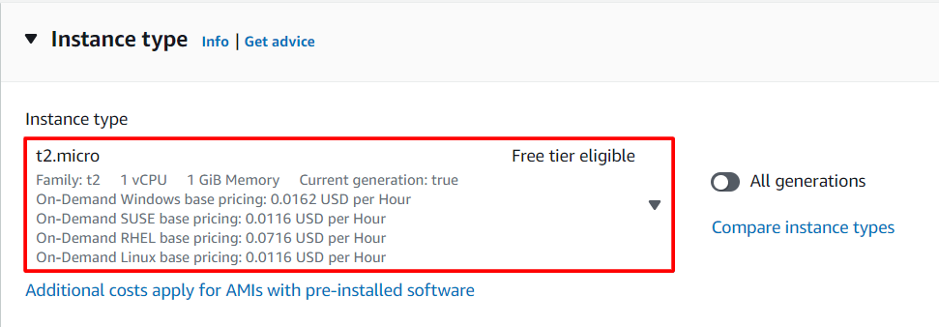
- For Instance Type: Select t2.micro
- Task 3 : Launch EC2 instance within this VPC
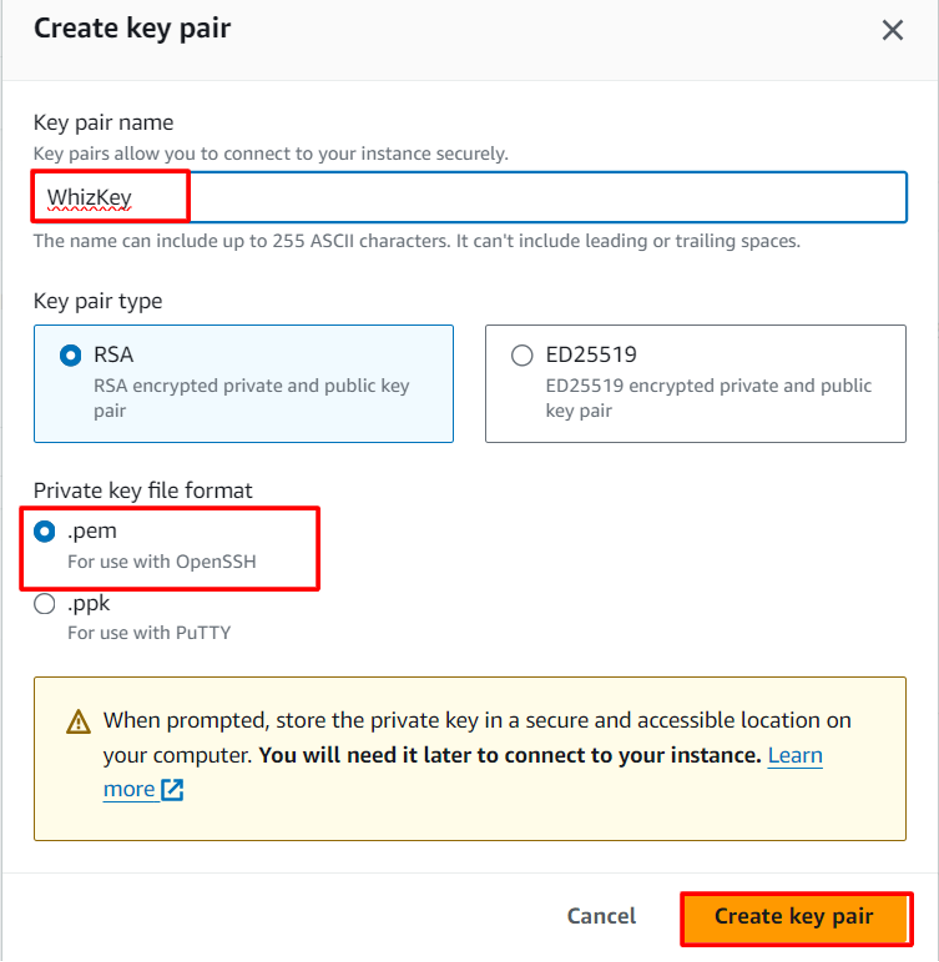
- You'll need to create a key pair to securely connect to your EC2 instances. Select the Create a new key pair option.
- For Key pair(login): Select Create a new key pair Button
- Key pair name: WhizKey
- Key pair type: RSA
- Private key file format: .pem
- Task 3 : Launch EC2 instance within this VPC
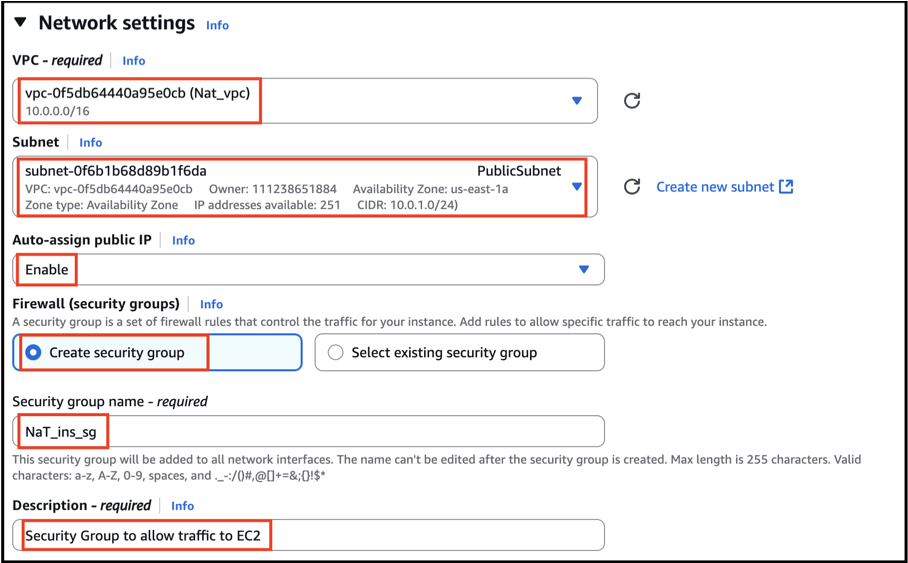
- Make sure to select the Nat_vpc and public subnet we created earlier.
- In Network Settings Click on Edit Button:
- Auto-assign public IP: Enable
- Select Create security group
- Security group name: “NaT_ins_sg”
- Description: “Security Group to allow traffic to EC2 “
- Task 3 : Launch EC2 instance within this VPC
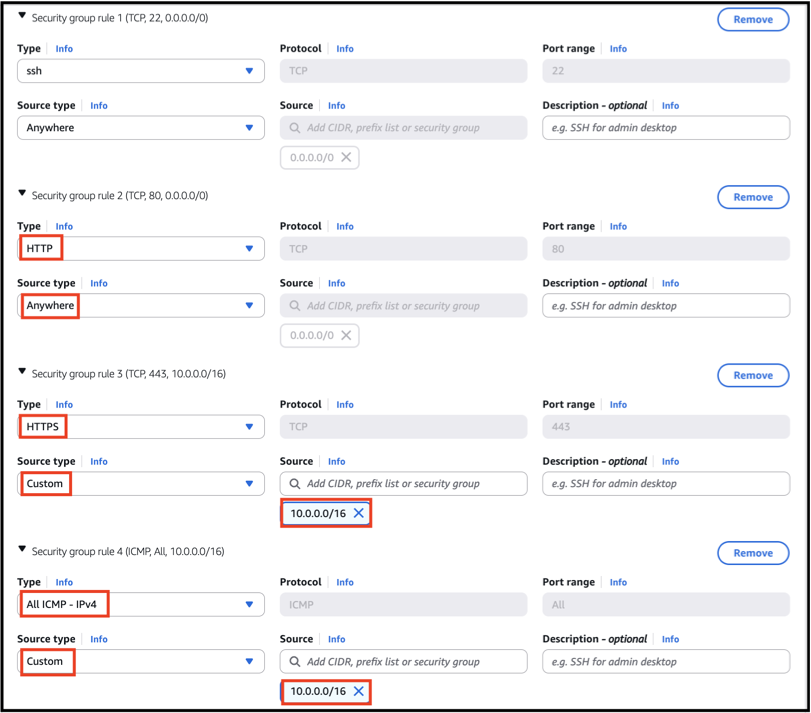
- We will now add the security group rules. SSH will already be present there.
- Click to add rules: For HTTP: Set the Source type to 0.0.0.0 (Anywhere) For HTTPS: Set the Source to 10.0.0.0/16 For All ICMP-IPv4: Set the Source to 10.0.0.0/16
- For HTTP: Set the Source type to 0.0.0.0 (Anywhere)
- For HTTPS: Set the Source to 10.0.0.0/16
- For All ICMP-IPv4: Set the Source to 10.0.0.0/16
- Task 3 : Launch EC2 instance within this VPC
- Click Launch Instance.
- Repeat the steps to launch another instance, ensuring it's in the same VPC but in the private subnet.
- To create the second EC2 instance, repeat the same steps 2-7 and make sure to select the key pair which we created before.
- Name: Enter “Private_ins”
- Select the Same VPC and choose private subnet.
- Auto assign Public IP - Disable
- Create a new security group for this instance as private_ins_sg, allowing inbound traffic from the first instance's security group.
- Task 3 : Launch EC2 instance within this VPC
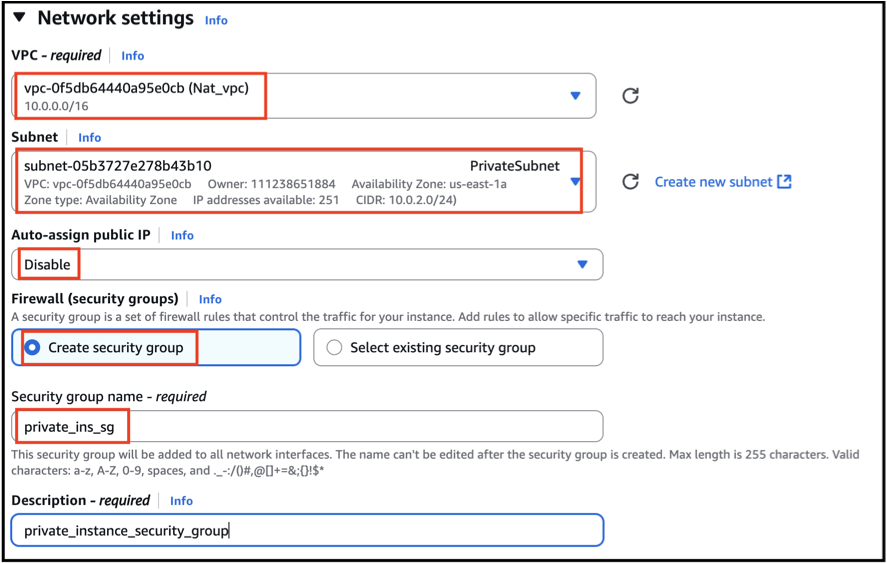
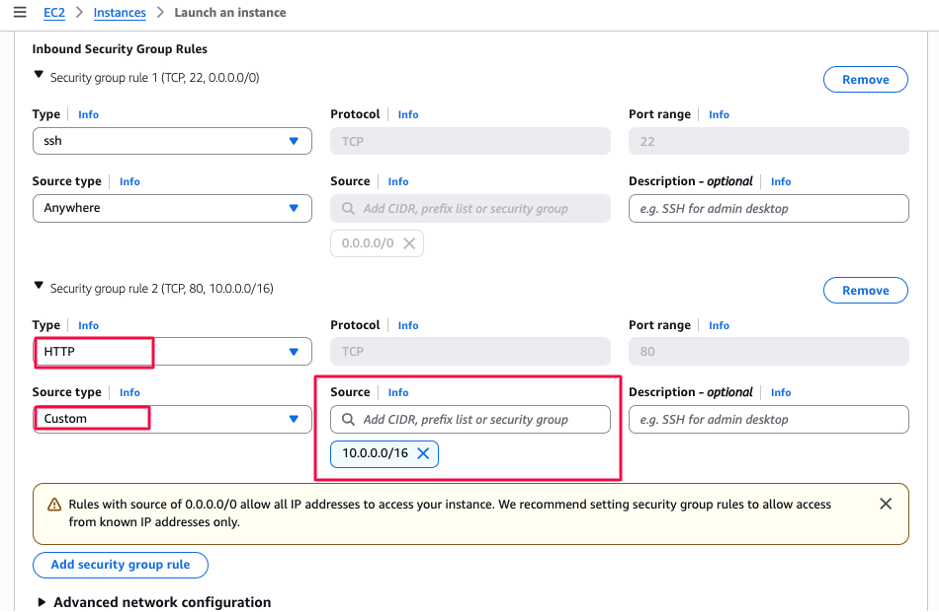
- In the Inbound Security Group Rules, leave the default settings as they are and add new rule For HTTP: Set the Source to 10.0.0.0/16
- Task 3 : Launch EC2 instance within this VPC
- Click Launch Instance.
- In this task, we will convert a normal EC2 instance into a NAT instance.
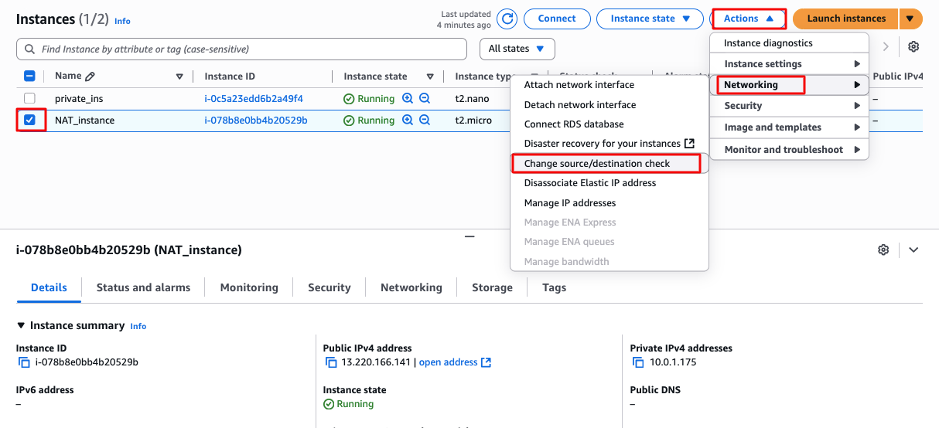
- Select the NAT instance, go to the Actions menu, then choose Networking and click on Change Source/Destionation Check. Enable the Save option and Click on Save Opti.
- Task 4 : Enable NAT Configuration for EC2 Instance
- Open your Local terminal and navigate to the location where your .pem file is stored.
- Task 4 : Enable NAT Configuration for EC2 Instance

- Then, Upload your .pem key from your local machine to the EC2 NAT instance using the following
- Command:
- Replace the <ec2-Nat-instance-public-ip> and the Key pair name accordingly.
- Task 4 : Enable NAT Configuration for EC2 Instance

- Navigate to VPC and Go to Route table Section. Select private_rt.
- Select Routes Option and click Edit Routes Option.
- Task 4 : Enable NAT Configuration for EC2 Instance
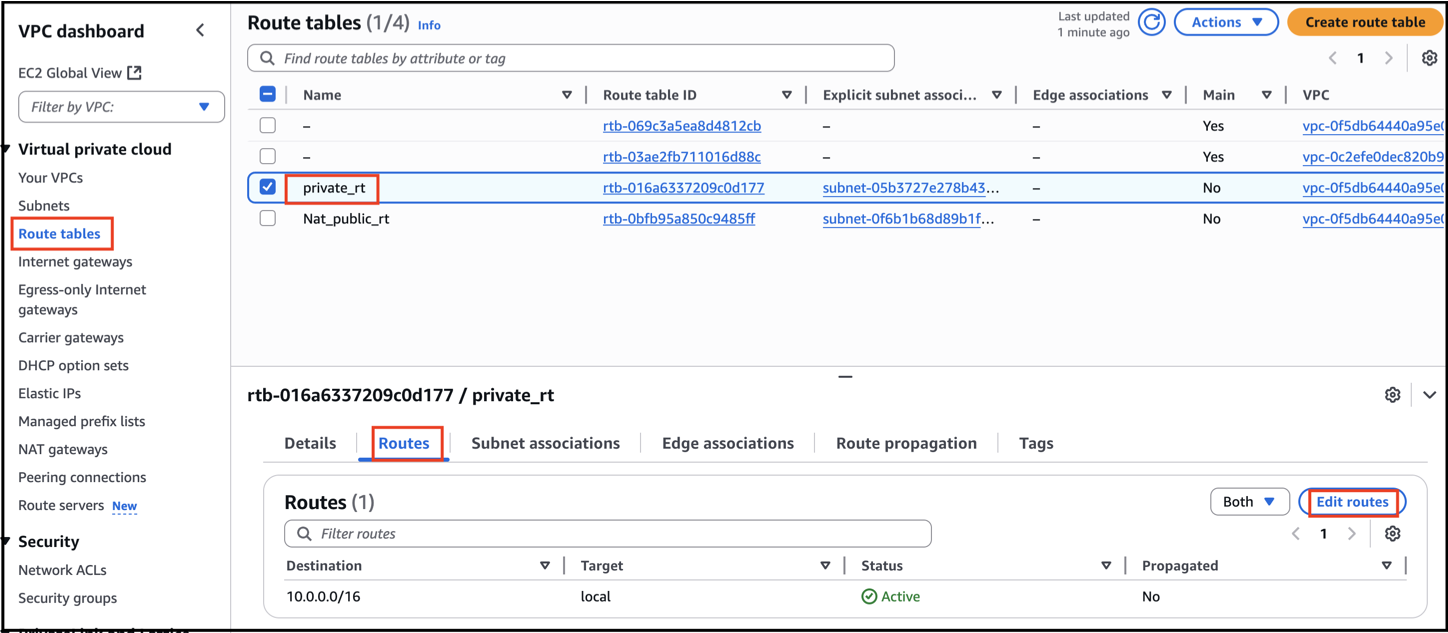
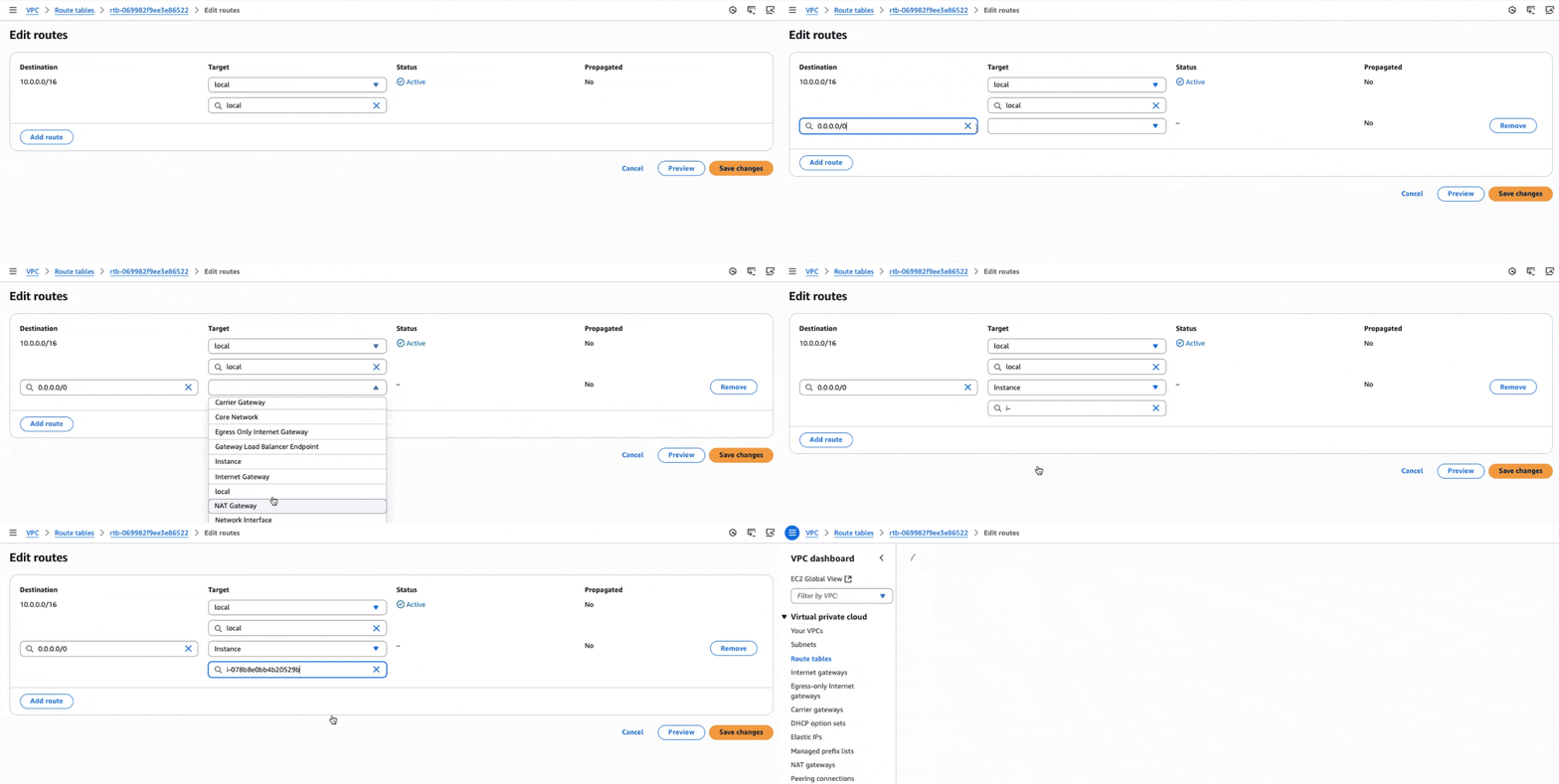
- Click Add route
- Destination : 0.0.0.0/0
- Target : Instance - Choose Nat instance
- Click “Save changes “
- Task 4 : Enable NAT Configuration for EC2 Instance
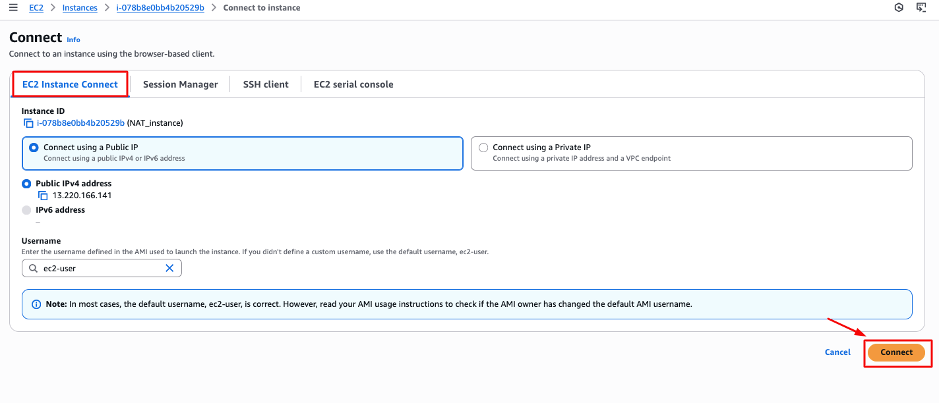
- Now, Navigate to EC2, Connect the Nat_instance
- Task 4 : Enable NAT Configuration for EC2 Instance
- Copy paste the command on NAT instance :
- Enable IP forwarding :
- Setting up ip-tables for NAT (correct interface!)
- Check correct interface by the below command:
- Task 4 : Enable NAT Configuration for EC2 Instance
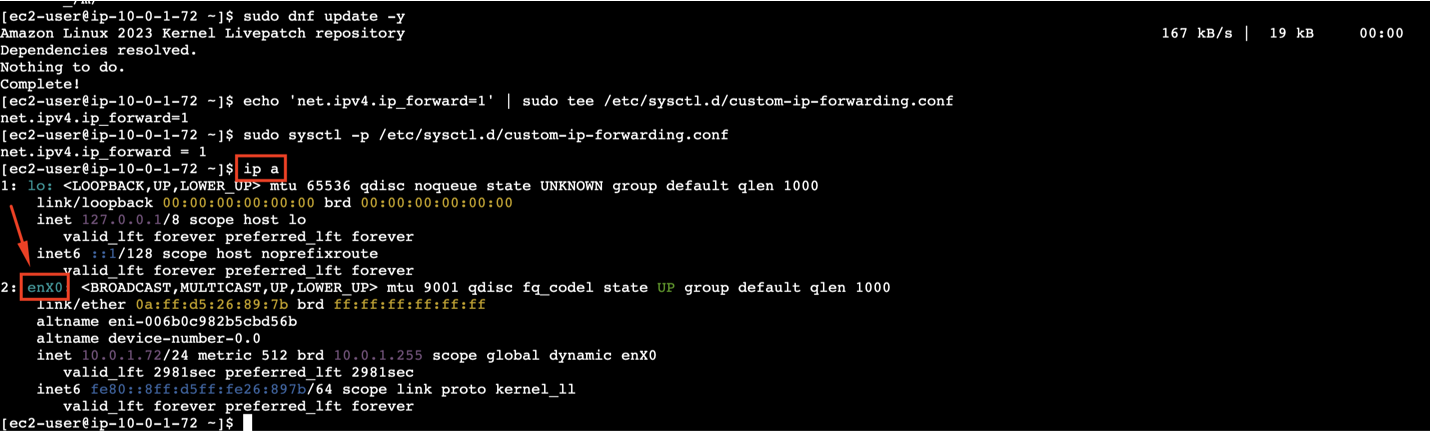
- Note : Replace enX0 with your actual network interface (e.g., enX0, ens5,..). Run ip a to confirm your interface name before applying the below code.
- Ensure iptables FORWARD chain is ACCEPT :
- Task 4 : Enable NAT Configuration for EC2 Instance

- Paste and run each command one at a time to see where it might hang or fail.
- Again go to Instance Page and Select Nat_Instance. Click on Connect and Open new tab.
- Task 4 : Enable NAT Configuration for EC2 Instance

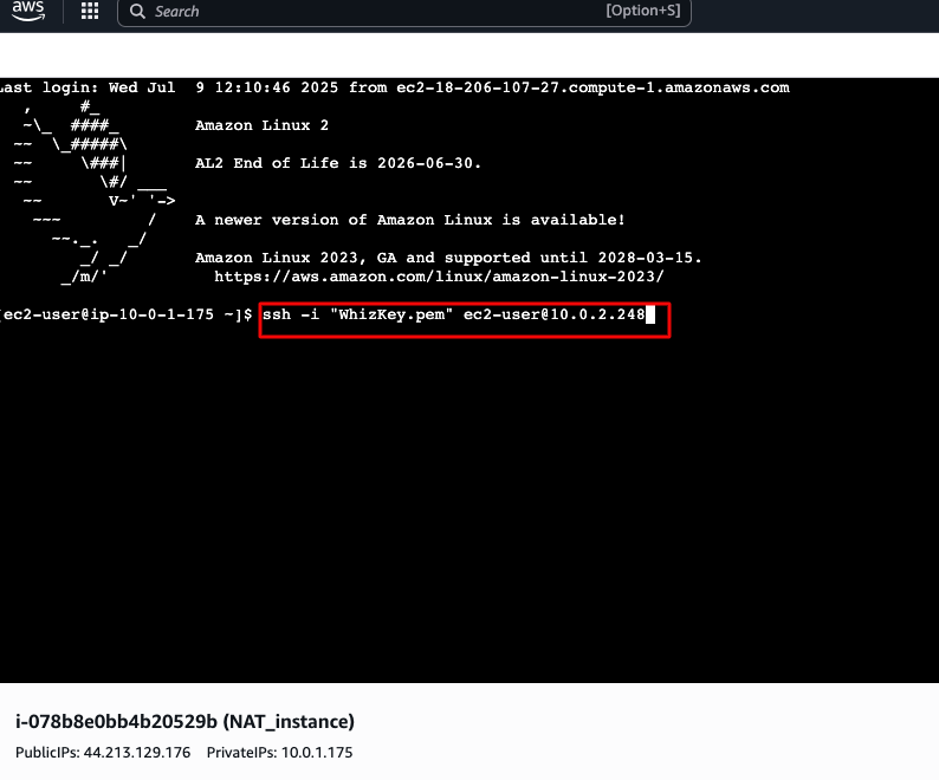
- Now we doing, Private instance via ssh command which is running inside NAT instance
- Command : ssh -i "WhizKey.pem" ec2-user@<Private_ins-Private-IP-Address>
- Task 4 : Enable NAT Configuration for EC2 Instance
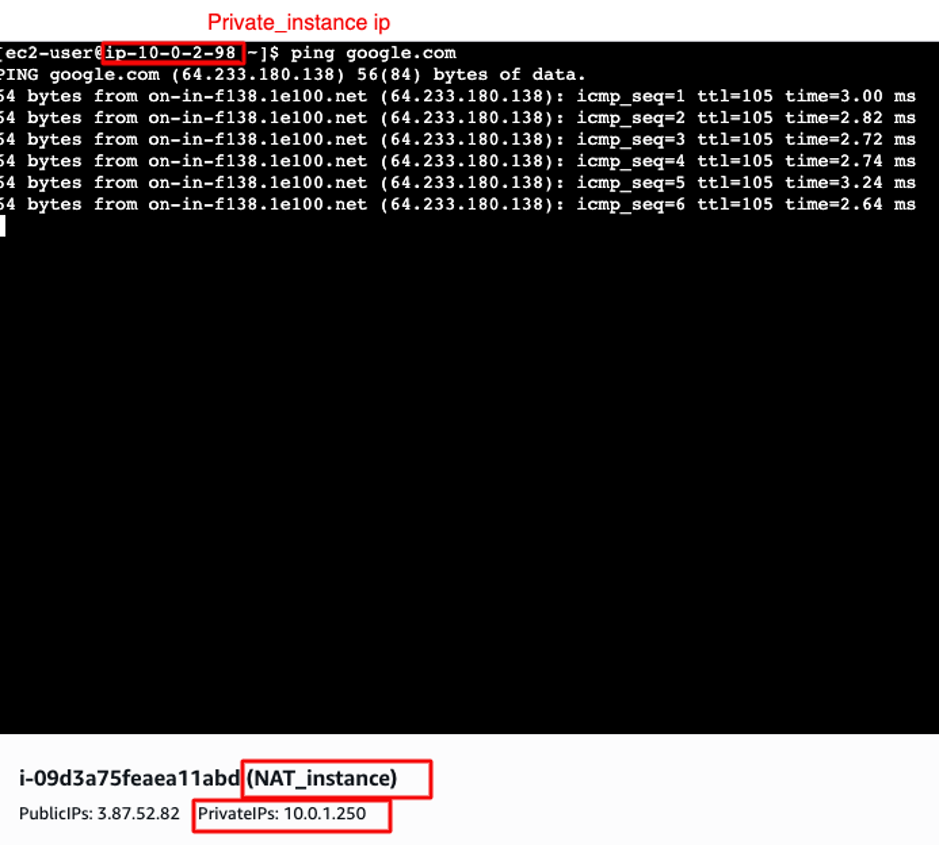
- Check the internet connectivity in the private_instance
- ping google.com or ping 8.8.8.8
- Task 4 : Enable NAT Configuration for EC2 Instance
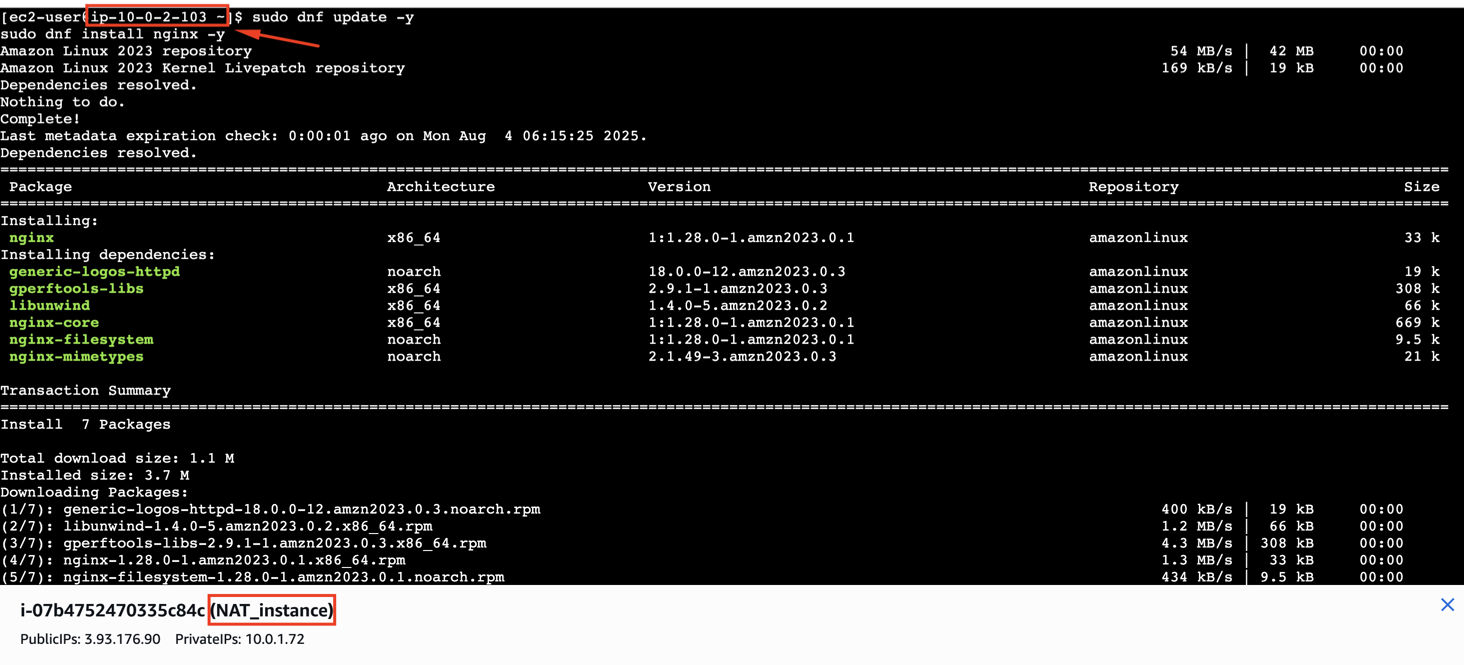
- On Private EC2 Instance,
- Install Nginx ,Copy paste the command
- Task 5 : Install Nginx (Webpage) in the Private Instance
- Set up a Simple Web Page
- This replaces the default NGINX homepage with a custom message
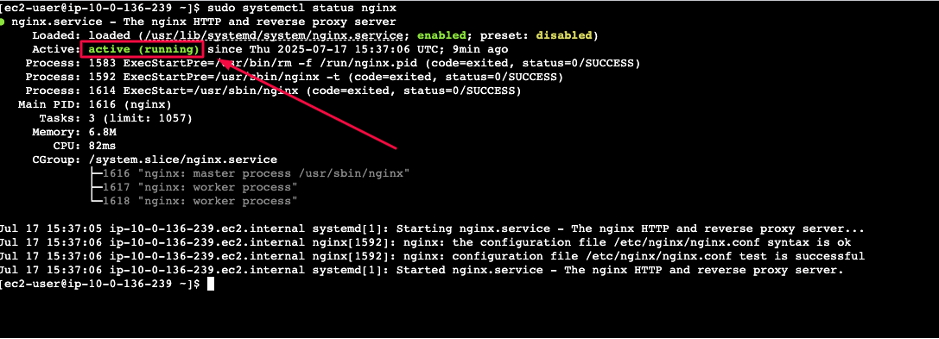
- Enable and Start NGINX
- You should see output like active (running)
- Task 5 : Install Nginx (Webpage) in the Private Instance
- Now, Again Login NAT_instance, Click Connect, Use EC2 Instance Connect (Browser-based SSH), You're now inside the NAT instance terminal.
- Task 5 : Install Nginx (Webpage) in the Private Instance

- We will now create a configuration file that tells NGINX to forward requests it receives to the private EC2 instance where the actual web page is hosted.
- The NAT instance will use NGINX to act as a reverse proxy, forwarding requests to the private instance.
- Install NGINX :
- Configure NGINX as a Reverse Proxy
- Open a new NGINX configuration file
- Paste the following configuration
- Replace 10.0.1.10 with the private IP address of your private_ins.
- Task 5 : Install Nginx (Webpage) in the Private Instance
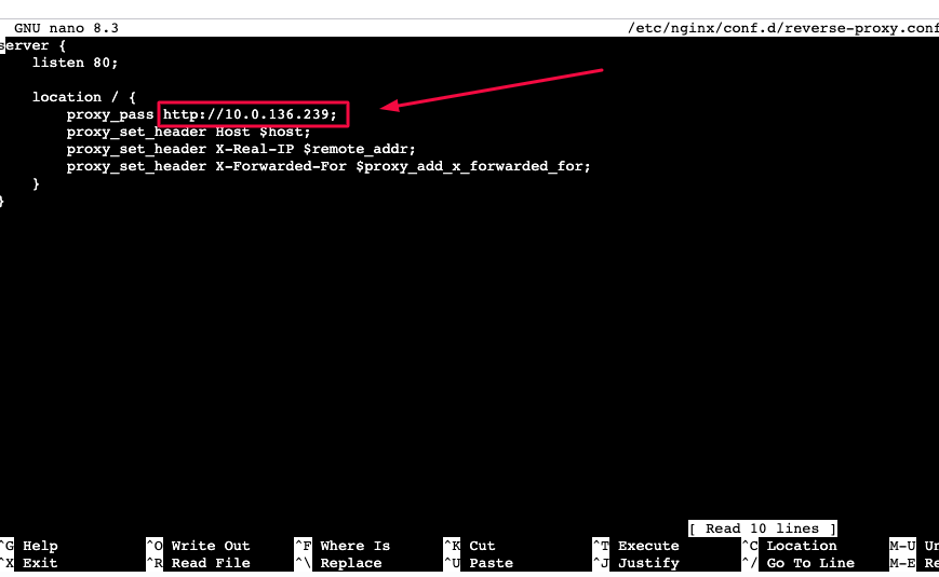
- Save and exit the file .
- Press “CTRL + X” to save. Press “Y”
- Press Enter to confirm the file name.
- Test the new configuration for syntax errors
- You should see:
- Task 5 : Install Nginx (Webpage) in the Private Instance

- Reload NGINX to apply the changes
- Disable Firewalld and Flush IPTables Rules
- Run these commands on the NAT instance to stop firewalld and flush iptables
- Task 5 : Install Nginx (Webpage) in the Private Instance
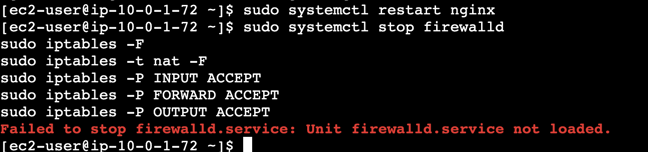
- This will allow traffic on port 80, which is necessary for NGINX reverse proxy to work.
- Any requests made to the NAT instance's public IP on port 80 will be forwarded to the private instance's web server.
- Copy the NAT instance's public IP and open it in your web browser.
- Task 5 : Install Nginx (Webpage) in the Private Instance
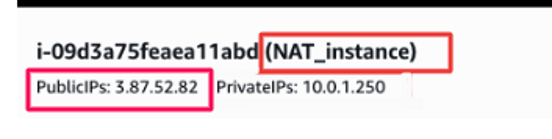
- You should see the page served from the private EC2 instance, like:
- Task 5 : Install Nginx (Webpage) in the Private Instance

- Again run this commands, which Setup iptables NAT:
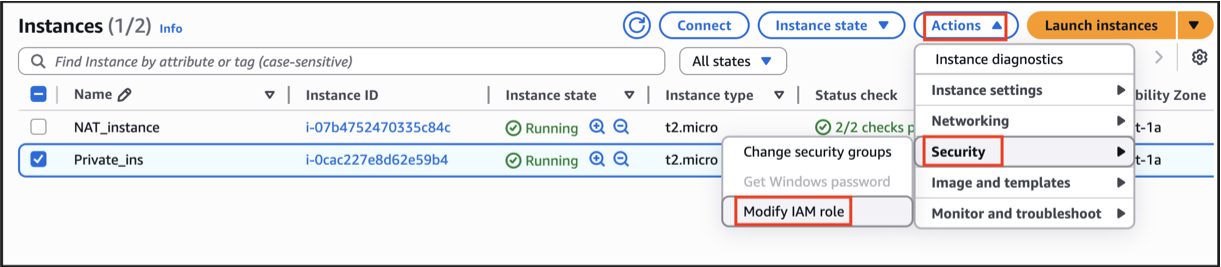
- Go to the EC2 section in the AWS Management Console, open the Instances page, and select your private_ins instance.
- Then open the Actions menu, navigate to the Security settings, choose Modify IAM Role, select the EC2_CloudWatch_Agent_policy from the list of available roles, and confirm the update to attach the role to your instance.
- Task 6 : Install and Configure CloudWatch Agent
- Now we going to Connect to your private EC2 instance again,
- Go to EC2 Instance page, Select Nat_instance, and click on Connect.
- Now we doing, Private instance via ssh command which is running inside NAT instance
- Command : ssh -i "WhizKey.pem" ec2-user@<Private_ins-Private-IP-Address>
- Install CloudWatch Agent
- Create agent config file
- Paste this config (for monitoring NGINX logs)
- Save the file
- Press “CTRL + X” to save. Press “Y”
- Press Enter to confirm the file name.
- Start the agent with your config
- Confirm Logs in CloudWatch :
- Go to AWS Console, Search for CloudWatch, Select Log Groups in the left panel.
- Task 6 : Install and Configure CloudWatch Agent
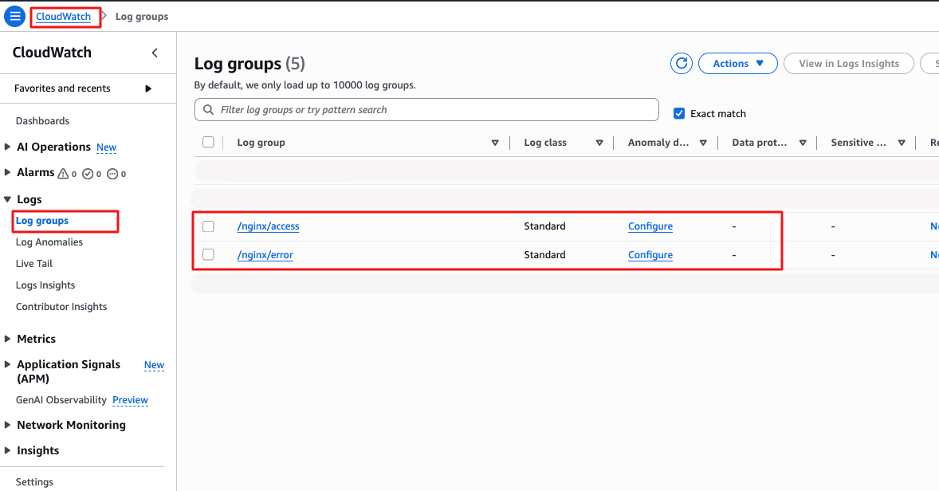
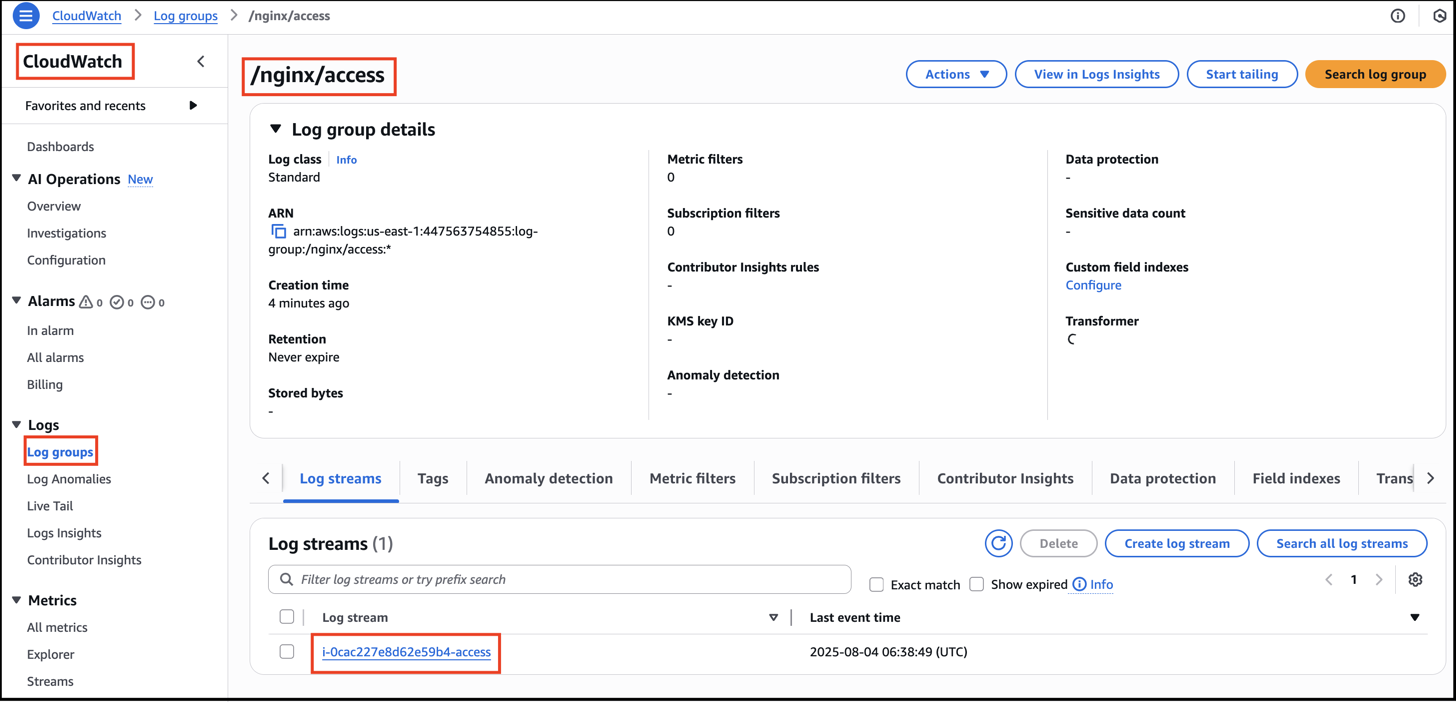
- Open the log groups in the CloudWatch console and view the log streams associated with your EC2 instance ID.
- Check whether logs from your EC2 instance are being successfully delivered and displayed in the selected log streams.
- Task 6 : Install and Configure CloudWatch Agent
- Once the lab steps are completed, please click on the Validation button on the left side panel.
- This will validate the resources in the AWS account and shows you whether you have completed this lab successfully or not.
- Task 7: Validation of the Lab
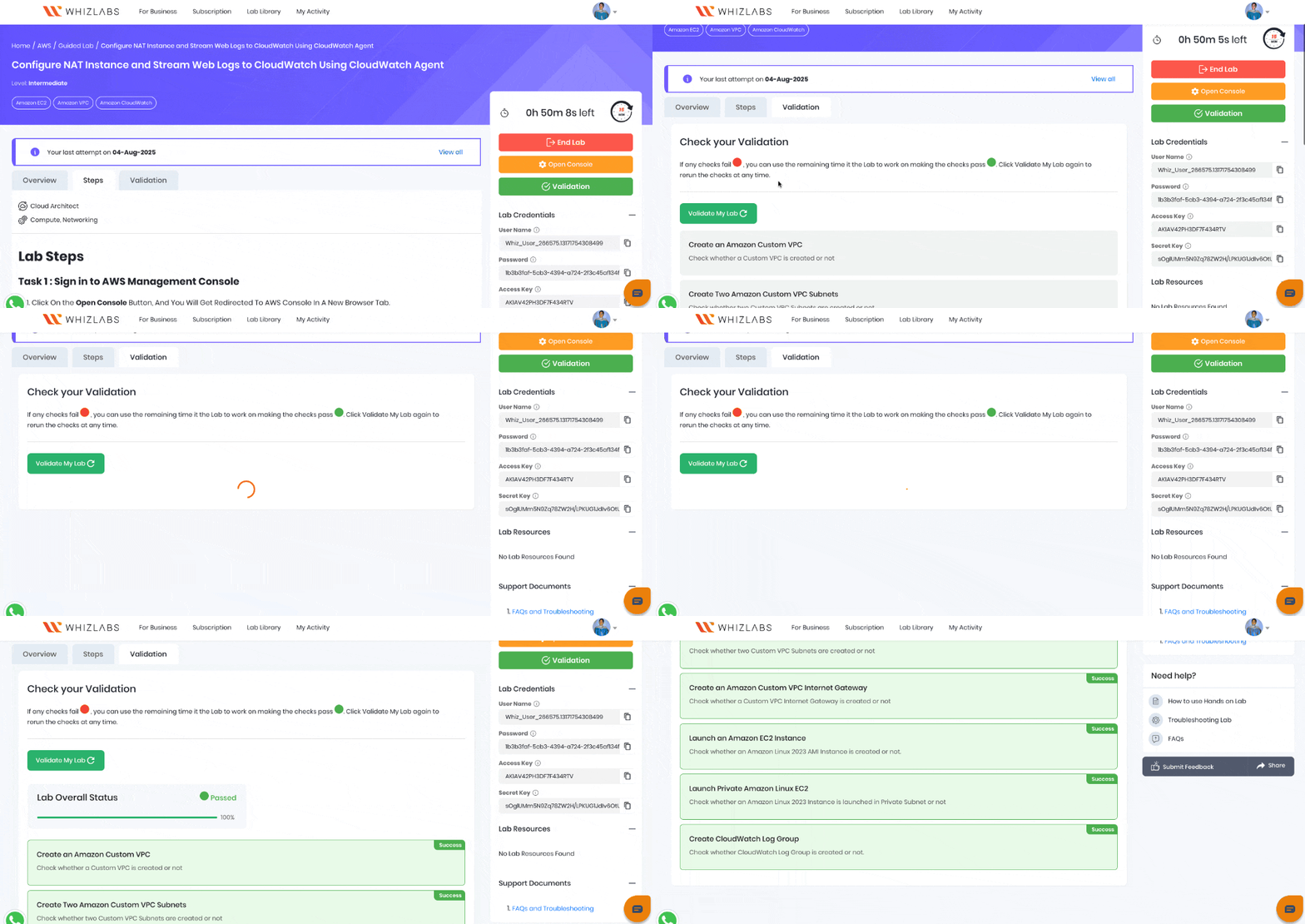
- You have successfully created an VPC
- You have converted an EC2 instance into a NAT Instance
- You have successfully pinged Google from the private instance via the NAT instance.
- You have installed Nignx , Cloud Watch Agent on the private instance
- You have connected Cloud Watch Agent to AWS CloudWatch,
- Sign out of AWS Account.
- You have successfully completed the lab.
- Once you completed the steps, click on End Lab from your lab lab console and wait till the process gets completed.