Advanced01:00:00
Blocking web traffic with WAF in AWS
- Click on the open console button, and you will get redirected to the AWS Console in a new browser tab.
- On the AWS sign-in page, Leave the Account ID as default. Never edit/remove the 12-digit Account ID present in the AWS Console. otherwise, you cannot proceed with the lab. Now copy your User Name and Password in the Lab Console to the IAM Username and Password in the AWS Console and click on the Sign in button.
- On the AWS sign-in page,
- Leave the Account ID as default. Never edit/remove the 12-digit Account ID present in the AWS Console. otherwise, you cannot proceed with the lab.
- Now copy your User Name and Password in the Lab Console to the IAM Username and Password in the AWS Console and click on the Sign in button.
- Once Signed In to the AWS Management Console, Make the default AWS Region as US East (N. Virginia) us-east-1.
- Select Maybe later in the New AWS Console Home page pop-up
- Navigate to the EC2 Dashboard and scroll down to Security Groups. In the left menu, click on Create security group.
- Configure the security group as follows:
- Security group name: Enter LoadBalancer-SG
- Description: Enter Security group for the Load balancer
- VPC: Leave as default
- In Inbound rules, Click on Add Rule and add the port as follows.
- Type: Select HTTP
- Protocol: TCP
- Port range: 80
- Source: Select Anywhere-IPv4, and enter 0.0.0.0/0
- Once you provide the above details, click on Create and the security group for the load balancer will be created.
- Make sure you are in the US East (N. Virginia) Region.
- Navigate to Instances on the left panel and click on Launch instance.
- Name: Enter webserver-A
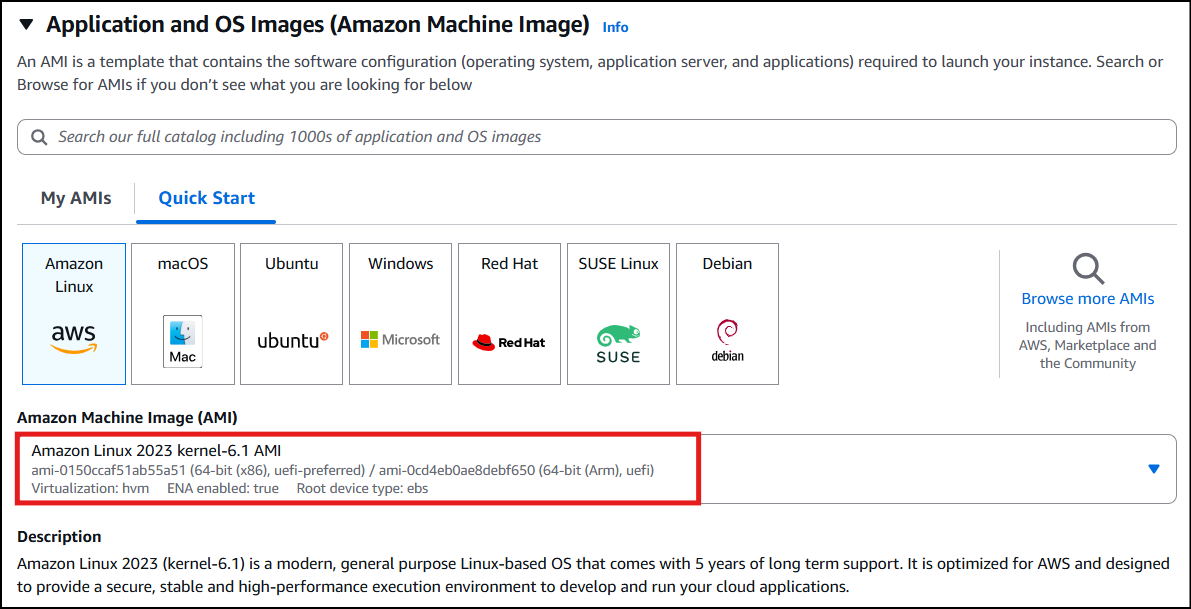
- For Amazon Machine Image (AMI): Search for Amazon Linux 2023 kernel-6.1 AMI in the search box and click on the select button.
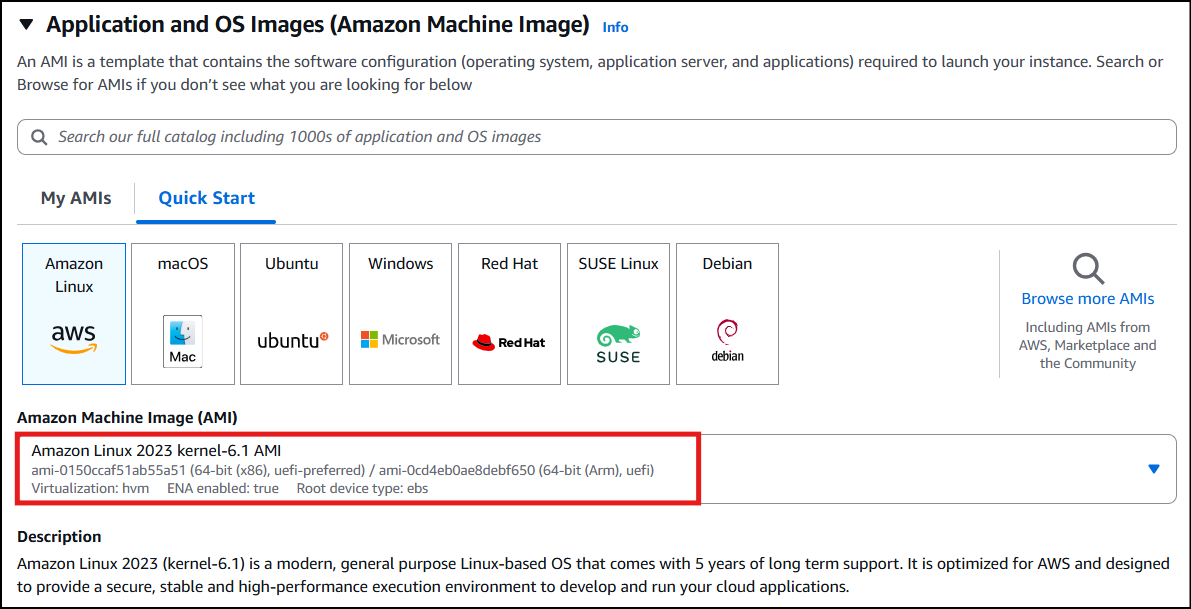
- Task 3: Steps to create the Web-servers
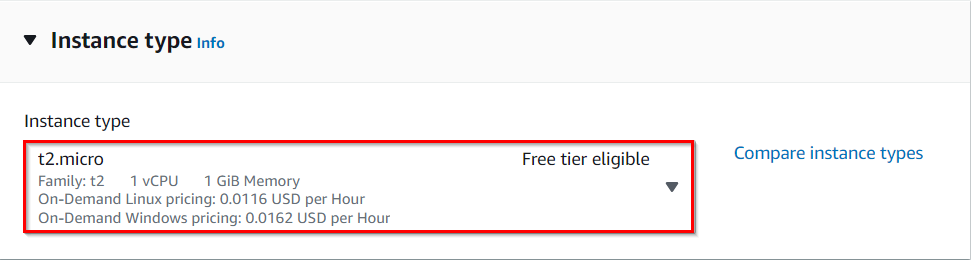
- Instance Type: Select t2.micro
- Task 3: Steps to create the Web-servers
- For Key pair: Select Create a new key pair Button Key pair name: WhizKey Key pair type: RSA Private key file format: .pem
- For Key pair: Select Create a new key pair Button
- Key pair name: WhizKey
- Key pair type: RSA
- Private key file format: .pem
- Select the Create key pair Button.
- In Network Settings Click on the Edit button:
- Auto-assign public IP: Enable
- Choose Create security group Name: Enter webserver-SG Description: Enter security group for the webserver
- Choose Create security group
- Name: Enter webserver-SG
- Description: Enter security group for the webserver
- To add HTTP Click on Add security group rule Choose Type: Select HTTP Source Type: Custom Source: Choose LoadBalancer-SG
- To add HTTP Click on Add security group rule
- Choose Type: Select HTTP
- Source Type: Custom
- Source: Choose LoadBalancer-SG
- To add SSH Choose Type: Select SSH Source: Choose Anywhere
- To add SSH
- Choose Type: Select SSH
- Source: Choose Anywhere
- Click on Advanced Details.
- Under the User data section, enter the following script to create an HTML page served by an Apache HTTPD web server.
- Click on Launch Instances.
- After a few minutes, you will see a new instance named webserver-A running.
- Repeat the above steps to create Webserver-B by selecting the existing security group webserver-SG providing the following details.
- Kindly select the same key-pair (as in you have created for previous instance (Webserver-A) to Webserver-B instance.
- Navigate to the EC2 Dashboard to find the two instances (webserver-A and webserver-B) running.
- Task 3: Steps to create the Web-servers

- In the EC2 Console, Navigate to Target Groups, present in the left panel under Load Balancing.
- Click on the Create target group.
- For Step 1, Specify group details
- Under Basic configurations, Choose a target group: Choose Instances Target group name: Enter web-server-TG
- Under Basic configurations,
- Choose a target group: Choose Instances
- Target group name: Enter web-server-TG
- Keep all the settings as default.
- Health check protocol: HTTP
- Health check path: Enter /index.html
- Scroll to the end of the page and click on the Next button.
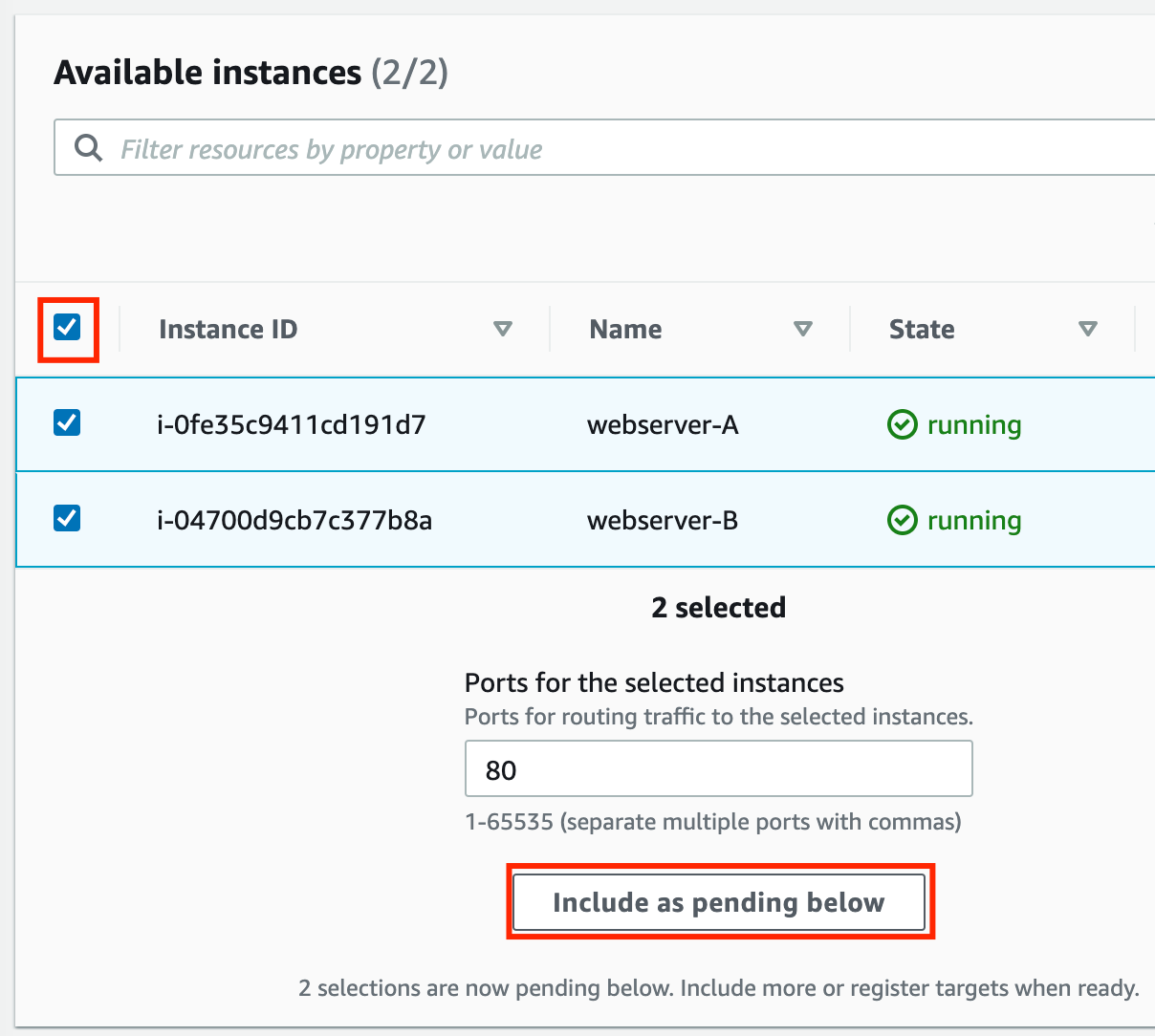
- For Step 2, Register targets Select both instances and click on the Include as pending below button. Instances will be present in the Review targets part, having health status as Pending. Click on the Create target group button.
- For Step 2, Register targets
- Select both instances and click on the Include as pending below button.
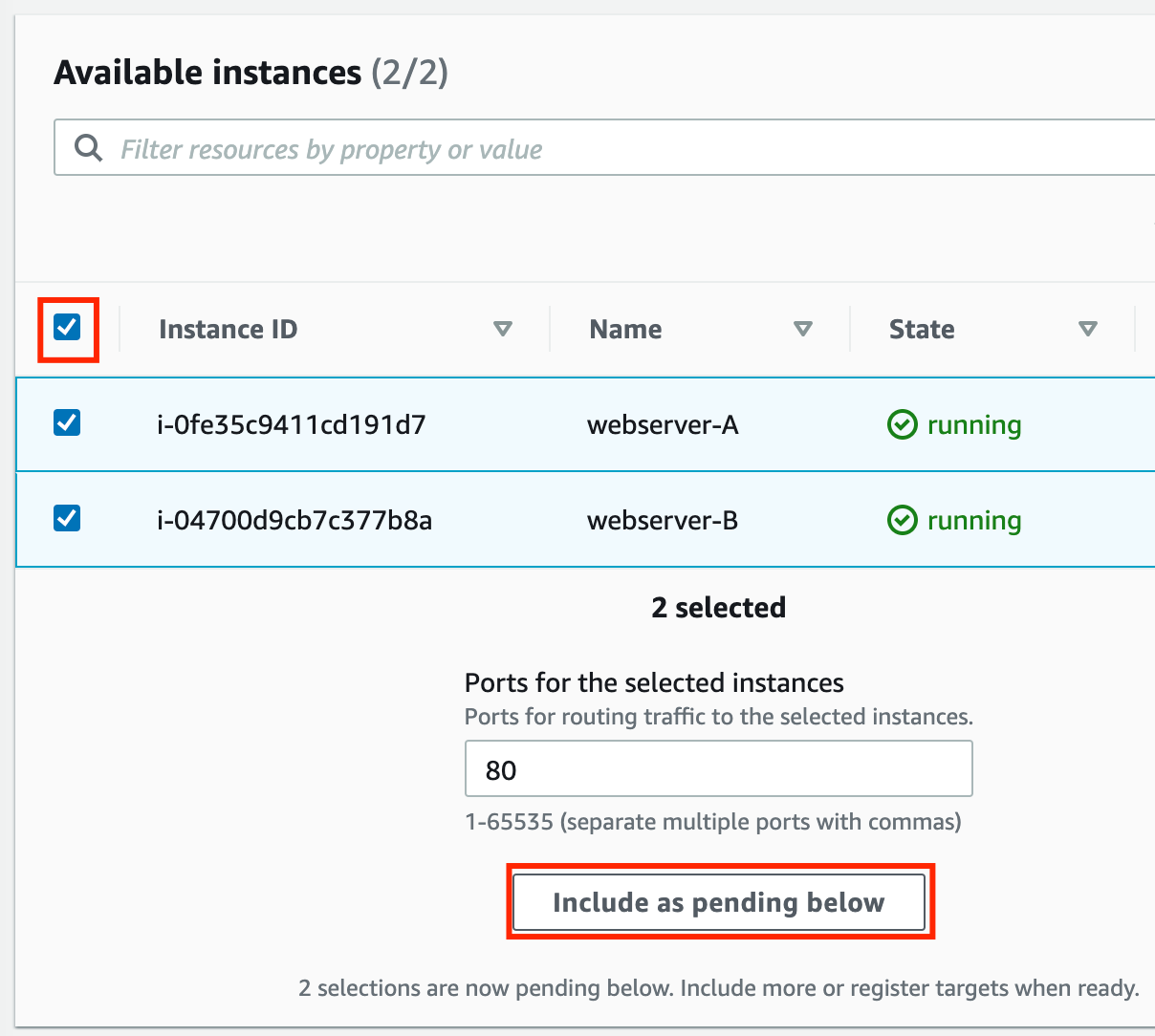
- Instances will be present in the Review targets part, having health status as Pending.
- Click on the Create target group button.
- The Target group is now created.
- In the EC2 console, navigate to Load balancers in the left-side panel.
- Click on create load balancer at the top-left to create a new load balancer for our web servers.
- Select Load Balancer Type: Under the Application load balancer, click on the Create button.
- To create an Application load balancer, configure the load balancer as below For the Basic configuration section, Name: Enter Web-server-LB Scheme: Select Internet-facing IP address type: Choose IPv4 For the Network mapping section: VPC: Select Default Mappings: Select all the Availability zones present For the Security groups section, Select the LoadBalancer-SG Security group from the dropdown and remove the default security group. For the Listeners and routing section, The listener is already present with Protocol HTTP and Port 80. Select the target group web-server-TG for the Default action forwards to option.
- To create an Application load balancer, configure the load balancer as below
- For the Basic configuration section, Name: Enter Web-server-LB Scheme: Select Internet-facing IP address type: Choose IPv4
- For the Basic configuration section,
- Name: Enter Web-server-LB
- Scheme: Select Internet-facing
- IP address type: Choose IPv4
- For the Network mapping section: VPC: Select Default Mappings: Select all the Availability zones present
- For the Network mapping section:
- VPC: Select Default
- Mappings: Select all the Availability zones present
- For the Security groups section, Select the LoadBalancer-SG Security group from the dropdown and remove the default security group.
- For the Security groups section,
- Select the LoadBalancer-SG Security group from the dropdown and remove the default security group.
- For the Listeners and routing section,
- The listener is already present with Protocol HTTP and Port 80. Select the target group web-server-TG for the Default action forwards to option.
- The listener is already present with Protocol HTTP and Port 80.
- Select the target group web-server-TG for the Default action forwards to option.
- Keep the tags as default and click on the Create load balancer button.
- You have successfully created the Application Load balancer. Click on the View load balancers button.
- Wait for 2 to 3 minutes for the load balancer to become Active.
- Task 4: Creating a Load balancer
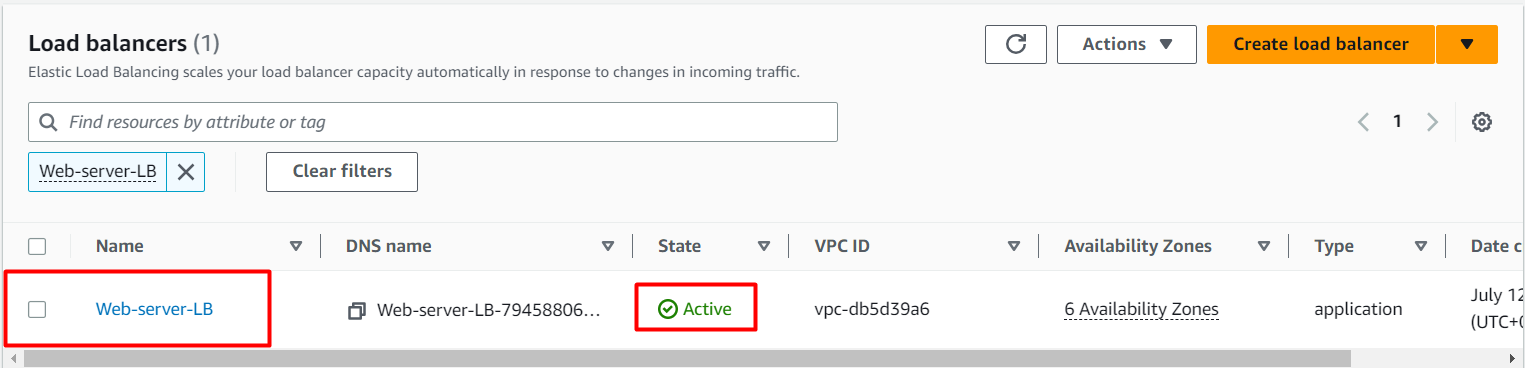
- Navigate to Load Balancers and select the load balancer that you created. Under details scroll down you will be able to see the DNS name, copy the DNS name and paste it into the browser
- Task 5: Testing the Load Balancer

- Refresh the browser a few times and you will see the request is serving from both servers. You will see the output as RESPONSE COMING FROM SERVER A & RESPONSE COMING FROM SERVER B. This shows that load is shared between the two web servers via the Application Load Balancer.Note: Remove 's' from the https in the dns name if you couldn't able to see the webpage.
- Refresh the browser a few times and you will see the request is serving from both servers. You will see the output as RESPONSE COMING FROM SERVER A & RESPONSE COMING FROM SERVER B. This shows that load is shared between the two web servers via the Application Load Balancer.
- Note: Remove 's' from the https in the dns name if you couldn't able to see the webpage.
- Task 5: Testing the Load Balancer

- Click on services and select WAF & Shield under the Security, Identity, & Compliance section.
- On the left side, you will be able to see the IP sets menu. Click on IP sets and click on Create IP sets.
- On the next screen, fill out the following details under Create IP set.
- IP set details: IP set name: Enter MyIPset Description: Enter IP set to block my public IP Region: Select US EAST (N.Virginia ) IP Version: Select IPv4 IP address: Enter the IP of your local network/32 from https://www.whatismyip.com/. Note: You have to give /32 after the IP is pasted or else you won't be able to create an IP set.
- IP set details:
- IP set name: Enter MyIPset
- Description: Enter IP set to block my public IP
- Region: Select US EAST (N.Virginia )
- IP Version: Select IPv4
- IP address: Enter the IP of your local network/32 from https://www.whatismyip.com/.
- Note: You have to give /32 after the IP is pasted or else you won't be able to create an IP set.
- Once you have provided the above details, click on Create IP set
- Web ACL details
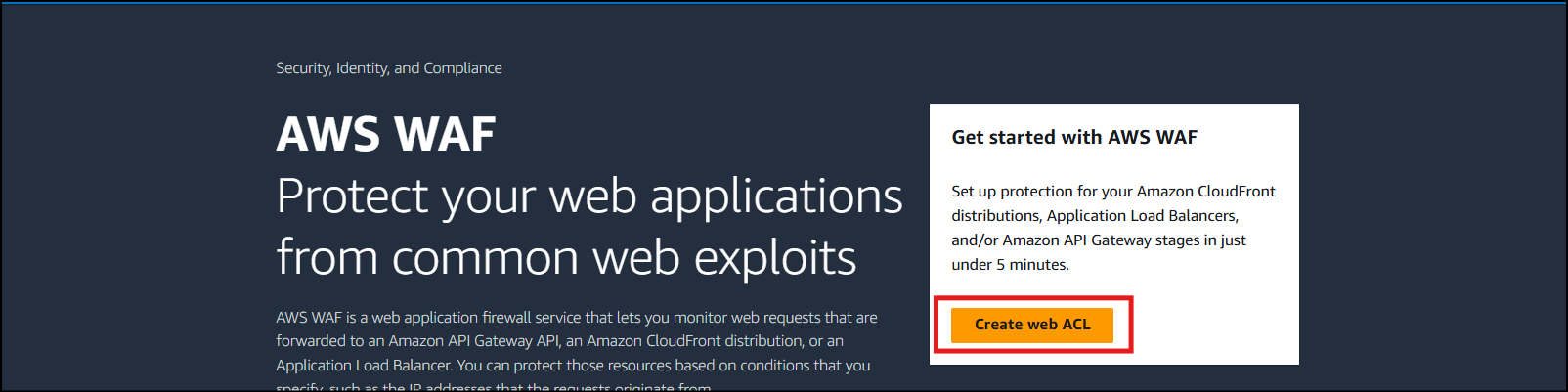
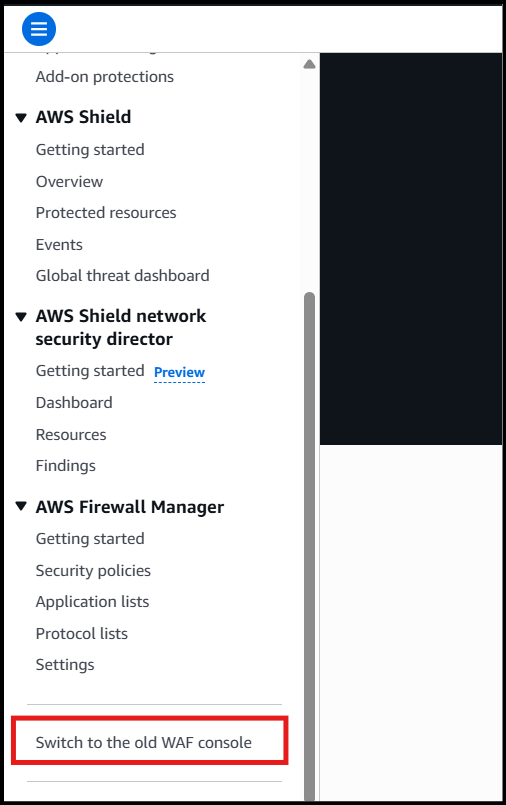
- Navigate to the AWS WAF dashboard and scroll down and select Switch to the Old WAF Console. Click on Create web ACL to create a new web ACL.
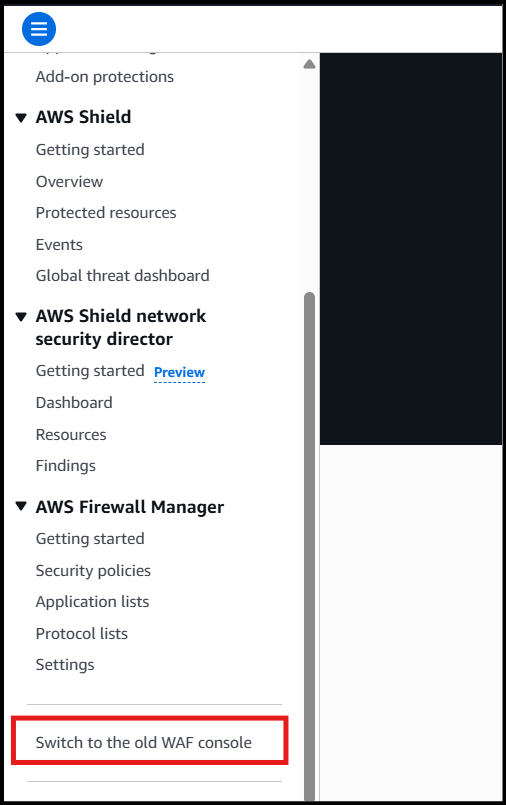
- Navigate to the AWS WAF dashboard and scroll down and select Switch to the Old WAF Console.
- Task 7: Creating a Web ACL
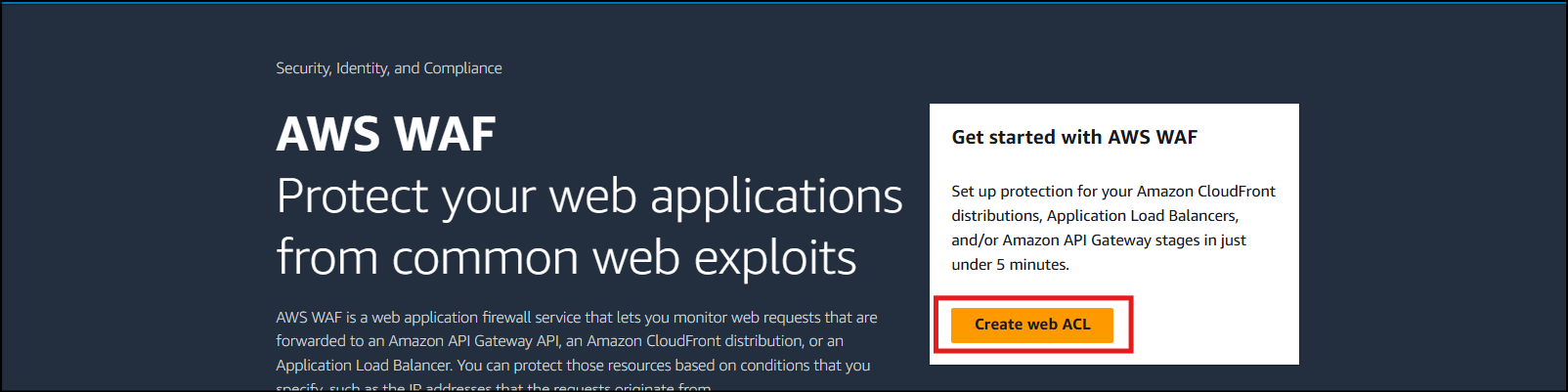
- Click on Create web ACL to create a new web ACL.
- Task 7: Creating a Web ACL
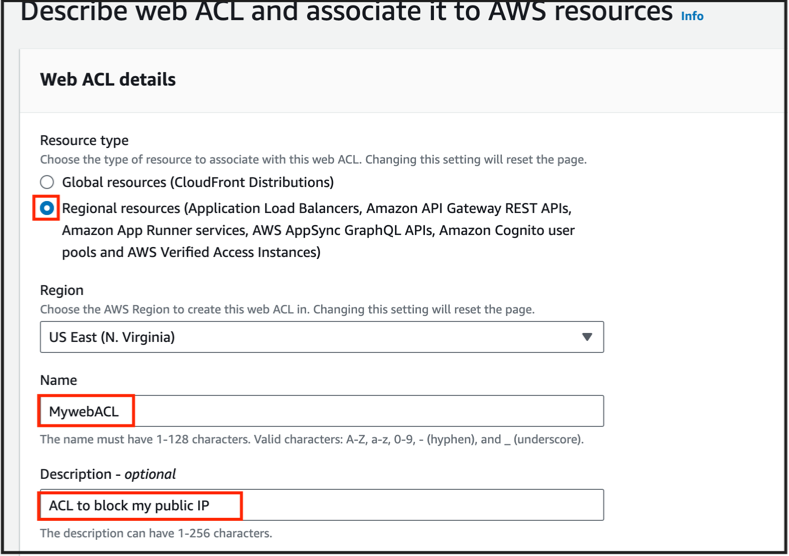
- Configure the ACL as below: Web ACL details
- Configure the ACL as below:
- Web ACL details
- Resource type: Select Regional resources (Application Load Balancer and API Gateway)
- Region: Select US EAST (N.Virginia)Name: Enter MywebACLDescription: Enter ACL to block my public IP
- Region: Select US EAST (N.Virginia)
- Name: Enter MywebACL
- Description: Enter ACL to block my public IP
- Task 7: Creating a Web ACL
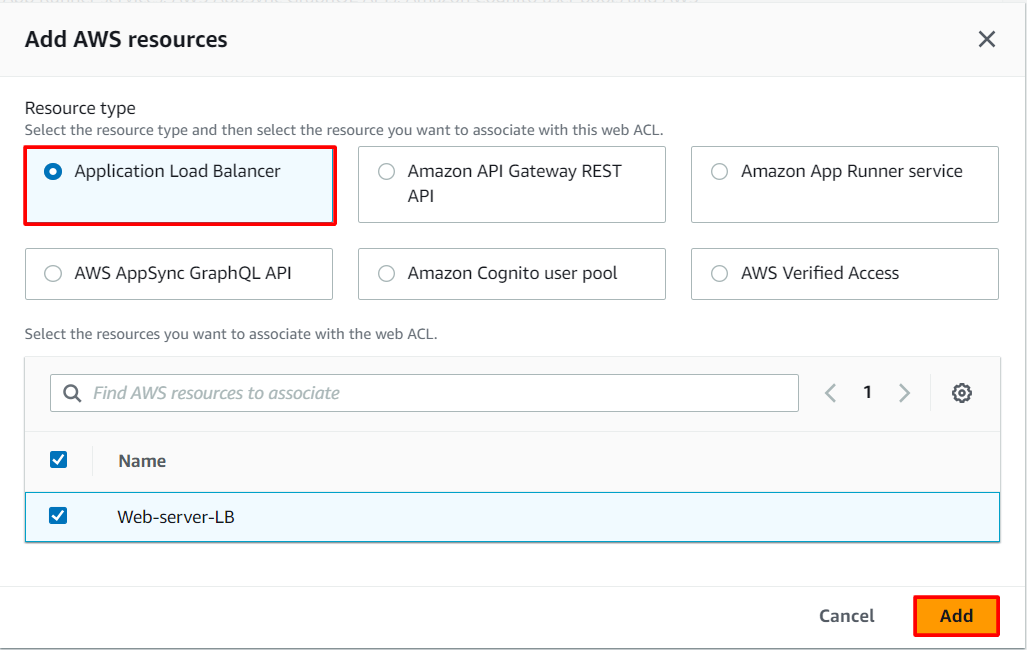
- To associate an AWS resource, click on Add AWS resources
- In Add AWS resources select Application Load Balancer and select the name of ALB. Click on Add
- Task 7: Creating a Web ACL
- Lastly, click on the Next button
- Add rules and rule groups
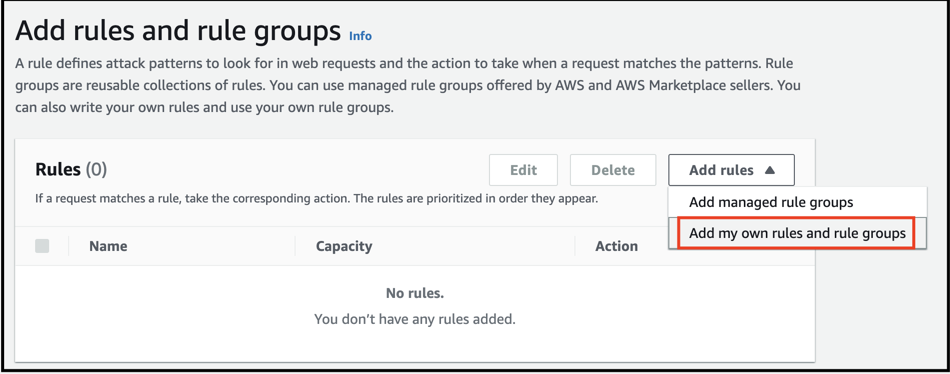
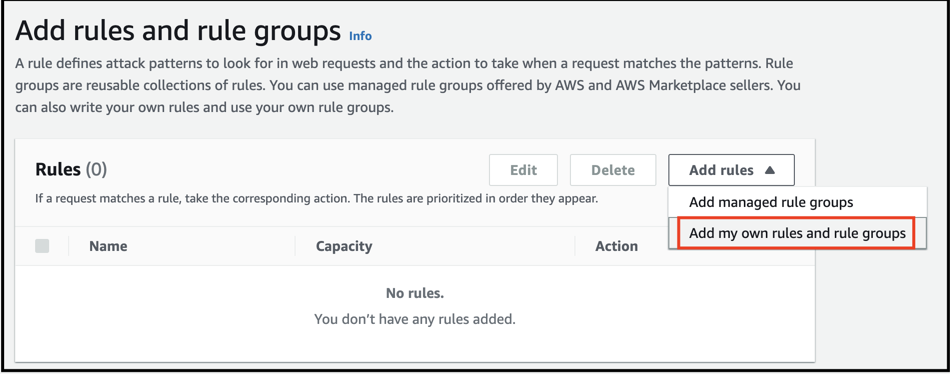
- Under Rules click on Add rule and select Add my own rules and rule groups in the drop-down menu.
- Task 7: Creating a Web ACL
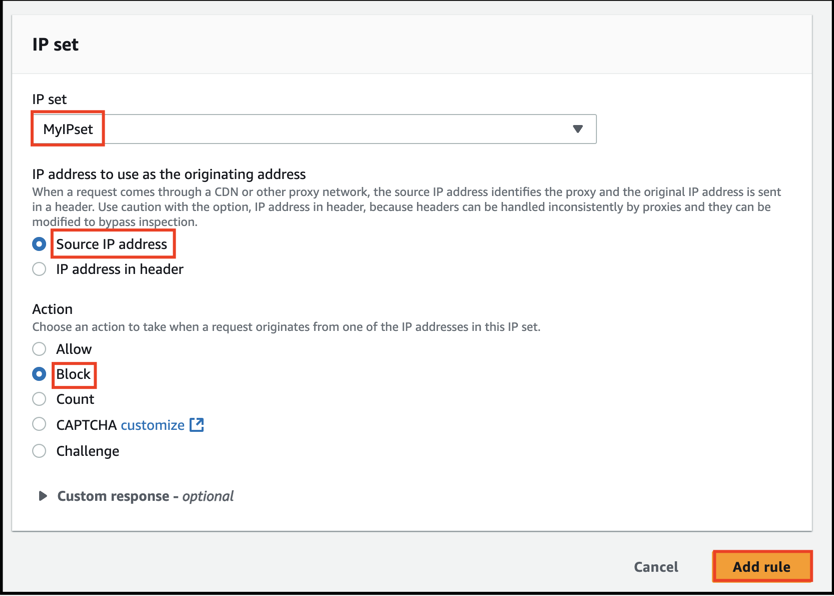
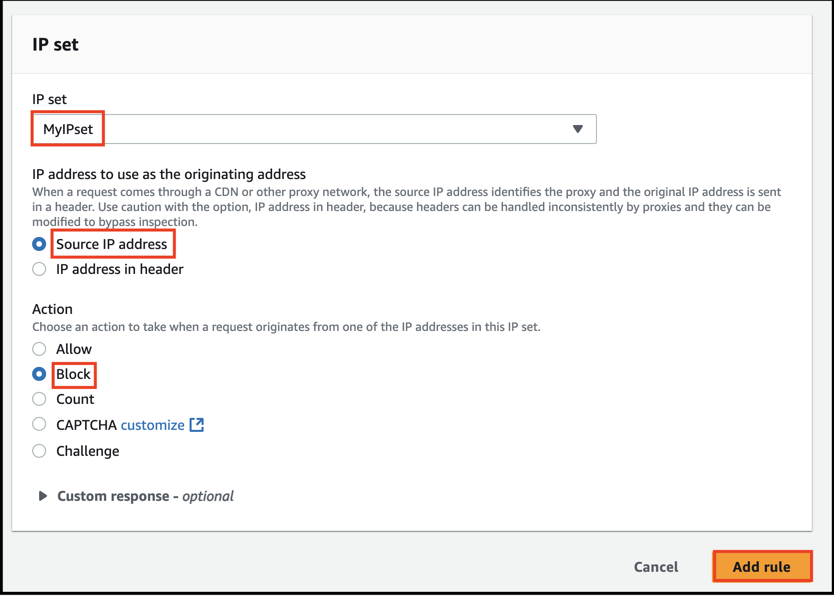
- In Rule type select IP set as shown below and fill in the details as given below: Rule type: Select IP set Name: Enter MywebACL-rule
IP set: select the IP set created Above ( MyIPset )
IP address to use as the originating address: Source IP address
Action: Select Block
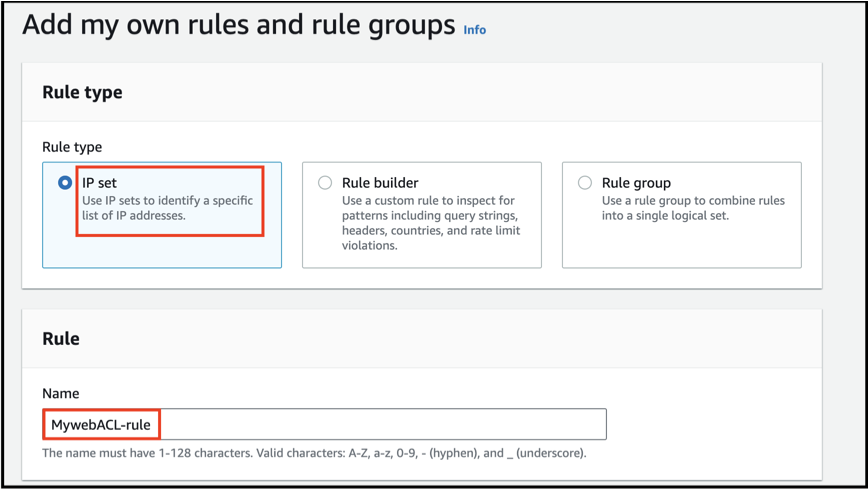
- In Rule type select IP set as shown below and fill in the details as given below:
- Rule type: Select IP set
- Name: Enter MywebACL-rule
- IP set: select the IP set created Above ( MyIPset )
- IP address to use as the originating address: Source IP address
- Action: Select Block
- Once you provide the above details, click on the Add rule.
- Task 7: Creating a Web ACL
- Lastly, click on the Next button
- Set rule priority
- Leave as default and click on Next.
- Configure metrics
- Leave as default and click on Next.
- Review and create web ACL
- Review all your inputs and click on Create web ACL
- Wait for 1 to 2 minutes until you will see that your web ACL is successfully created.
- Task 7: Creating a Web ACL
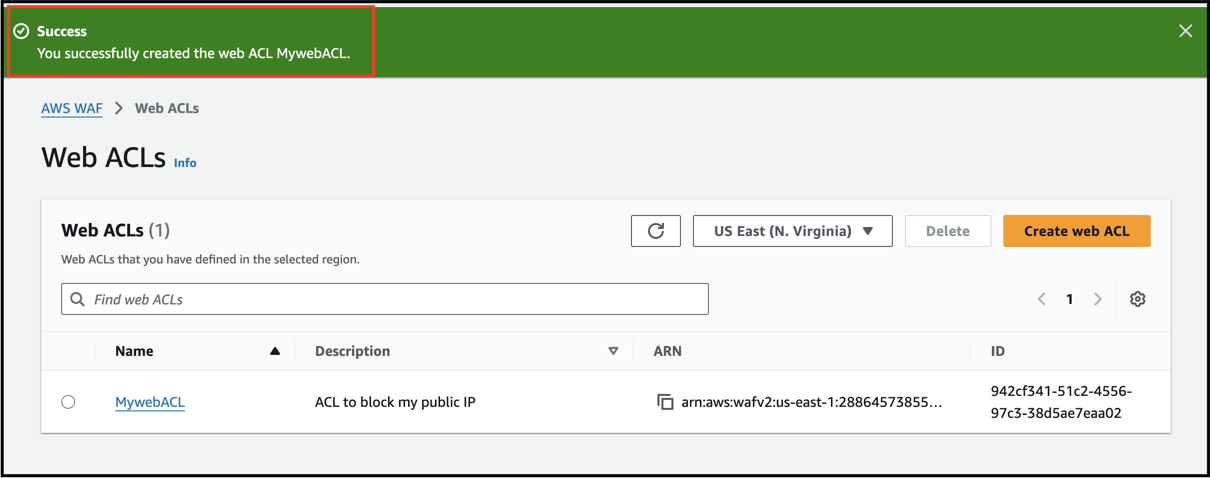
- You have successfully created a web ACL for ALB with the help of an IP set created with your public IP.
- To test the WAF, navigate to Load Balancers from the EC2 left menu under the sub-heading Load balancing
- Under the Load balancer section, select the Application load balancer Web-server-LB.
- Copy the DNS name Under details scroll down you will be able to see the DNS name copy it and paste it in your desired browser.
- Example: web-server-lb-1903855210.us-east-1.elb.amazonaws.com
- Task 8: Testing the working of the WAF

- You will get a 403 forbidden error showing that WAF blocked your connection to ALB.
- Task 8: Testing the working of the WAF

- Click on services and select WAF & Shield under the Security, Identity, & Compliance section.
- On the left side, Click IP sets menu.
- To unblock the IP, navigate to IP sets and click on MyIPset. Select your public IP and then click on Delete
- Task 9: Unblocking the IP

- Type delete in the confirmation box and click on Delete.
- You have successfully removed the IP from WAF.
- Wait for a few minutes.
- Navigate to Load Balancers from the EC2 left menu under the sub-heading Load balancing
- Under the Load balancer section, select the Application load balancer Web-server-LB.
- Copy the DNS name under Description and paste it into your desired browser.
- Example: web-server-lb-1903855210.us-east-1.elb.amazonaws.com
- You will get the response from the web servers either stating RESPONSE COMING FROM SERVER A or RESPONSE COMING FROM SERVER B as shown below:
- Task 9: Unblocking the IP

- Web Application Firewall (WAF): A Web Application Firewall is a security service that sits between a web application and its users, inspecting and filtering incoming web traffic. In the context of AWS, the AWS WAF service provides this functionality. It helps protect web applications by examining HTTP/HTTPS requests and applying a set of predefined rules or custom rule configurations to block, allow, or filter traffic based on specified criteria.
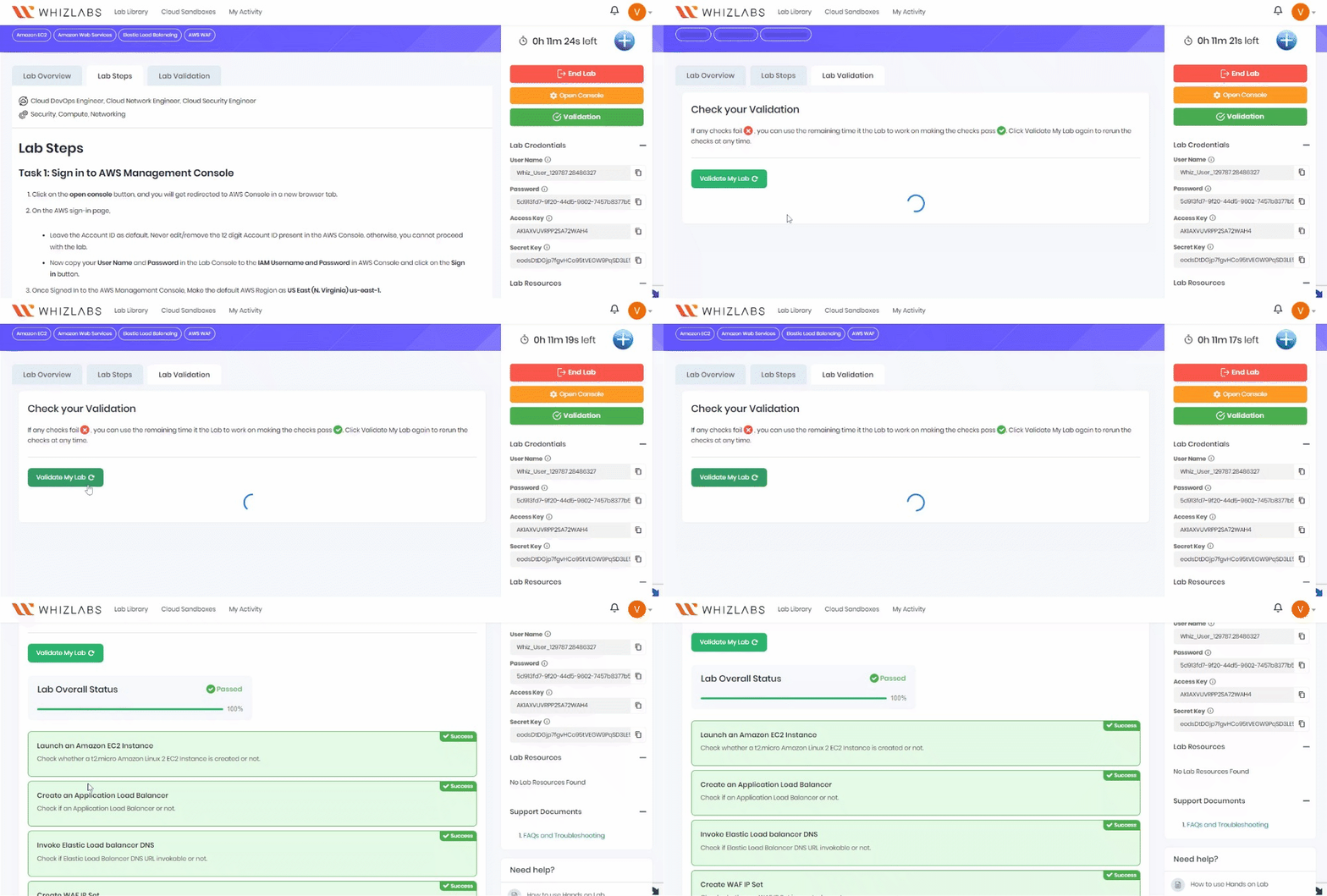
- Once the lab steps are completed, please click the validation button on the right side panel.
- This will validate the resources in the AWS account and display whether you have completed this lab successfully or not.
- Sample output :
- Task 10: Validation Test
- You have successfully created an IP set using your public IP.
- You have successfully created a web ACL rule using an IP set and application load balancer (ALB).
- You have successfully tested the working of the ALB after implementing a WAF, blocking the web request to the ALB from your local network.
- You deleted the IP set and tested the working of the ALB.
- Sign out from the AWS Account.
- You have successfully completed the lab.
- Once you have completed the steps click on end Lab from the lab console