Advanced01:00:00
AWS VPC NACL Lab - Case study
- Click on the Open Console button, and you will get redirected to AWS Console in a new browser tab.
- On the AWS sign-in page, Leave the Account ID as default. Never edit/remove the 12 digit Account ID present in the AWS Console. otherwise, you cannot proceed with the lab. Now copy your User Name and Password in the Lab Console to the IAM Username and Password in AWS Console and click on the Sign in button.
- On the AWS sign-in page,
- Leave the Account ID as default. Never edit/remove the 12 digit Account ID present in the AWS Console. otherwise, you cannot proceed with the lab.
- Now copy your User Name and Password in the Lab Console to the IAM Username and Password in AWS Console and click on the Sign in button.
- Once Signed In to the AWS Management Console, Make the default AWS Region as US East (N. Virginia) us-east-1.
- Navigate to VPC by clicking on the Services button on the top of the AWS Console.
- Click on VPC (under Networking & Content Delivery section) or you can also search for VPC.
- Click on Your VPCs from the left menu.
- Here you can see the list of all VPC. No need to do anything yet. We will create a new VPC for this lab.
- Click on Create VPC. Name tag: Enter MyVPC IPv4 CIDR block: Enter 10.0.0.0/16 IPv6 CIDR block: No need to change this, make sure No IPv6 CIDR Block is checked. Tenancy: No need to change this, just be sure Default is selected. Click on Create VPC.
- Click on Create VPC.
- Name tag: Enter MyVPC
- IPv4 CIDR block: Enter 10.0.0.0/16
- IPv6 CIDR block: No need to change this, make sure No IPv6 CIDR Block is checked.
- Tenancy: No need to change this, just be sure Default is selected.
- Click on Create VPC.
- Once the VPC is created, it will look like the example below:
- Task 2: Creating a New VPC

- Note: In this lab, we will create one public subnet and a private subnet in us-east-1a and us-east-1b Availability Zones.
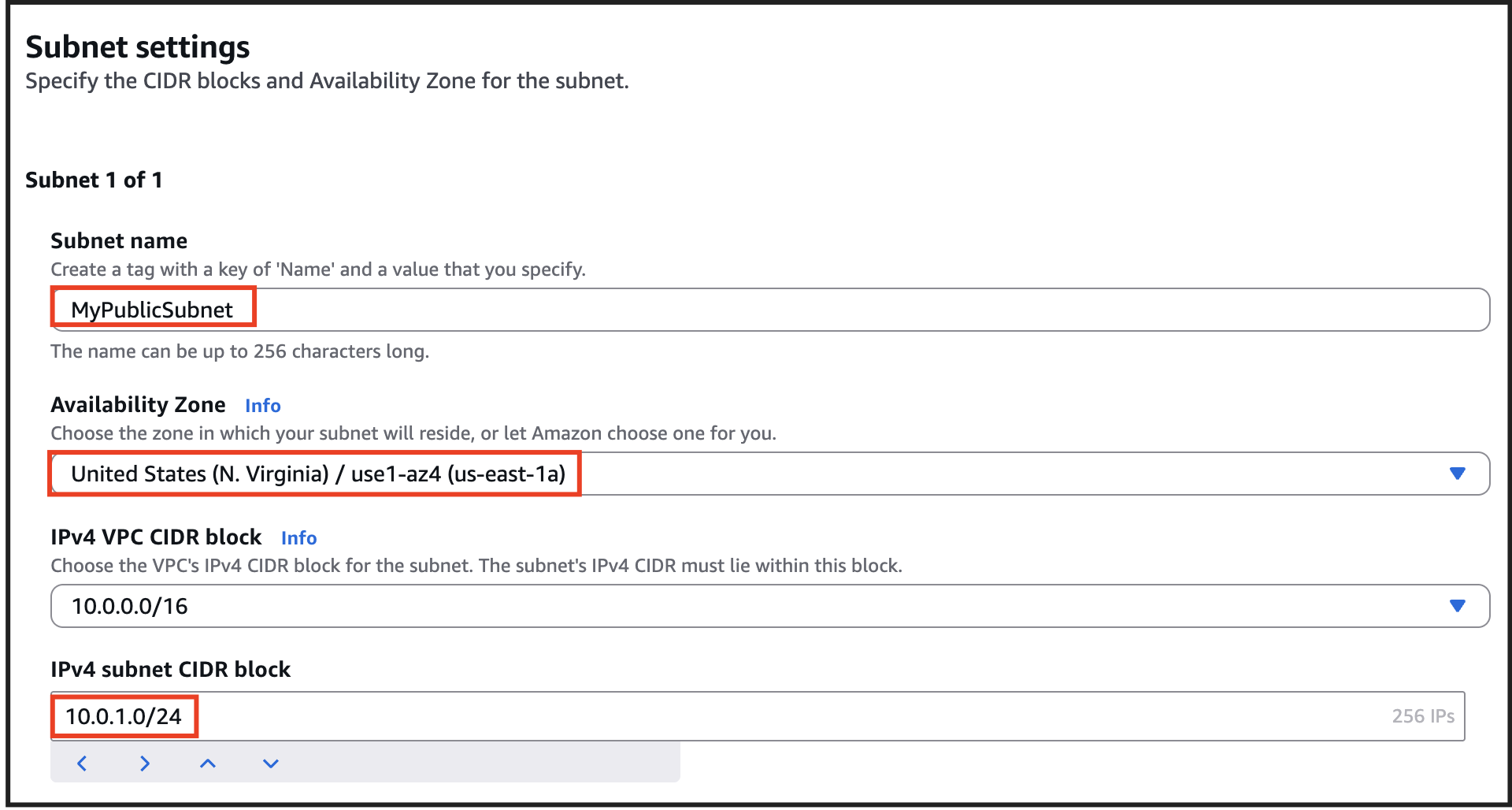
- For the Public Subnet, click on Subnets from the left menu and click on Create subnet. VPC ID : Select MyVPC from the list. Subnet Name : Enter MyPublicSubnet Availability Zone : Select us-east-1a IPv4 CIDR block : Enter the range 10.0.1.0/24 Click on Create Subnet
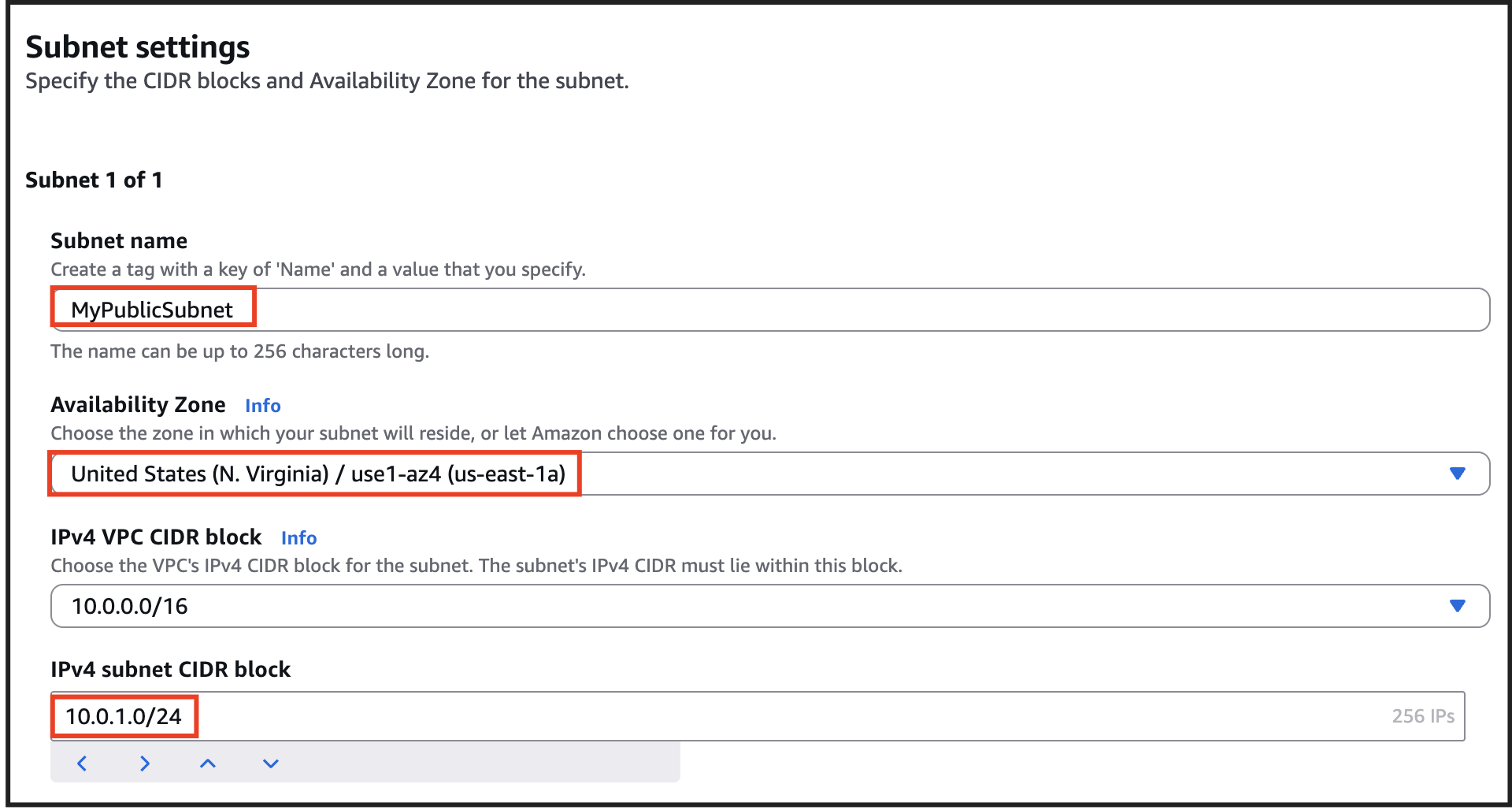
- For the Public Subnet, click on Subnets from the left menu and click on Create subnet.
- VPC ID : Select MyVPC from the list.
- Subnet Name : Enter MyPublicSubnet
- Availability Zone : Select us-east-1a
- IPv4 CIDR block : Enter the range 10.0.1.0/24
- Click on Create Subnet
- Task 3: Creating Subnets
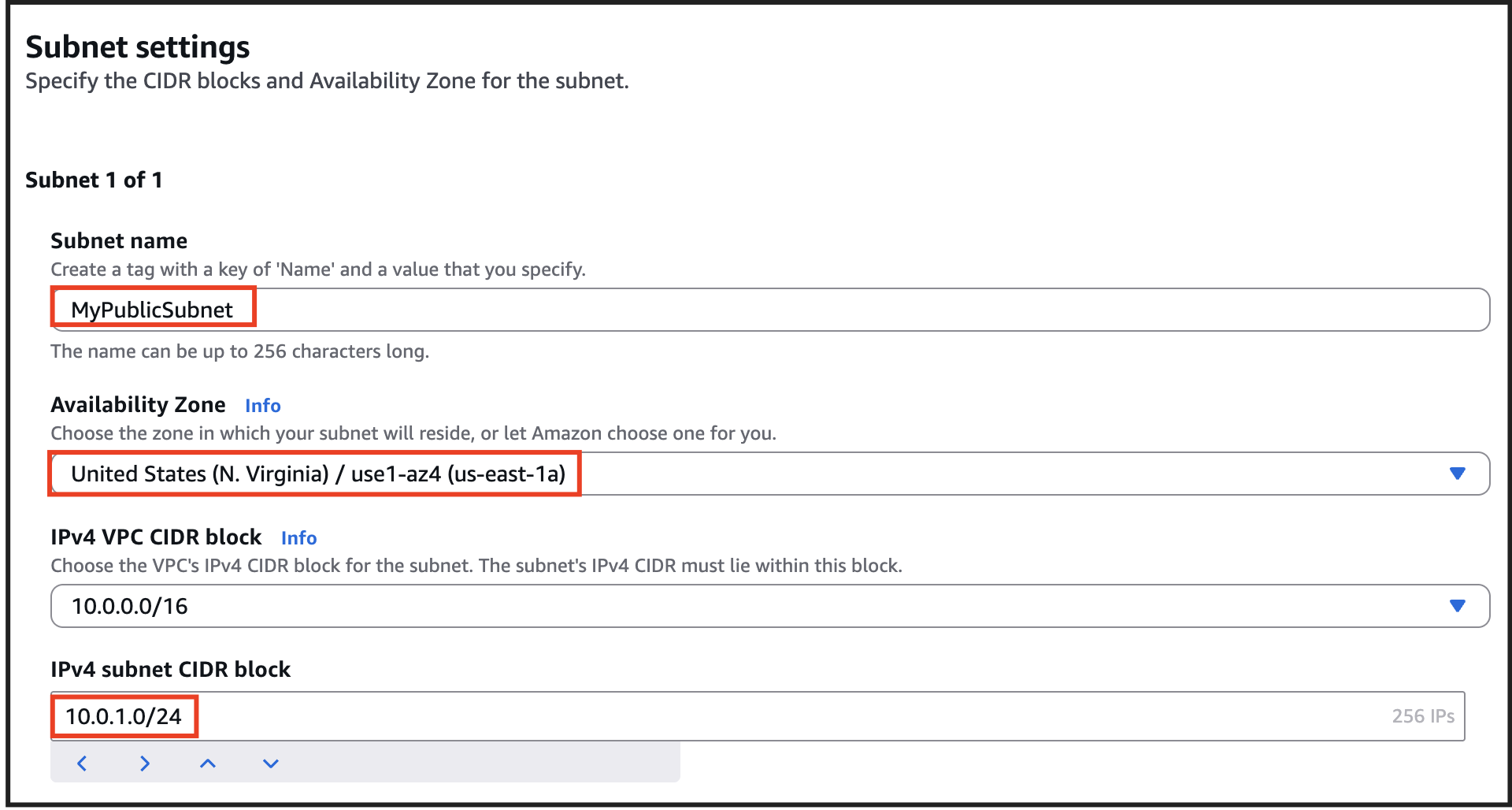
- For Private Subnet, click on Create Subnet again. VPC ID : Select MyVPC from the list. Subnet Name : Enter MyPrivateSubnet Availability Zone : Select us-east-1b IPv4 CIDR block : Enter the range 10.0.2.0/24 Click on Create subnet.
- For Private Subnet, click on Create Subnet again.
- VPC ID : Select MyVPC from the list.
- Subnet Name : Enter MyPrivateSubnet
- Availability Zone : Select us-east-1b
- IPv4 CIDR block : Enter the range 10.0.2.0/24
- Click on Create subnet.
- Task 3: Creating Subnets

- Note: By default, instances that are launched in a VPC cannot communicate with the Internet.
- To enable Internet access, an Internet gateway needed to be attached to the VPC.
- Click on Internet Gateways from the left menu and click Create Internet Gateway. Name Tag : Enter MyInternetGateway Click on Create Internet Gateway.
- Click on Internet Gateways from the left menu and click Create Internet Gateway.
- Name Tag : Enter MyInternetGateway
- Click on Create Internet Gateway.
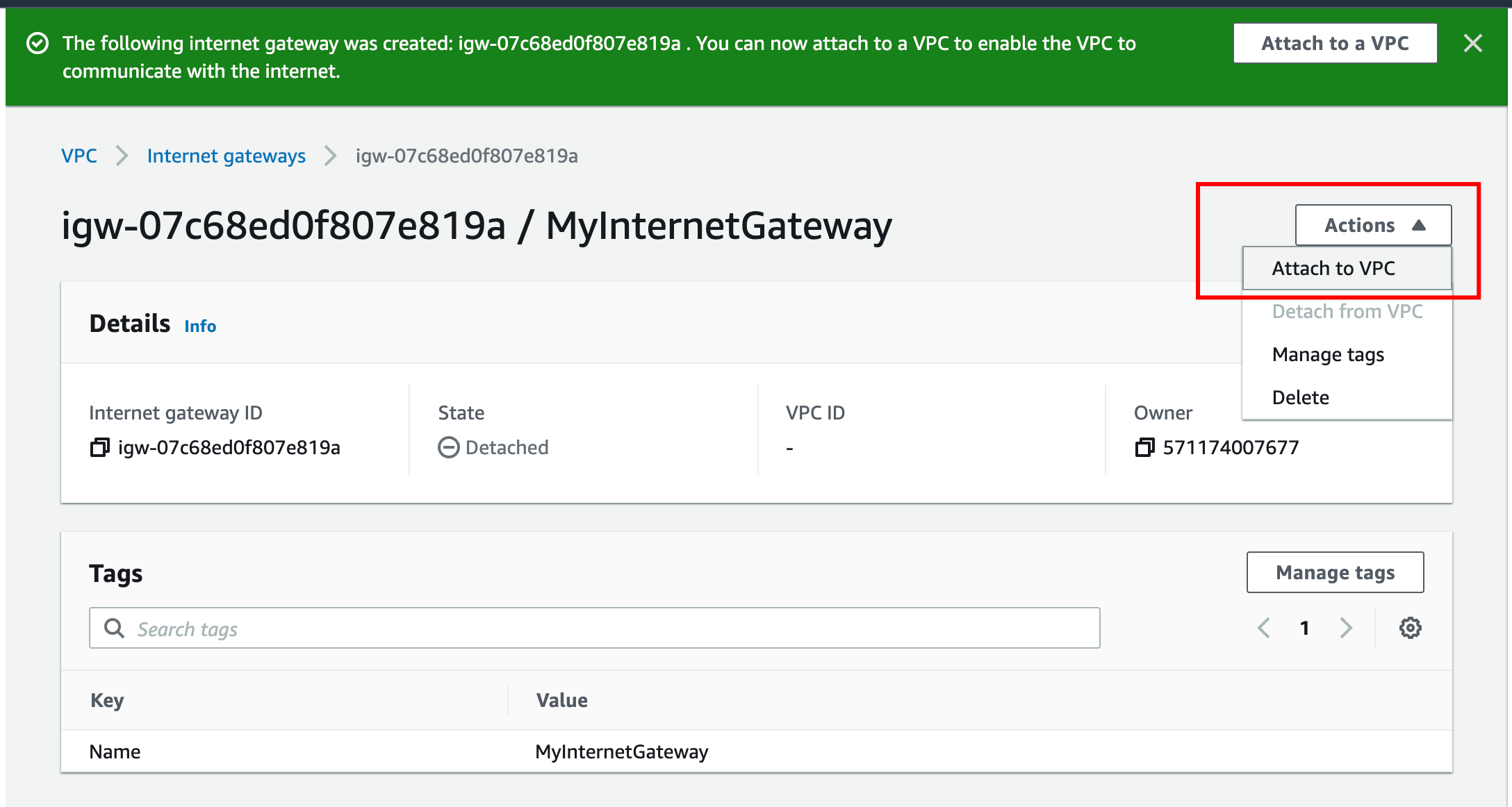
- Select the Internet gateway you created from the list. Click on Actions. Click on Attach to VPC. Select MyVPC and click on Attach to VPC.
- Select the Internet gateway you created from the list.
- Click on Actions.
- Click on Attach to VPC.
- Select MyVPC and click on Attach to VPC.
- Task 4: Create and attach an Internet Gateway
- Go to Route Tables from the left menu and click on Create route table. Name Tag: Enter PublicRouteTable. VPC: Select MyVPC from the list. Click on Create route table.
- Go to Route Tables from the left menu and click on Create route table.
- Name Tag: Enter PublicRouteTable.
- VPC: Select MyVPC from the list.
- Click on Create route table.
- We will be using the default (main) Route Table created by VPC for the RDS database tier.
- Task 5: Create Route Tables and Associate them it with Subnets

- You will be able to see the Route table with VPC ID MyVPC and Main as Yes
- Select the Route Table and rename it.
- Name Tag: Enter PrivateRouteTable and [Enter]
- Task 5: Create Route Tables and Associate them it with Subnets

- Now associate the subnets to the route tables.
- Click on PublicRouteTable and go to the Action and in that go to Edit Subnet Associations tab. Click on Edit Subnet Associations. Select MyPublicSubnet from the list. Click on Save Associations
- Click on PublicRouteTable and go to the Action and in that go to Edit Subnet Associations tab.
- Click on Edit Subnet Associations.
- Select MyPublicSubnet from the list.
- Click on Save Associations
- Click on PrivateRouteTable and go to the Action and in that go to Edit Subnet Associations tab. Click on Edit Subnet Associations. Select MyPrivateSubnet from the list. Click on Save Associations
- Click on PrivateRouteTable and go to the Action and in that go to Edit Subnet Associations tab.
- Click on Edit Subnet Associations.
- Select MyPrivateSubnet from the list.
- Click on Save Associations
- PublicRouteTable : Add a route to allow Internet traffic to the VPC.
- Select PublicRouteTable.
- Go to the Routes tab click on Edit routes. On the next page, click on Add route.
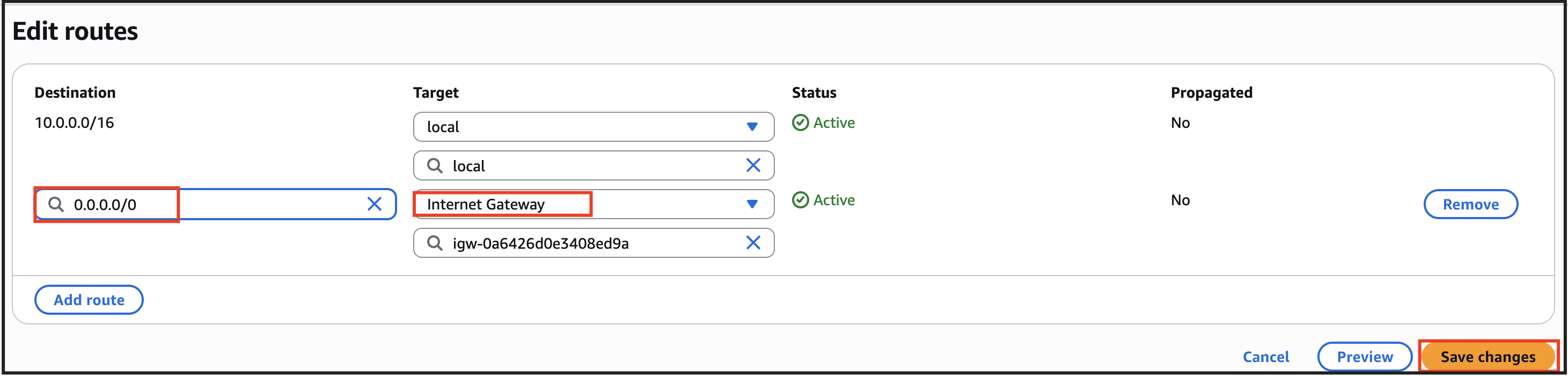
- Specify the following values: Destination: Enter 0.0.0.0/0 Target: Select Internet Gateway from the dropdown menu to select MyInternetGateway. Click on Save changes.
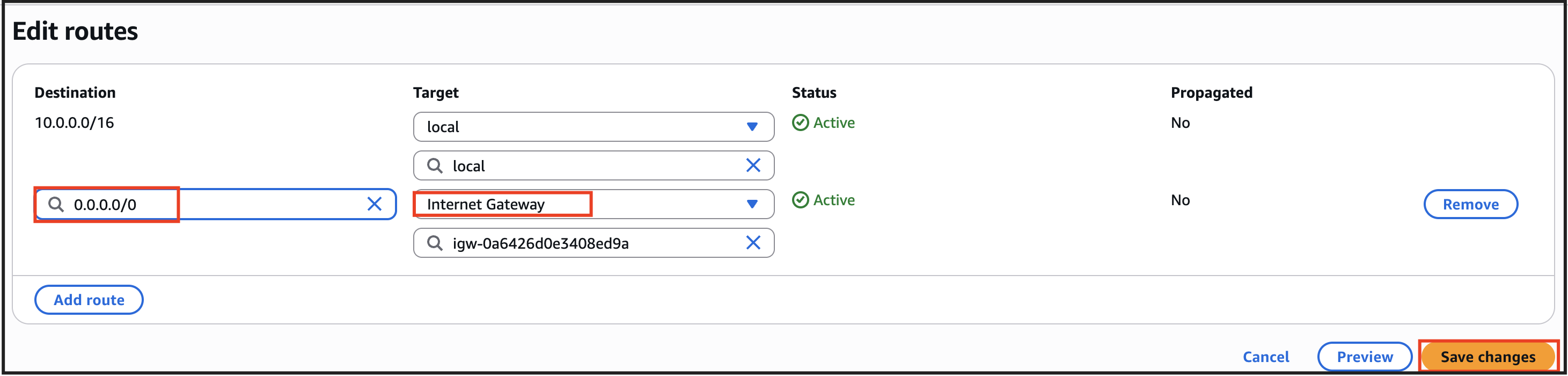
- Specify the following values:
- Destination: Enter 0.0.0.0/0
- Target: Select Internet Gateway from the dropdown menu to select MyInternetGateway.
- Task 6: Update Route Table and Configure the Internet Gateway
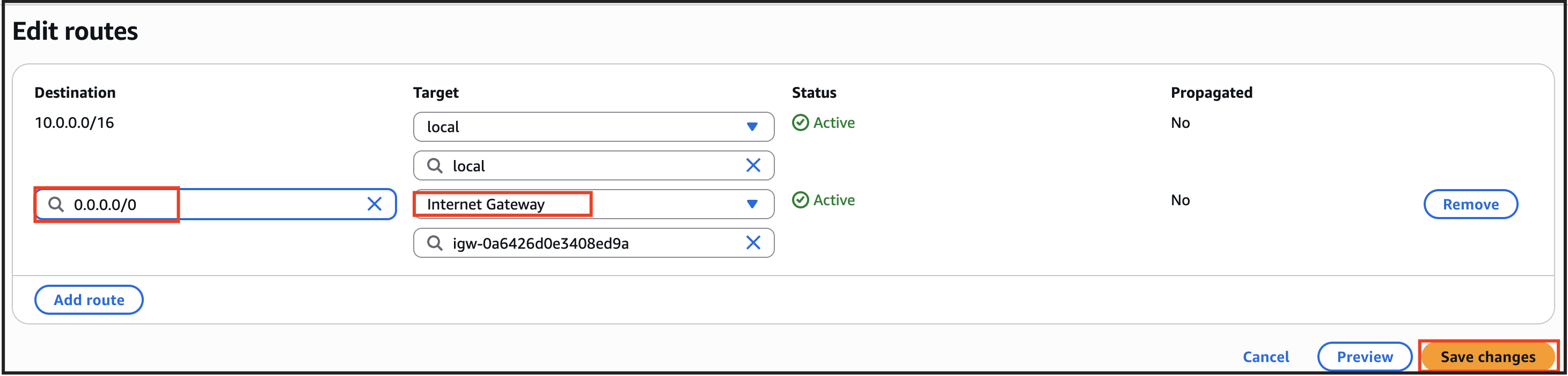
- Click on Save changes.
- Note: This setting will allow you to automatically assign public IP for all the EC2 instances launched in the public subnet
- Click on Subnets from the left menu on VPC.
- Select MyPublicSubnet from the Subnet list
- Click on Actions and then select Edit subnet settings
- Check the Enable Auto-assign IPv4 address check box
- Check the Enable resource name DNS A record on launch check box
- Now click on Save
- Navigate to EC2 by clicking on the Services menu in the top, then click on EC2 in the Compute section.
- Navigate to Instances from the left side menu and click on Launch Instance.
- Enter name as MyPublicEC2Server
- Choose an Amazon Machine Image (AMI): Select Amazon Linux 2023 AMI.
- Choose architecture as 64-bit(x86)
- Task 8: Launching an EC2 Instance in the Public Subnet
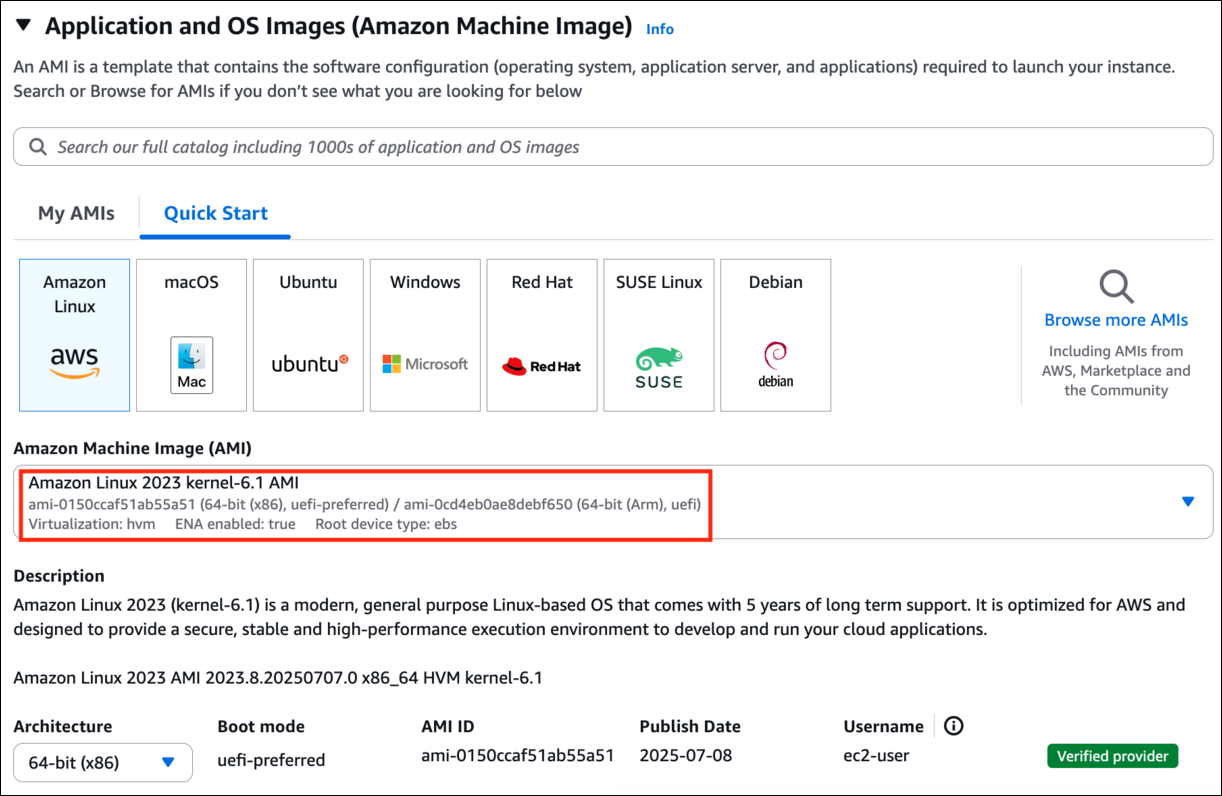
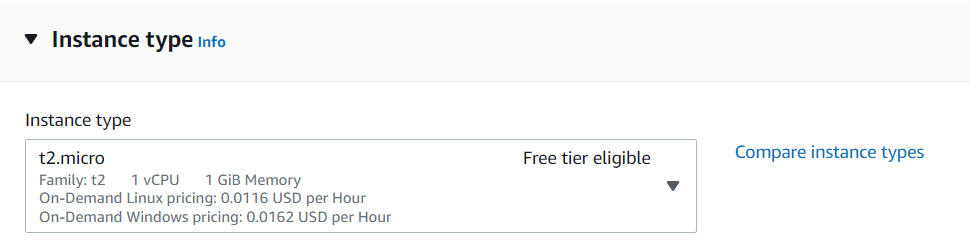
- Choose an Instance Type: Select t2.micro.
- Task 8: Launching an EC2 Instance in the Public Subnet
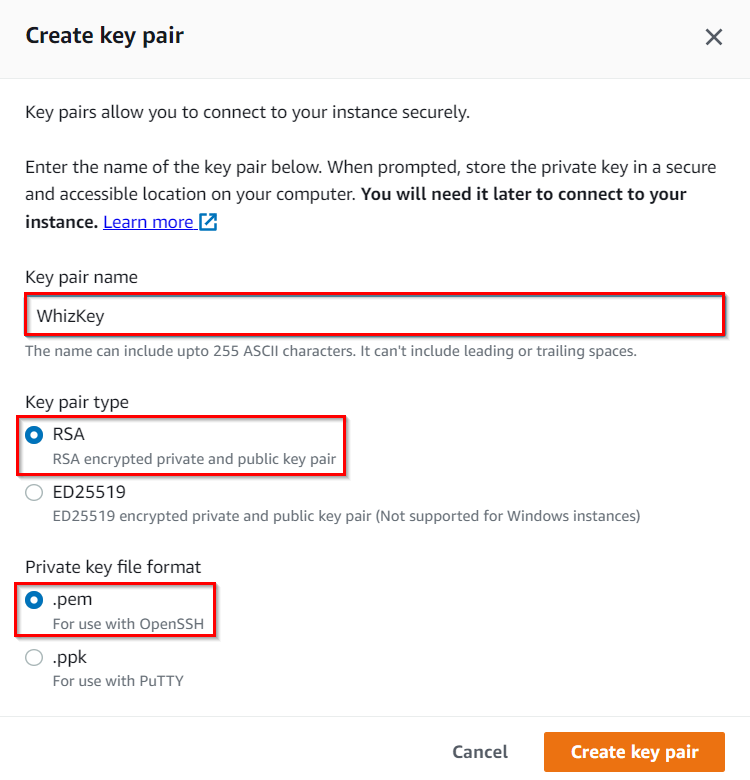
- For Key pair: Select Create a new key pair Button
- Key pair name: WhizKey
- Key pair type: RSA
- Private key file format: .pem
- Select Create key pair Button.
- Task 8: Launching an EC2 Instance in the Public Subnet
- In Network Settings Click on Edit Button:
- VPC : MyVPC
- Subnet : Choose MyPublicSubnet
- Auto-assign public IP: Enable
- Select Create new Security group
- Security group name : Enter MyWebserverSG
- Description : Enter My EC2 Security Group
- Check Allow SSH from and Select Anywhere from dropdown Choose Type: SSH Source: Anywhere
- Check Allow SSH from and Select Anywhere from dropdown
- Choose Type: SSH
- Source: Anywhere
- For HTTP, Select Add Security rule Button Choose Type: HTTP Source: Select Anywhere
- Choose Type: HTTP
- Source: Select Anywhere
- Under the Advanced Details, scroll down to the User data section, enter the following script to create an HTML page served by Apache:
- Keep Rest thing Default and Click on Launch Instance Button.
- Select View all Instances to View Instance you Created
- Launch Status: Your instance is now launching, Click on the instance ID and wait for complete initialization of the instance till status changes to Running.
- Click on Launch Instances again at the top right of the EC2 dashboard.
- Enter name as MyPrivateEC2Server
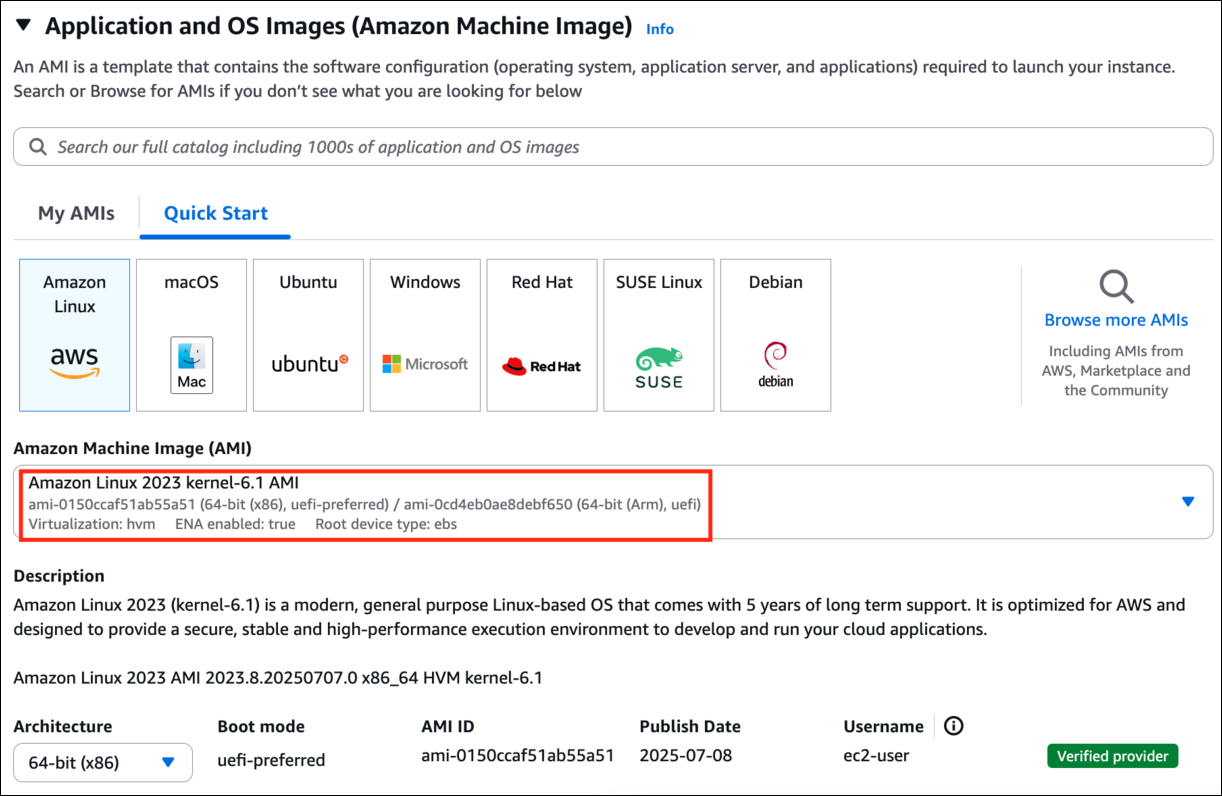
- Choose an Amazon Machine Image (AMI): Select Amazon Linux 2023 AMI.
- Choose architecture as 64-bit(x86)
- Task 9: Launching an EC2 Instance in the Private Subnet
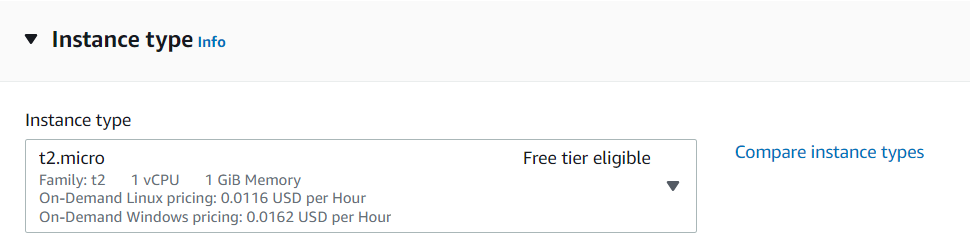
- Choose an Instance Type: Select t2.micro.
- Task 9: Launching an EC2 Instance in the Private Subnet
- For Key pair: Select the existing key pair.
- In Network Settings Click on Edit Button:
- VPC : MyVPC
- Subnet : Choose MyPrivateSubnet
- Auto-assign public IP: Disable
- Select Create new Security group
- Security group name : Enter MyServerSG
- Description : Enter My EC2 Security Group
- Check Allow SSH from and Select Anywhere from dropdown Choose Type: SSH Source: Select Anywhere
- Check Allow SSH from and Select Anywhere from dropdown
- Choose Type: SSH
- Source: Select Anywhere
- For ALL ICMP IPv4 , Select Add Security rule Button Choose Type: All ICMP IPv4. Source: Select Anywhere
- For ALL ICMP IPv4 , Select Add Security rule Button
- Choose Type: All ICMP IPv4.
- Source: Select Anywhere
- Keep Rest thing Default and Click on Launch Instance Button.
- Select View all Instances to View Instance you Created
- Note the Private IP Address of MyPrivateEC2Server.
- Two servers are launched and ready.
- Task 9: Launching an EC2 Instance in the Private Subnet

- Public EC2 instances: We have installed a web application on this server. Select the MyPublicEC2Server EC2 instance from the instance list. From the Description tab, copy the IPv4 Public IP. Now paste this IP in you Web Browser and click [Enter] You will be able to see the following page:
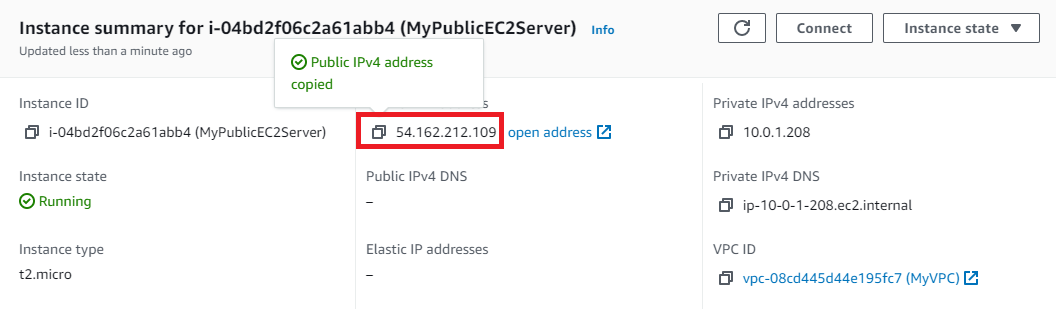

- Public EC2 instances: We have installed a web application on this server.
- Select the MyPublicEC2Server EC2 instance from the instance list.
- From the Description tab, copy the IPv4 Public IP.
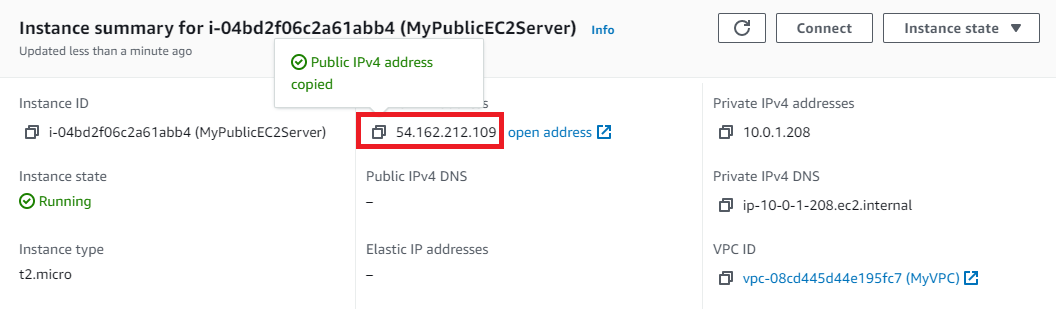
- Now paste this IP in you Web Browser and click [Enter]
- You will be able to see the following page:

- Next, we will try to ping the Private EC2 from the Public EC2 instance. SSH into EC2 Instance Please follow the steps in SSH into EC2 Instance. Once connected to the server: Change to root user:
- Next, we will try to ping the Private EC2 from the Public EC2 instance.
- SSH into EC2 Instance Please follow the steps in SSH into EC2 Instance.
- SSH into EC2 Instance
- Please follow the steps in SSH into EC2 Instance.
- Once connected to the server: Change to root user:
- Once connected to the server:
- Change to root user:
- Copy the Private IP of MyPrivateEC2Server from the Description tab.
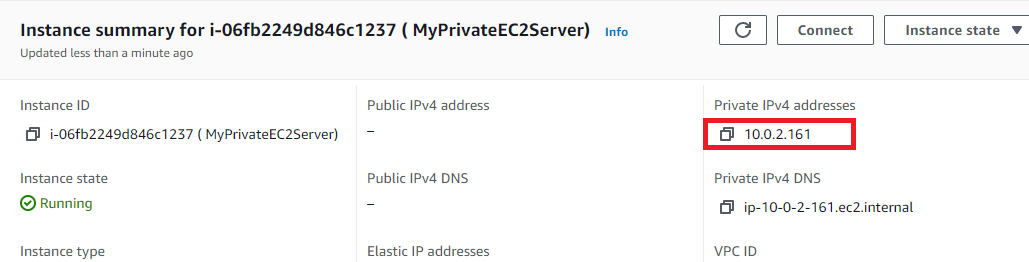
- Ping the Private Instance using the Private IPv4. ping <Private IP address>
- Example: ping 10.0.2.161
- Task 10: Testing Both EC2 instances
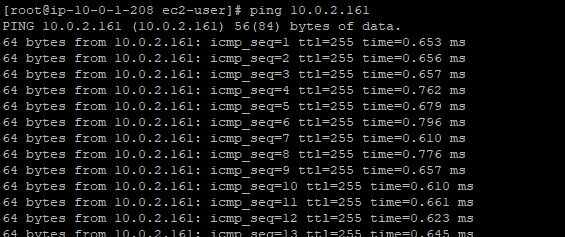
- Press [Ctrl] + C to stop instead of pause.
- Note: You were able to do these tasks because the Default NACL that was created during VPC creation allows both INBOUND and OUTBOUND by Default.
- Note: By default, both subnets will be associated with the Default NACL of MyVPC. Once you create a custom NACL and attach it to the public subnet and private Subnet.
- Navigate to VPC under the Services menu. Click on Network ACLs under Security
- Click on Create Network ACL
- Create Network ACL: Name tag: Enter MyPublicNACL VPC: Select MyVPC from the dropdown list. Click on Create.
- Create Network ACL:
- Name tag: Enter MyPublicNACL
- VPC: Select MyVPC from the dropdown list.
- Click on Create.
- Associating MyPublicNACL to the Public Subnet Select the Action tab and click on Edit subnet associations Select both the Public and Private subnets from the table. Click on Save changes
- Associating MyPublicNACL to the Public Subnet
- Select the Action tab and click on Edit subnet associations
- Select both the Public and Private subnets from the table.
- Click on Save changes
- Renaming the Main NACL Select the Default NACL of the VPC MyVPC Enter the name MyPrivateNACL and click on Save

- Renaming the Main NACL
- Select the Default NACL of the VPC MyVPC

- Enter the name MyPrivateNACL and click on Save
- Public EC2 Instance: Navigate to the EC2 Instance Dashboard. Click on Instances from the left side menu. Select the MyPublicEC2Server EC2 instance from the instance list.
- Public EC2 Instance:
- Navigate to the EC2 Instance Dashboard. Click on Instances from the left side menu.
- Select the MyPublicEC2Server EC2 instance from the instance list.
- Task 12: Testing the Public and Private Server
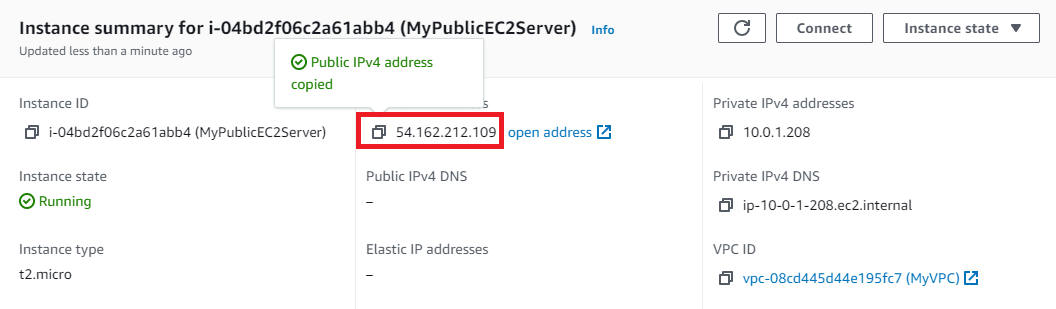
- From the Description tab, copy the IPv4 Public IP.
- Now paste this IP into your web browser and click [Enter]
- You will see the following page:
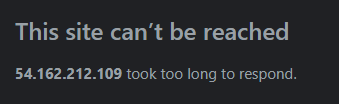
- Note: This is because the Custom NACL which is attached to your Public subnet restricts both INBOUND and OUTBOUND traffic.
- Private EC2 Instance: Since the Public NACL restricts all traffic, you won't be able to SSH into the public EC2 Instance to ping the Private Instance. Next, we are going to solve this.
- Private EC2 Instance:
- Since the Public NACL restricts all traffic, you won't be able to SSH into the public EC2 Instance to ping the Private Instance.
- Next, we are going to solve this.
- Navigate to VPC under the Services menu. Click on Network ACLs under Security.
- Select MyPublicNACL from the list.
- In the Inbound rules, click Edit inbound rules
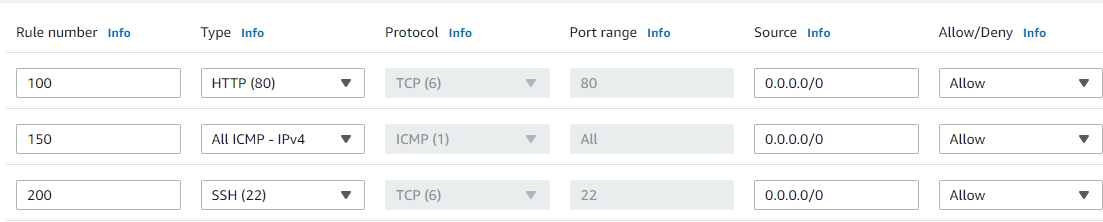
- Add the following rules: HTTP click on Add rules, Rule# : Enter 100 Type: Choose HTTP (80) Source: Enter 0.0.0.0/0 Allow / Deny: Select Allow For ALL ICMP- IPv4, click on Add rules, Rule# : Enter 150 Type: Choose ALL ICMP - IPv4 Source: Enter 0.0.0.0/0 Allow / Deny: Select Allow For SSH, click on Add rules, Rule# : Enter 200 Type: Choose SSH (22) Source: Enter 0.0.0.0/0 Allow / Deny: Select Allow Click on Save changes
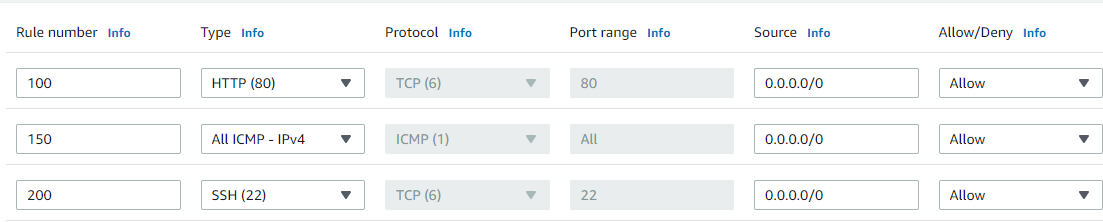
- Add the following rules:
- HTTP click on Add rules, Rule# : Enter 100 Type: Choose HTTP (80) Source: Enter 0.0.0.0/0 Allow / Deny: Select Allow
- HTTP click on Add rules,
- Rule# : Enter 100
- Type: Choose HTTP (80)
- Source: Enter 0.0.0.0/0
- Allow / Deny: Select Allow
- For ALL ICMP- IPv4, click on Add rules, Rule# : Enter 150 Type: Choose ALL ICMP - IPv4 Source: Enter 0.0.0.0/0 Allow / Deny: Select Allow
- For ALL ICMP- IPv4, click on Add rules,
- Rule# : Enter 150
- Type: Choose ALL ICMP - IPv4
- Source: Enter 0.0.0.0/0
- Allow / Deny: Select Allow
- For SSH, click on Add rules, Rule# : Enter 200 Type: Choose SSH (22) Source: Enter 0.0.0.0/0 Allow / Deny: Select Allow Click on Save changes
- For SSH, click on Add rules,
- Rule# : Enter 200
- Type: Choose SSH (22)
- Source: Enter 0.0.0.0/0
- Allow / Deny: Select Allow
- Click on Save changes
- In the Outbound rules Tab, Click Edit outbound rules
- Add the following rules: Custom Port is already available, Rule# : Enter 100 Type: Choose Custom TCP Rule Port Range: Enter 1024 - 65535 Source: Enter 0.0.0.0/0 Allow / Deny: Select Allow For ALL ICMP- IPv4, click on Add rules, Rule# : Enter 150 Type: Choose ALL ICMP - IPv4 Source: Enter 0.0.0.0/0 Allow / Deny: Select Allow For SSH, click on Add rules , Rule# : Enter 200 Type: Choose SSH (22) Source: Enter 0.0.0.0/0 Allow / Deny: Select Allow Click on Save

- Add the following rules:
- Custom Port is already available, Rule# : Enter 100 Type: Choose Custom TCP Rule Port Range: Enter 1024 - 65535 Source: Enter 0.0.0.0/0 Allow / Deny: Select Allow
- Custom Port is already available,
- Rule# : Enter 100
- Type: Choose Custom TCP Rule
- Port Range: Enter 1024 - 65535
- Source: Enter 0.0.0.0/0
- Allow / Deny: Select Allow
- For ALL ICMP- IPv4, click on Add rules, Rule# : Enter 150 Type: Choose ALL ICMP - IPv4 Source: Enter 0.0.0.0/0 Allow / Deny: Select Allow
- For ALL ICMP- IPv4, click on Add rules,
- Rule# : Enter 150
- Type: Choose ALL ICMP - IPv4
- Source: Enter 0.0.0.0/0
- Allow / Deny: Select Allow
- For SSH, click on Add rules , Rule# : Enter 200 Type: Choose SSH (22) Source: Enter 0.0.0.0/0 Allow / Deny: Select Allow

- For SSH, click on Add rules ,
- Rule# : Enter 200
- Type: Choose SSH (22)
- Source: Enter 0.0.0.0/0
- Allow / Deny: Select Allow

- Click on Save
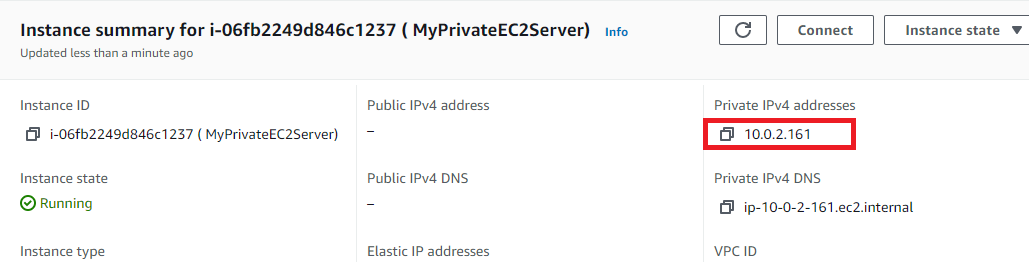
- We will try to ping the Private EC2 from the Public EC2 instance. SSH into EC2 Instance Please follow the steps in SSH into EC2 Instance. Once connected to the server: Change to root user:sudo su Copy the Private IP of MyPrivateEC2Server from the Description tab. Ping to the Private Instance using the Private IPv4. ping <Private IP address> Example:
- We will try to ping the Private EC2 from the Public EC2 instance.
- SSH into EC2 Instance Please follow the steps in SSH into EC2 Instance.
- SSH into EC2 Instance
- Please follow the steps in SSH into EC2 Instance.
- Once connected to the server: Change to root user:sudo su
- Once connected to the server:
- Change to root user:sudo su
- Change to root user:
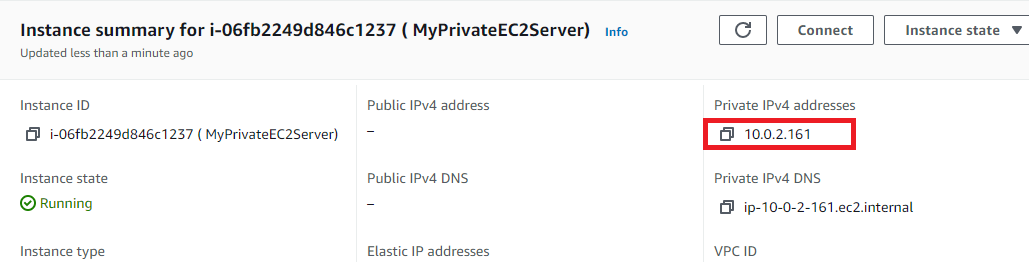
- Copy the Private IP of MyPrivateEC2Server from the Description tab.
- Task 14: Testing Both EC2 instances
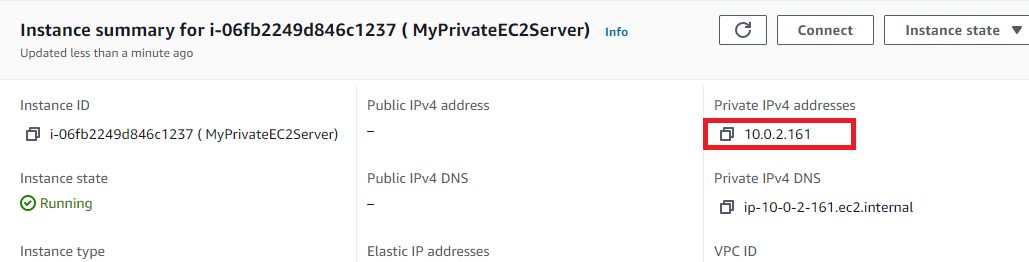
- Ping to the Private Instance using the Private IPv4. ping <Private IP address> Example:
- Ping to the Private Instance using the Private IPv4. ping <Private IP address>
- Example:
- Task 14: Testing Both EC2 instances
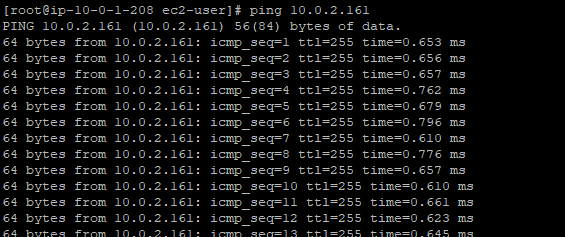
- Press [Ctrl] + C again to cancel the process instead of pausing it.
- Note: You were able to do these tasks because we added NACL Rules.
- By participating in the AWS VPC NACL Lab, users acquire a range of practical skills and knowledge, including the ability to create NACLs, define rule sets for specific subnets, evaluate traffic patterns, implement allow and deny rules, and analyze the impact of NACL configurations on network communication. Additionally, participants gain insight into optimizing NACL configurations for different use cases, securing sensitive workloads, and mitigating potential security risks within their AWS VPCs.
- Once the lab steps are completed, please click on the Validation button on the Right side panel.
- This will validate the resources in the AWS account and shows you whether you have completed this lab successfully or not.
- Sample output :
- Task 15: Validation Test
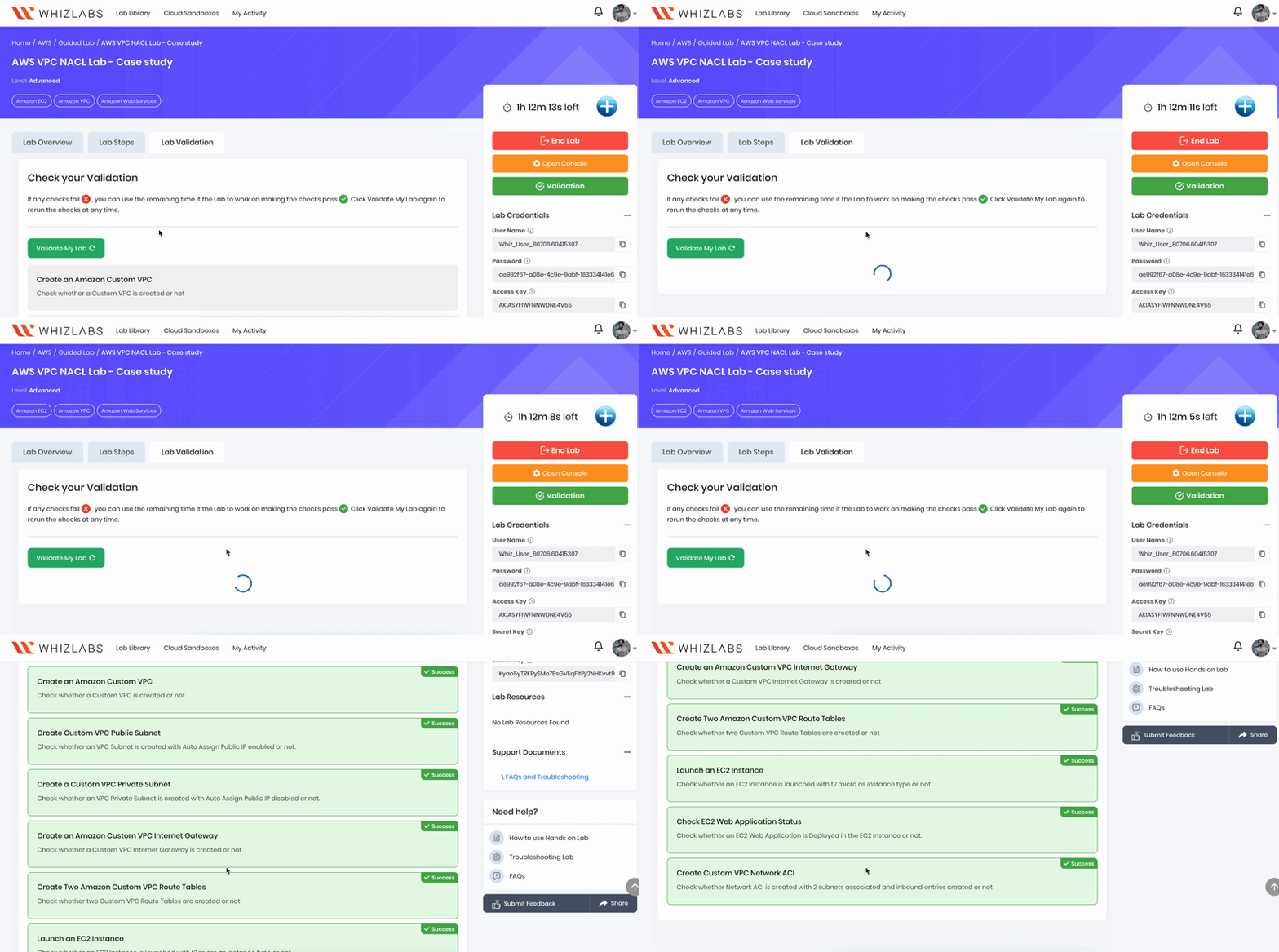
- You have created a VPC using the VPC Wizard.
- You have created an Internet Gateway.
- You have created a private and public subnet for the VPC.
- You have created and associated Route tables.
- You have added routes to the Route table
- You have launched some EC2 instances into the Public and Private subnets.
- You have created a Custom NACL.
- You have associated the NACL with the subnets.
- You added inbound and outbound rules to the custom NACL.
- You have tested our VPC.
- Sign out of AWS Account.
- You have successfully completed the lab.
- Once you have completed the steps, click on End Lab from the lab console.